VS Code
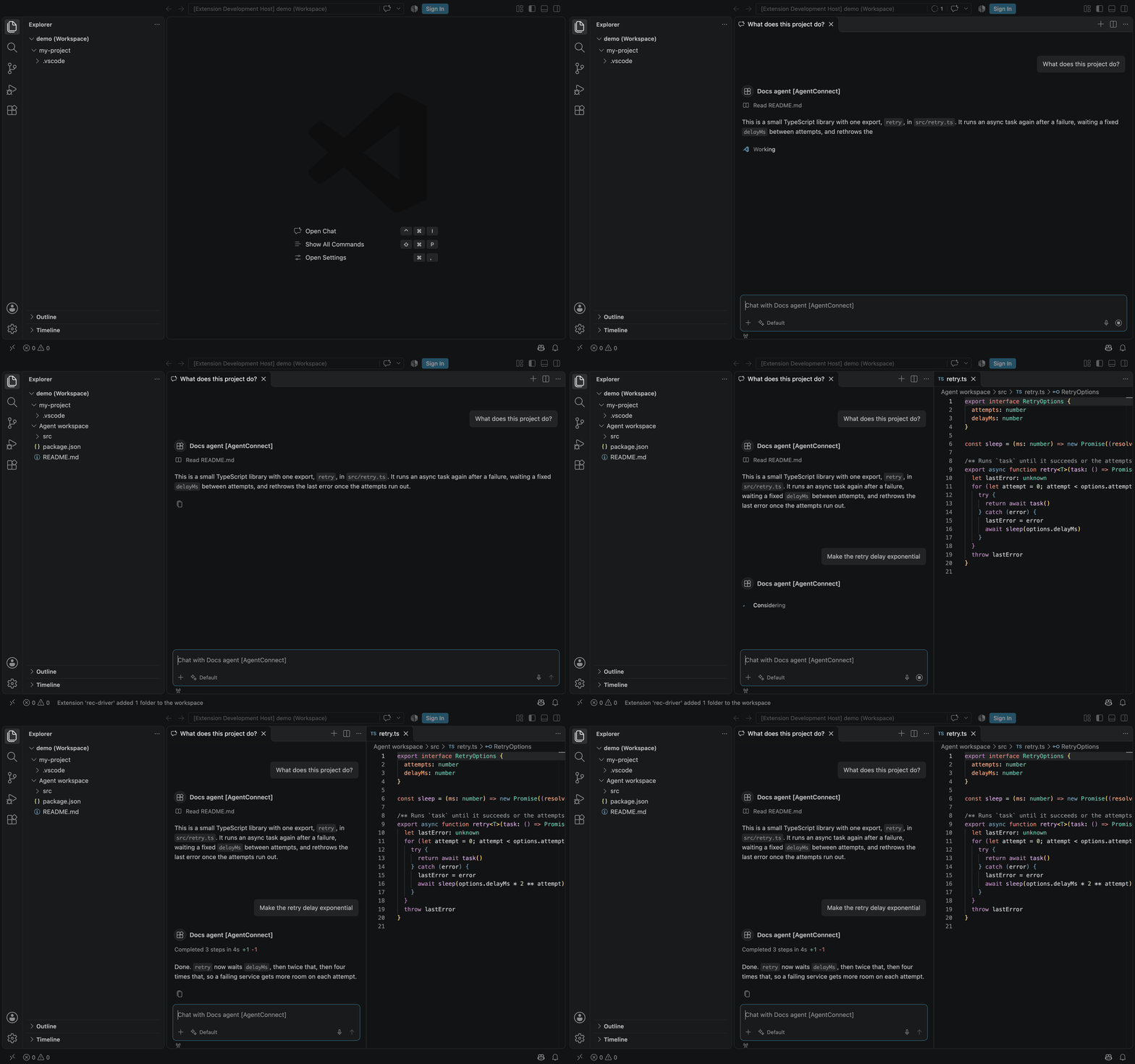
Chat with an agent from VS Code, read the files in its workspace, and review its edits as whole-file diffs.
Each AgentConnect agent acts as an Agent Host Protocol (AHP) host, so you can connect to it from VS Code as a remote agent host. You can chat with the agent inside VS Code, review edits as diffs, and browse files in its workspace. The agent keeps running on its existing daemon; VS Code simply provides another interface to it. If you want to put an agent behind your own chat UI instead, see Choose a protocol.
This feature is in preview. Because VS Code doesn't have built-in sign-in for AgentConnect and the extension relies on a proposed VS Code API, it isn't on the Marketplace yet and must be installed manually from a VSIX file.
Setup takes four steps:
- Add the AHP API to the agent.
- Install the AgentConnect extension.
- Add the agent's endpoint to VS Code.
- Sign in.
Add the API to the agent
An agent only accepts AHP clients after its owner adds the API. Before starting, verify that the agent's daemon is running v2.14.0 or later (upgrade it if needed).
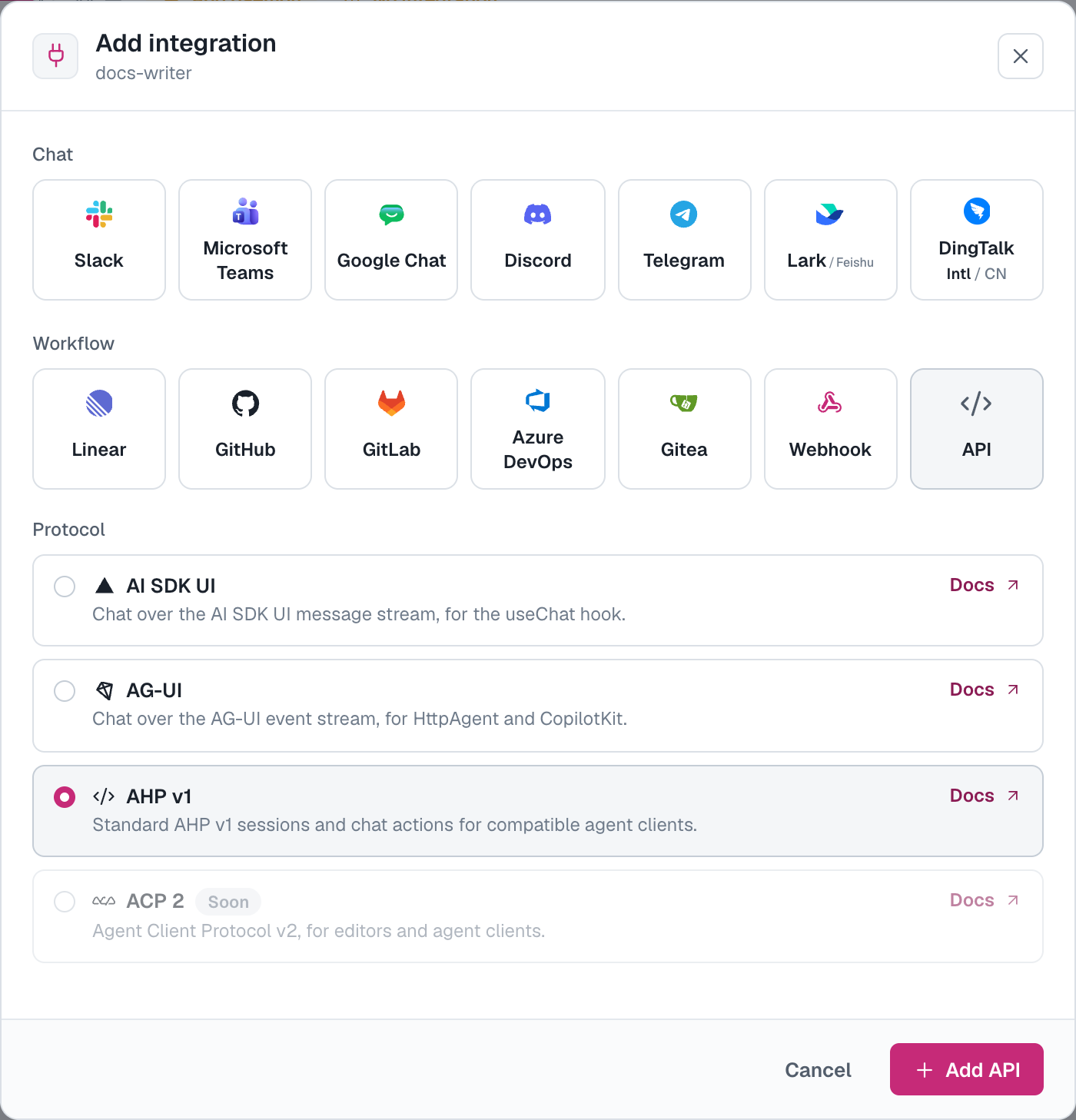
- In the console, open the agent and go to its Integrations tab.
- Click Add integration and select API under Workflow.
- Under Protocol, choose AHP v1.
- Click Add API.
The protocol may display a status badge:
| Badge | What it means |
|---|---|
| None | Every member who can view the agent can connect. |
| Pilot | You can add the API, but only members approved for the pilot can connect. |
| Disabled | AHP is turned off on this deployment and can't be selected. On AgentConnect OSS, enable it first. |
The Integrations tab now shows an API card. Open Quickstart and copy the WebSocket endpoint to use in VS Code:
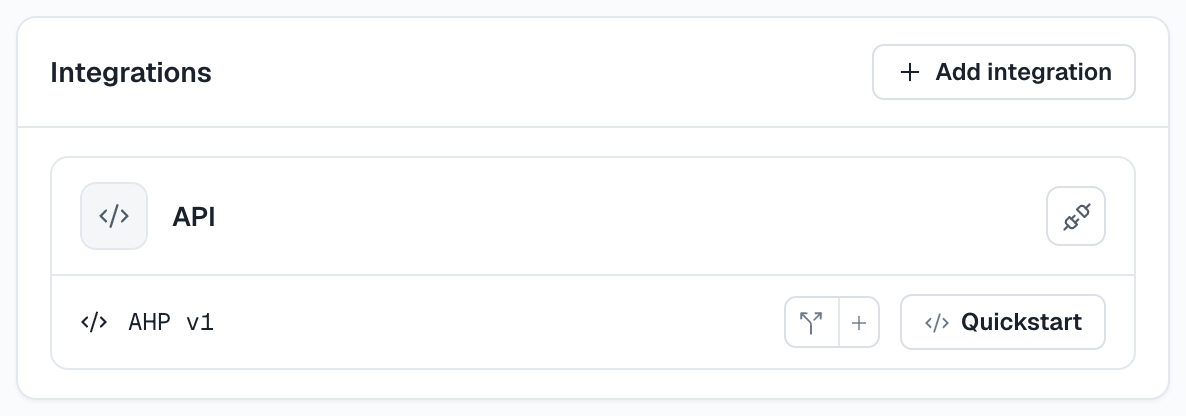
wss://<relay-url>/ahp/agents/<agent-id>Each agent has its own endpoint, so add the API to every agent you want to open in VS Code.
Install the extension
Every stable AgentConnect release from v2.15.0 onward includes the extension as a VSIX file.
-
Download
agentconnect-vscode.vsix. This link always points to the latest release. -
Install the VSIX. In VS Code, run Extensions: Install from VSIX... from the Command Palette and select the file, or run this command in a terminal:
code --install-extension agentconnect-vscode.vsix -
Allow the extension to use the proposed API. Run Preferences: Configure Runtime Arguments from the Command Palette and add this entry to
argv.json:{ "enable-proposed-api": ["agentconnect.agentconnect-vscode"] } -
Restart VS Code.
To try it out without editing argv.json, launch VS Code once with this flag:
code --enable-proposed-api=agentconnect.agentconnect-vscodeThe extension doesn't auto-update. To update it later, download the latest VSIX and install it over the existing version.
Add the agent to VS Code
In a folder you trust, add the endpoint to .vscode/settings.json:
{
  "chat.workspaceRemoteAgentHosts": [
    { "name": "AgentConnect", "address": "wss://<relay-url>/ahp/agents/<agent-id>" }
  ]
}
Start a new chat and pick the agent as the session type. It appears under its own name, followed by the label you gave the entry.
For VS Code's Agents window, run Add Remote Agent Host... from the Command Palette or configure chat.remoteAgentHosts in your user settings. Standard editor windows only read the workspace setting.
The address doesn't accept query strings, so you can't put keys or tokens in the URL.
Sign in
Run AgentConnect: Sign In to an Agent from the Command Palette. Your browser opens the AgentConnect console, where you sign in (if prompted) and approve VS Code's access to the agent. VS Code then connects and replaces the placeholder in the chat session picker with the agent's name.
- Your sign-in stays active until you run AgentConnect: Sign Out or disconnect VS Code under Profile in the console.
- Each agent has its own endpoint and requires a separate approval.
- Sign in to only one agent per organization at a time. If you sign in to two agents in the same organization, VS Code sends the newer credential to both, and the first agent rejects it.
What you see
Chat
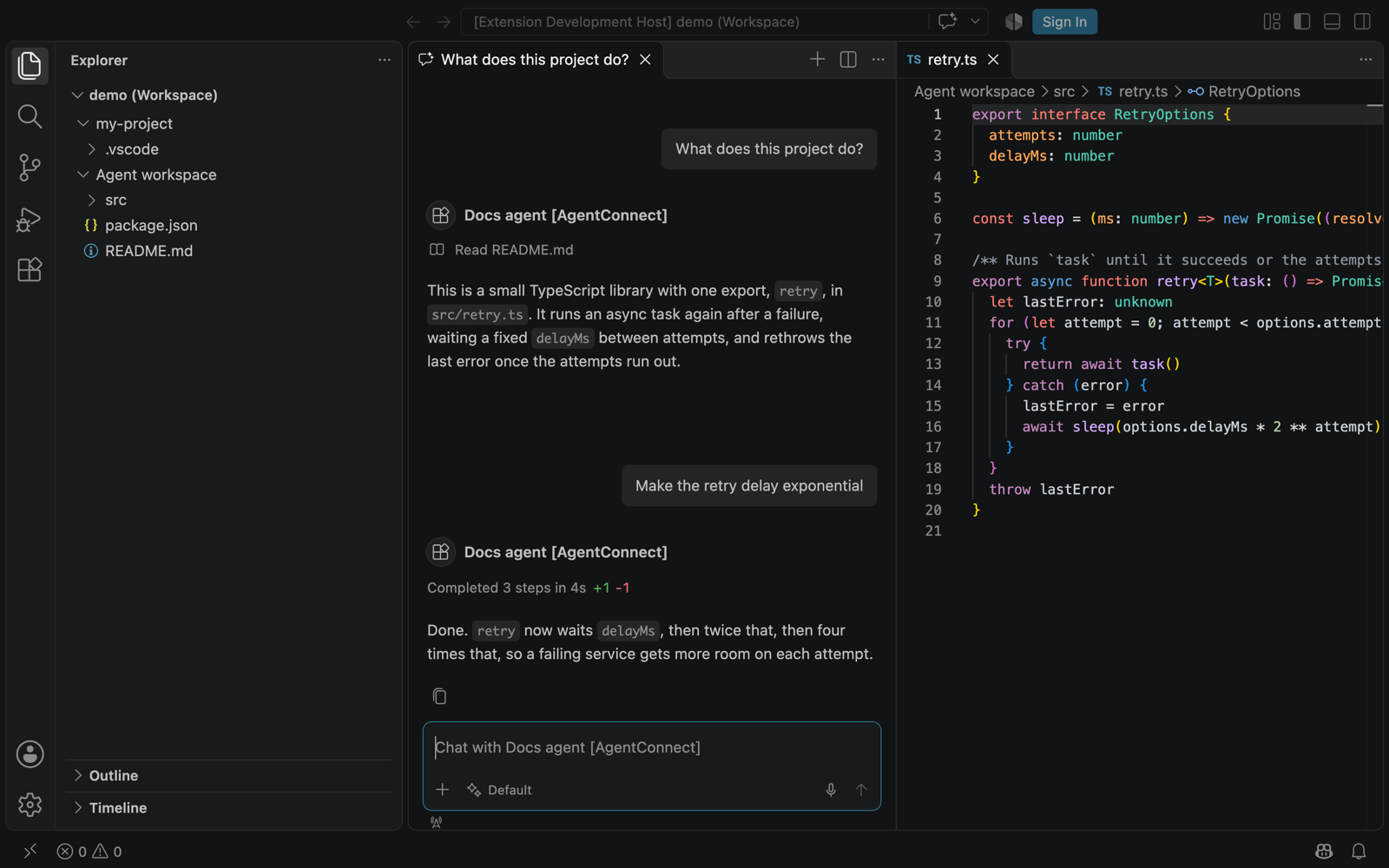
Each chat opens a session on that agent, showing its replies, tool calls, and edits in real time.
- The agent always uses its configured model. VS Code's model picker shows a single entry, and selecting a different model has no effect.
- Only one image per message is sent to the agent. Other attachments are ignored.
Edits as whole-file diffs
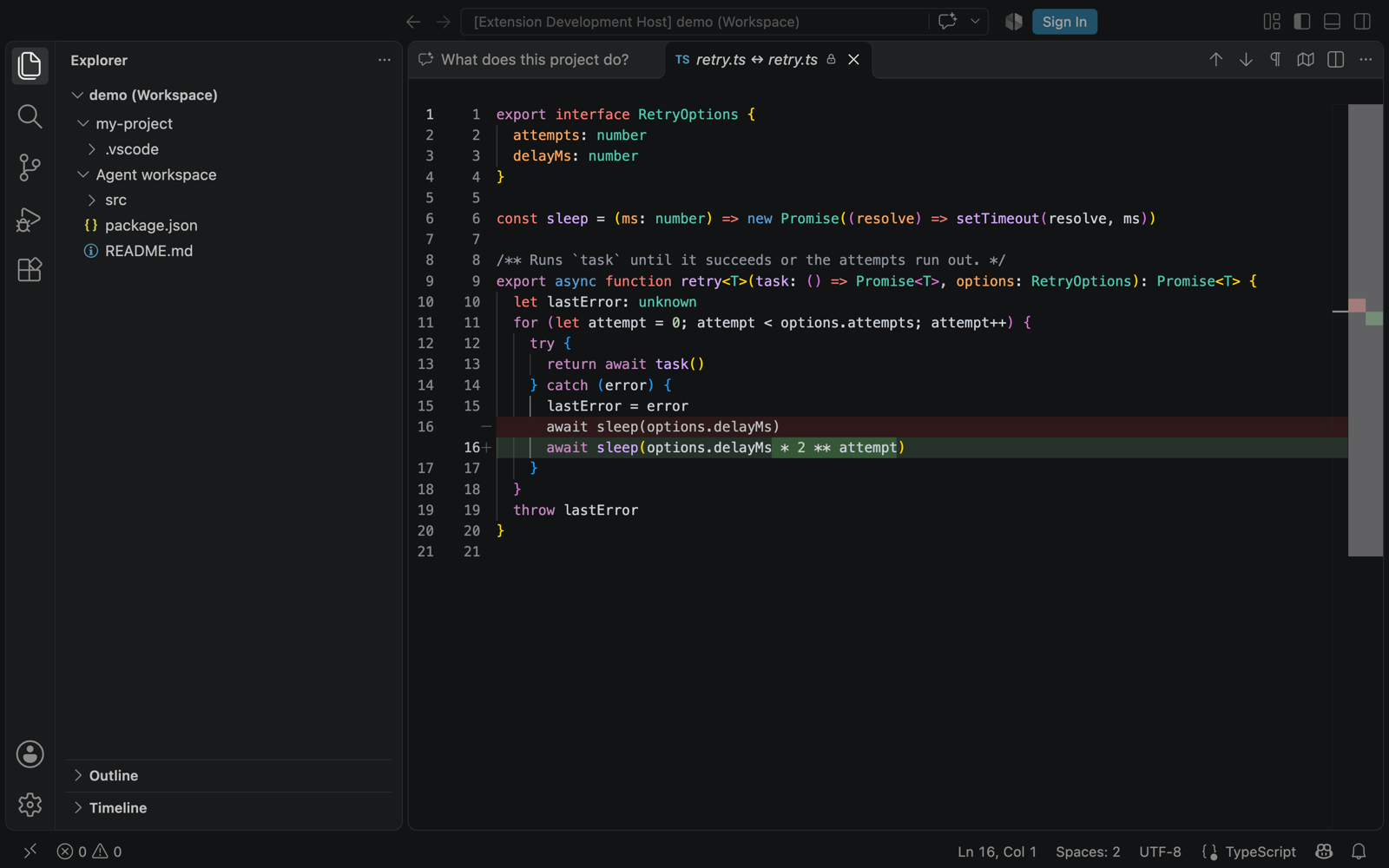
Each edit appears in chat with added and removed line counts. Click the file to open a full-file diff instead of just the changed lines.
The agent's files
VS Code opens files from the agent's workspace in read-only mode. Open files reload automatically when the agent edits them.
To browse the workspace, open a chat with the agent and run AgentConnect: Add an Agent's Workspace to the Explorer. This adds the session's working directory as a folder in the Explorer.
Limits
- Workspace files are read-only, and files larger than about 44 KiB won't open.
- Diffs show the entire file as long as the edited lines haven't been changed again. After a later edit touches the same lines, the diff shows only the changed lines.
- Open files reload automatically after edits made directly by the agent. Changes made by shell commands the agent runs aren't reported to VS Code.
- Symbolic links aren't listed and can't be opened.
- The agent's secret values are masked in file contents, just like in tool output.
From a script
The API card's Quickstart includes a Node example built on Microsoft's @microsoft/agent-host-protocol client. It authenticates using a Full access API key from a member who can view the agent (Agent chat keys are rejected). Keep the key on a trusted server and out of URLs or command arguments.
On AgentConnect OSS
AHP is disabled by default. Set these environment variables and restart the services:
| Service | Setting | Value |
|---|---|---|
| Control Plane and every relay | AHP_MODE | on |
| Control Plane | PUBLIC_RELAY_URL | The relay's public URL. |
| Every relay | AHP_AUTHORIZATION_SERVER | The Control Plane's OAuth issuer URL that VS Code signs in to. |
| Control Plane | AHP_PUBLIC_ACCESS | Set to true to allow all members. Leave false for a pilot and list allowed members in AHP_TEST_USER_IDS. |
Daemons v2.14.0 and later support AHP automatically without additional configuration.
Troubleshooting
- Connected, but nothing happens and messages don't send: VS Code isn't signed in. Check that the extension is installed and listed under
enable-proposed-api, then sign in. - "The terminal process failed to launch: Unknown method" in the Agents window: The Agents window requests a terminal from the agent, which isn't supported. Chat works normally.
- "Unknown method" in chat: The agent's daemon is older than v2.14.0. Upgrade it.
- Connection refused: AHP is disabled for the organization, or the agent doesn't have the AHP API enabled. Add the API to the agent using the steps above.
- A file won't open: The file is larger than about 44 KiB or is a symbolic link.
How is this guide?