Linked accounts
Use multiple sign-in methods with one AgentConnect profile and see which permission checks each provider identity affects.
A single AgentConnect profile can use multiple social sign-in methods. AgentConnect Cloud supports GitHub, Google, and Slack. Self-hosted deployments can also enable Lark and Feishu identities as described in Sign-in.
Linking another provider gives your profile an additional way to sign in and, where supported, supplies a provider-specific identity for targeted permission checks. It does not combine permissions across providers.
Open the avatar menu → Your profile and scroll to Sign-in methods.
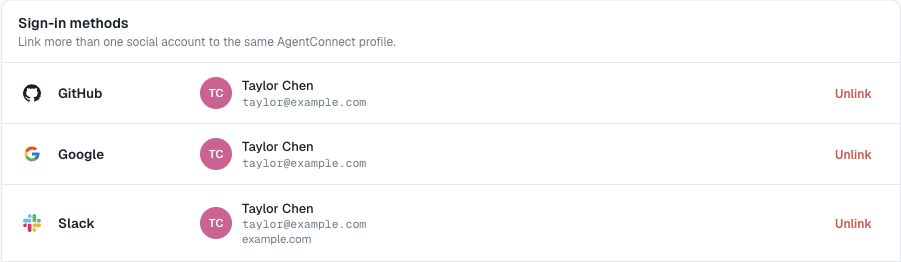
If you signed in through an organization's single sign-on, it appears in this list as SSO alongside its email address. SSO isn't a linked social account: you can't unlink it here, and it doesn't supply a provider identity for any of the checks below.
Link an account
Click Link next to a provider and complete its authorization flow. GitHub and Google don't require an ownership code. Slack and Standard OAuth connectors may first ask for a code sent to your profile's verified primary email (on a self-hosted deployment, check with your operator whether email verification is configured).
Once linked, you can sign in with any linked provider to access the same AgentConnect profile, organizations, memberships, and personal settings.
A provider account already linked to another AgentConnect profile can't be linked to a second one. AgentConnect rejects the link and leaves both profiles unchanged.
Unlink an account
Click Unlink next to a connected provider. You must keep at least one social sign-in method, so your last linked provider can't be removed.
Unlinking only removes that sign-in method and its provider-specific identity:
- GitHub: Doesn't uninstall the GitHub App or delete existing agents or repository grants. You can still select public repositories read-only, but you can't verify private-repository or write access, or view synced private-repository sessions, until you link GitHub again. Public-repository sessions aren't affected.
- Google: Removes the sign-in option only; it doesn't affect any provider-specific permissions.
- Slack: Immediately removes that workspace identity from authorization checks. Existing Slack session records aren't deleted, but private DMs and Slack-scoped shared sessions that depended on the match are no longer visible. Relinking the same workspace identity restores visibility without rewriting the sessions.
- Lark or Feishu: Removes only that regional identity. Matching private DMs and membership-scoped sessions become hidden until you link the same identity again.
What linking never changes
Linking or unlinking a provider doesn't change:
- your AgentConnect profile ID;
- organization membership or role;
- agent, daemon, schedule, tool, or skill team visibility;
- existing resource-sharing grants; or
- permissions from other providers.
There is one exception for restricted agents. If someone is already in a restricted agent's shared-with audience and links their Slack identity in the same workspace, their 1:1 Slack DM with that agent starts with the ordinary DM default instead of Off. Both conditions must be met: an unlinked audience member or a linked non-member both keep the conversation Off. This applies only to 1:1 Slack DMs (channels and group DMs aren't affected). The rule re-evaluates whenever someone links an account or is added to the audience, never reopens a conversation an editor manually turned Off, and never disables an active conversation. Everything else on a restricted agent, including channel access, still starts Off.
Linking also doesn't merge two AgentConnect profiles, install a GitHub App, authorize repositories, or install a chat bot. See Permissions for the full set of permission boundaries.
What each provider adds
| Provider | Adds | Does not add |
|---|---|---|
| GitHub | Sign-in and a GitHub identity for setup and session checks | App installation or repository access |
| Sign-in | Provider-specific authorization | |
| Slack | Sign-in and one workspace identity for session checks | Bot installation or cross-workspace identity |
| Lark | Sign-in and a regional identity for supported session checks | Bot installation or Feishu identity |
| Feishu | Sign-in and a regional identity for supported session checks | Bot installation or Lark identity |
A linked Slack identity matches you to your private Slack DM sessions and is used for membership checks when your organization enables Follow Slack access. A linked Lark or Feishu identity works the same way when its Logto record includes the provider's cross-app union_id. Linking a matching account can therefore make existing sessions visible, while unlinking removes that match. See Session visibility.
When Follow Slack access is on, AgentConnect also uses your linked Slack identity to recognize you as an Agent editor when you answer approvals or change settings from Slack (and uses linked Lark or Feishu identities the same way in their chats). Unlinked editors are blocked from those actions and shown how to link their account. See What people can do in chat.
Regardless of the Session access setting, a linked Slack account lets an agent act on your behalf across platforms. When you ask from Slack about a conversation on another platform or through another of the agent's bots, AgentConnect identifies you by your linked Slack account. When you ask about a conversation in that Slack workspace from anywhere else (such as the Playground or another bot), the agent checks your linked Slack membership: public channels require you to be a full member, and private channels or group DMs require you to be a member of that conversation. Without a linked account, requests from Slack can only reach that bot's own conversations. Linked Lark and Feishu accounts work the same way on self-hosted deployments. See Reading and posting in other conversations.
Two GitHub policies use the identity differently
- Per-user repository authorization: Checked during repository setup for the signed-in user. Public repositories can be selected read-only without linking GitHub. Private repositories require a linked identity with repository access, and Read & write always requires
writeoradminpermission on the repository. - Require GitHub access: Controls who can view GitHub-triggered sessions. Public-repository sessions don't require a linked identity; private-repository sessions require a linked GitHub profile with current access to the repository.
The repository picker and GitHub event integrations still require the deployment's GitHub App to cover the repository (public repositories can also be used as anonymous read-only workspaces without the App). Neither linking nor either policy grants repository access by itself.
GitHub webhook authorization is checked separately: AgentConnect verifies the current repository permission of the issue, pull-request, or comment author. A console user's linked GitHub account doesn't grant another GitHub user permission to trigger an agent. See GitHub.
Checks stay provider-specific
| Permission check | Identity AgentConnect uses |
|---|---|
| GitHub setup or a private-repository session | Linked GitHub profile |
| Slack direct message or shared conversation | Linked Slack workspace profile |
| Lark or Feishu conversation | Linked regional profile; current membership when Follow access is on |
Linking multiple methods lets one AgentConnect profile satisfy multiple independent checks without letting one provider substitute for another. Google remains sign-in only (with no provider-specific authorization), and public GitHub sessions remain visible to every organization member regardless of the owning agent's team visibility.
AgentConnect doesn't combine permissions across providers or workspaces. Specifically:
- One social account can't prove ownership of another provider's session.
- One provider can't satisfy another provider's repository or conversation access check.
- A single Slack identity doesn't represent the same user in other Slack workspaces, and an app-scoped Lark or Feishu identity doesn't automatically match every bot app.
- Linking a provider never widens organization access or resource visibility.
AgentConnect OSS setup
AgentConnect OSS doesn't enable social sign-in by default. To offer linked accounts, bootstrap Logto-backed sign-in in Setup, enable the sign-in methods you want to display, and create the matching Logto connectors. The Profile card appears once OIDC sign-in is enabled.
Operators must also enable Logto account linking, configure provider identity lookup, and set up email delivery for providers that require an ownership code. Local no-auth mode doesn't infer linked provider identities.
See Sign-in for the complete setup.
How is this guide?