Decisions
Ask one question about a message with Jev, then let each channel, bot, repository, or agent act on the answer.
A Decision asks a single question about an incoming message and returns a typed result: Yes / No, one of your categories, or a numeric score. A Decision defines only the question itself. What happens based on the answer depends on where you attach it: a channel can decide whether to reply, a shared bot can route a new conversation to a specialist, a repository can pick which reviewers run, and an agent can select the runtime and model for a new session.
Decisions are evaluated by Jev, TypeSafe's judgment model. Rather than generating text, Jev scores the probability of each possible answer in under a second. Evaluations run on the daemon serving the agent, don't start a session, and don't grant any extra permissions.
Set up the provider
Billing depends on where the evaluation runs:
- AgentConnect Cloud: Agents on Cloud's managed infrastructure evaluate Decisions out of the box. Each evaluation deducts from your organization's credit balance at TypeSafe's published price, like other Cloud model usage.
- Your own daemons (including every self-hosted deployment): An organization owner opens Infra → Provider keys and adds an API key under TypeSafe (Jev). Use Connection settings if you need a custom endpoint or extra headers.
A configured key always takes precedence, including for agents on Cloud, so those evaluations aren't billed against credits. The key is write-only: the Control Plane stores it alongside other write-only secrets and sends it only to a daemon serving one of your agents during evaluation. Self-hosted deployments encrypt these secrets at rest only after you configure a secret cipher; by default, they're stored as plaintext in PostgreSQL. Saving a key doesn't test it, so run a sample in the Decision editor to verify it works.
Create a Decision
Open Decisions and click Add decision. When the list is empty, you can start from built-in examples (Needs reply, Spam, Support category, Issue type, PR focus, PR author, and Task complexity) and customize them.
You can also describe the question in a single-agent Playground conversation and let the agent draft the Decision for you. Once you approve it, open it here to test it with an example.
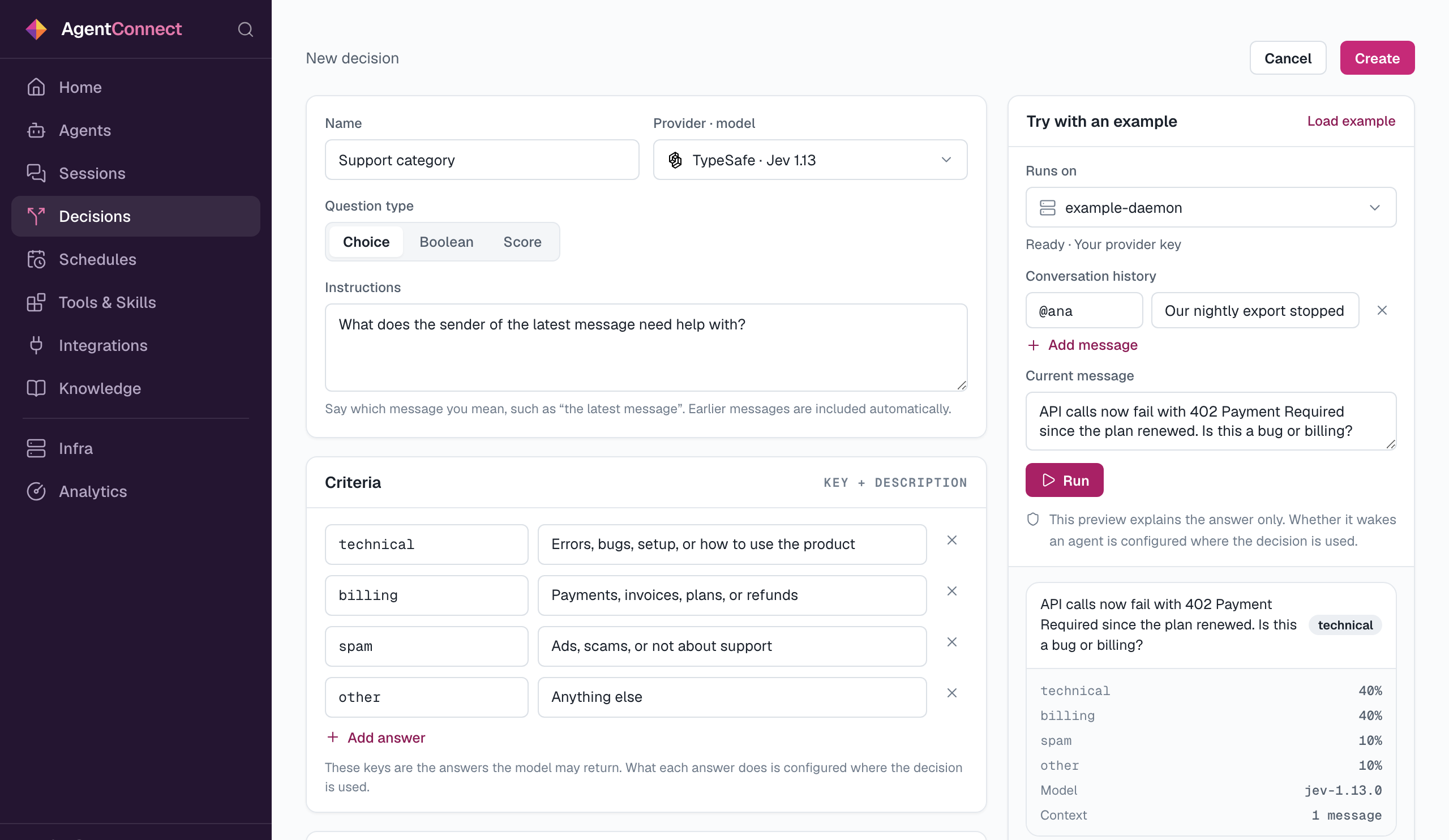
| Field | What it sets |
|---|---|
| Name | How the Decision appears wherever it is used |
| Provider · model | The Jev model: Jev 1.13, Jev latest, or Jev preview |
| Question type | Choice returns one of your keys, Boolean returns Yes or No, Score returns a number on your scale (including decimals) |
| Instructions | The question to ask. Specify which message to evaluate (for example, "the latest message"); earlier messages in the conversation are included automatically |
| Criteria | What each answer means: 2–32 Choice keys, Yes and No, or 2–10 ordered Score levels |
| Visibility | Everyone, or Selected members and organization owners |
Try with an example runs a live evaluation against a sample conversation. Pick the daemon it Runs on, add optional Conversation history, enter the Current message, and click Run to see each answer's probability, the model used, and how much context was sent. This preview shows only the Decision's answer. Whether that answer triggers an agent depends on the rules where the Decision is attached, and each location provides its own preview.
You can reuse the same Decision in multiple places. Its Recent evaluations card lists every attachment point and its latest results. Editing the question updates all of them. If editing the criteria leaves an attachment rule referencing removed answers, that attachment shows Needs review and pauses evaluation until repaired. You can't delete a Decision while it's still in use.
Where to use a Decision
| Where | Set it in | The answer decides |
|---|---|---|
| A chat channel | An agent's Integrations tab → channel row → Add decision | Whether the agent responds |
| A shared bot | Integrations → shared bot → Default dispatch → Or pick by decision | Which agents take a new conversation |
| Issues and pull requests | An agent's GitHub, GitLab, or Gitea event row → Add decision | Which watching agents take it |
| An agent's runtime | Edit agent → Runtime → By decision | The runtime and model of each new session |
| An agent's tools | Agent → Tools & Skills → Decisions | Whatever the agent uses the answer for |
Channels, shared bots, repositories, and runtimes can also chain Decisions, asking a second question after the first.
Respond in a channel
By decision is a channel trigger alongside @-mention, Any message, and Off. It works in channels and group conversations across all chat platforms and on Linear team rows, while one-to-one direct messages keep their On / Off switch. Click Add decision on the channel row, pick a Decision, and configure Trigger when:
- Boolean: Yes, No, or both.
- Choice: The answers that should trigger the agent, each with a minimum probability. Any selected answer meeting its threshold triggers the agent once, even if another answer scored higher.
- Score: A From / To range on the scale.
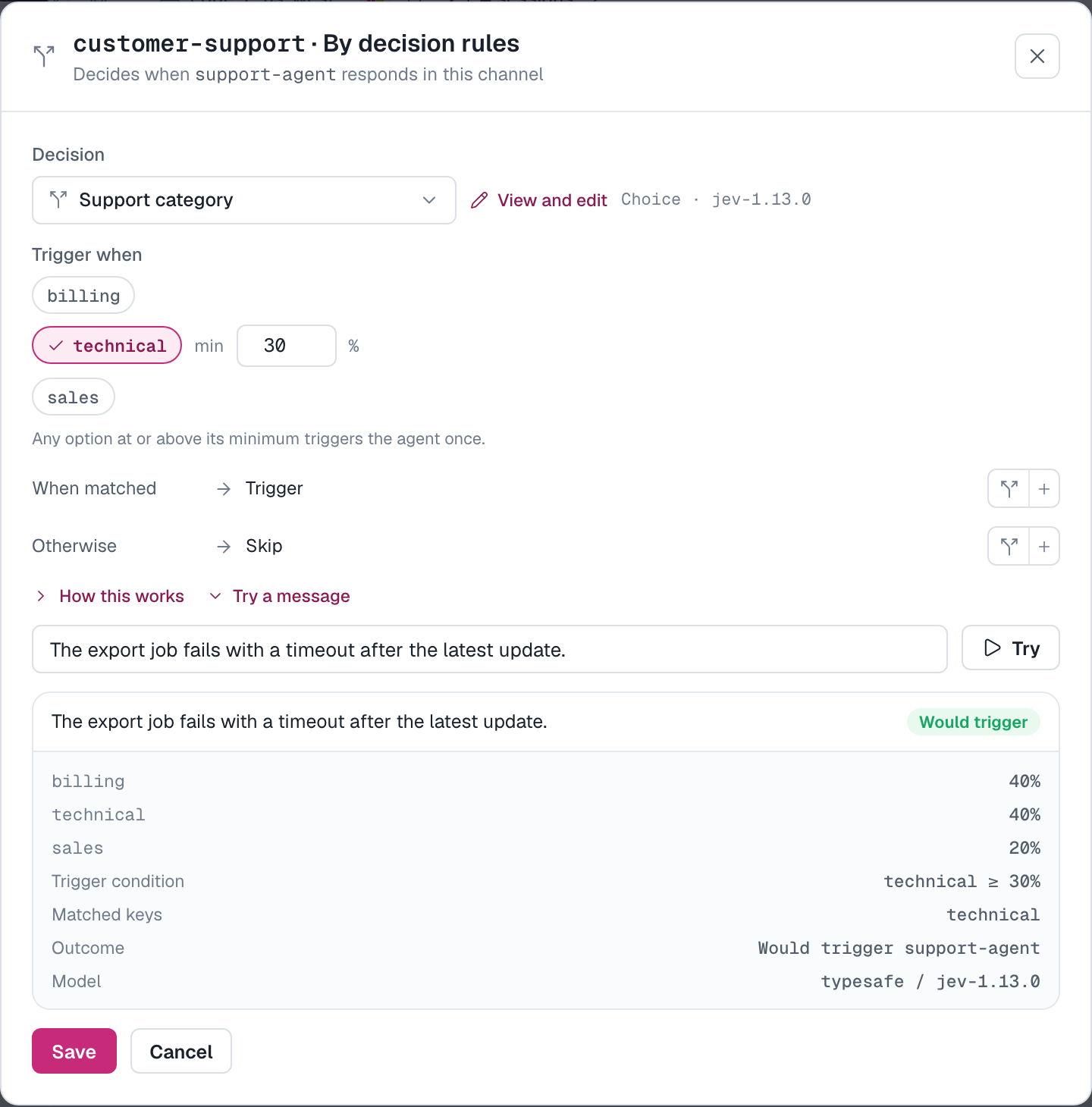
Every new top-level message is evaluated, including messages that @-mention the agent (a mention only selects which agent can reply). Replies in a thread the agent has already joined continue without re-evaluating. Skipped messages don't start a run, though they stay in the conversation history for later evaluations and for the agent to read. Try a message checks whether a sample message Would trigger or be skipped under your current rules.
Route a shared bot
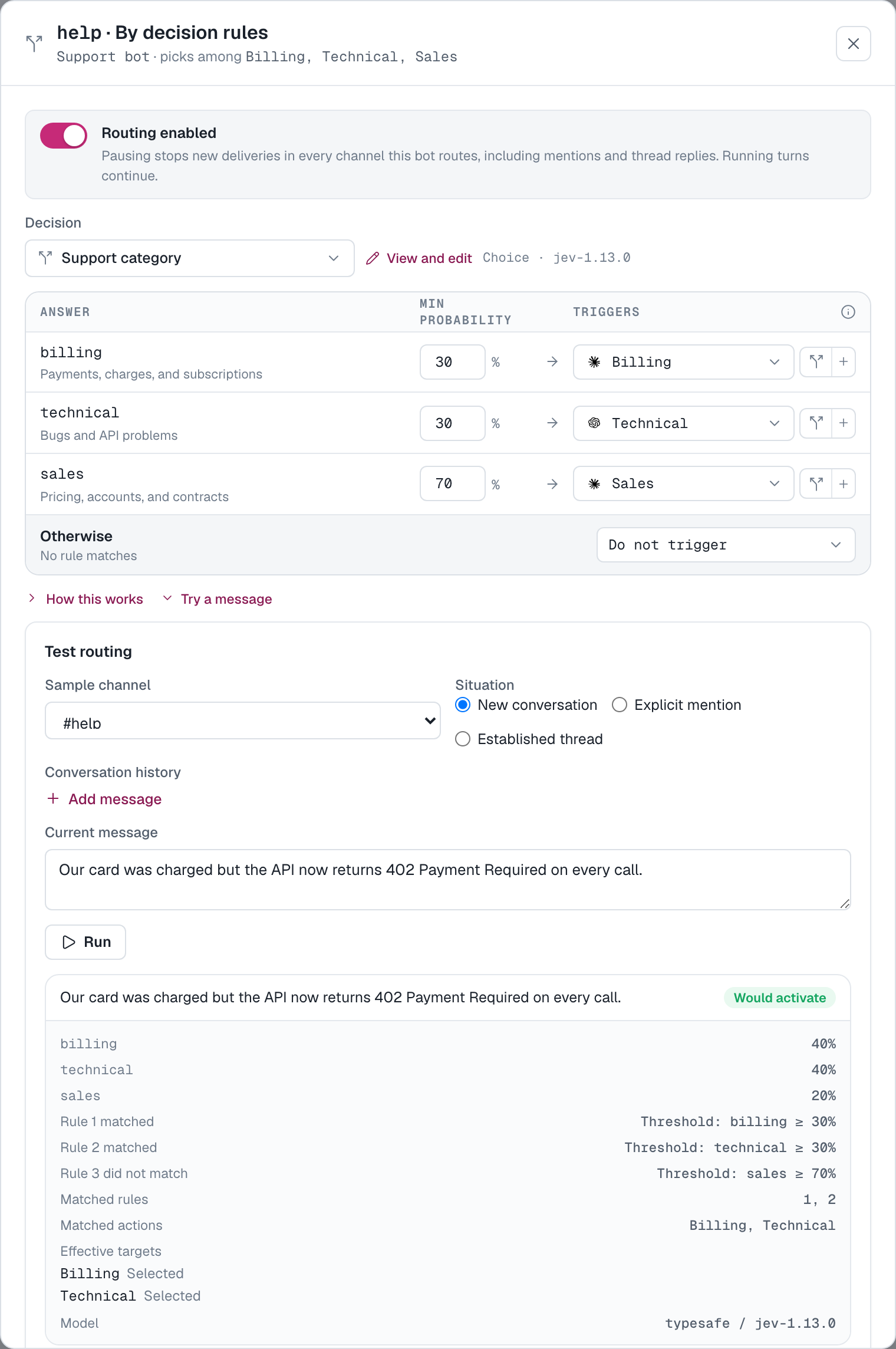
A shared Slack bot using HTTP callbacks for multiple agents can pick the agent per conversation instead of per channel. On the Integrations page, expand the bot, open a channel's Default dispatch, and choose Or pick by decision. Each rule routes an answer to one of the bot's agents or to Do not trigger. Otherwise handles unmatched messages and can be set to Use default agent or Do not trigger.
- For Choice questions, every rule whose answer meets its minimum threshold matches, so one message can trigger multiple agents. Each agent starts at most once, and a matching Do not trigger rule doesn't cancel other matching rules.
- Rules only route new conversations that don't address a specific agent. Explicit mentions and existing threads keep their assigned agents, though they're still evaluated so skip rules still apply.
- Routing paused halts new deliveries across every channel covered by the routing, including mentions and thread replies. Turns already running finish normally.
- Try a message opens Test routing so you can preview a new conversation, an explicit mention, or an existing thread before saving.
Pick agents for issues and pull requests
When multiple agents watch the same repository, a Decision can choose which agents handle each issue or pull request (merge request on GitLab). Click Add decision on the agent's Issues or pull request event row under its GitHub, GitLab, or Gitea integration. Rules apply per repository and event type, so all watching agents share them, and editing requires edit access to every watching agent.
The Decision reads the title, description, and discussion, plus commits and diffs for pull requests when available. Every update is evaluated, replacing the event row's own trigger. Mentions don't bypass the Decision either: mentioned events are still evaluated and follow the Decision's result. Otherwise sends unmatched events either to every watching agent (the default behavior without a Decision) or to none. If the Decision needs review or becomes unavailable, new issues and pull requests on that repository are held until the rules are repaired or the Decision is detached.
Choose a runtime and model
In an agent's Edit dialog, switch Runtime from Fixed to By decision. Each rule maps an answer to a provider and model with its own effort, approval, and fast-mode settings, and a Fallback provider and model handles everything else. For Choice questions, the matching answer with the highest probability above its threshold wins.
A reviewer agent can use this for cross-model review with the PR author example: pull requests written by Claude go to a Codex model, while those written by Codex or Grok go to a Claude model.
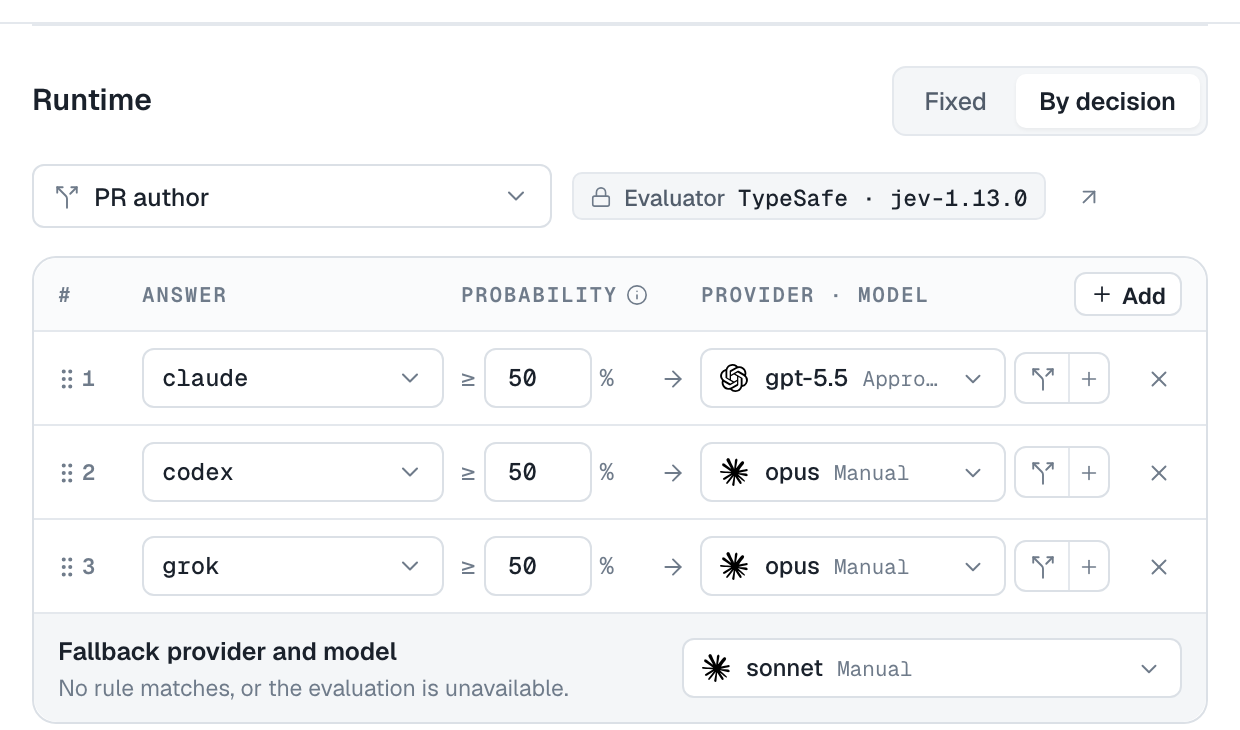
The Decision runs once when a session starts, using the triggering message (plus the subject and history for issues and pull requests). Existing sessions stay on the runtime and model they started with. Try a sample previews which rule would match without calling the model.
Let an agent ask
Attach Decisions under an agent's Tools & Skills → Decisions card so the agent can evaluate them during a turn, such as classifying a ticket before deciding what to do next. The agent passes the context in its call. The result is informational only and doesn't grant the agent any permissions it didn't already have.
Chain Decisions
Some checks work better as two steps. For example, a support agent might answer technical questions only when the sender is frustrated: run Support category first, and when technical matches, run Customer frustration for scores from 2 to 3. Click Continue with a Decision next to When matched or Otherwise in channel rules, or next to any rule in shared-bot, repository, or runtime rules, then configure the next Decision's conditions in the panel that opens.
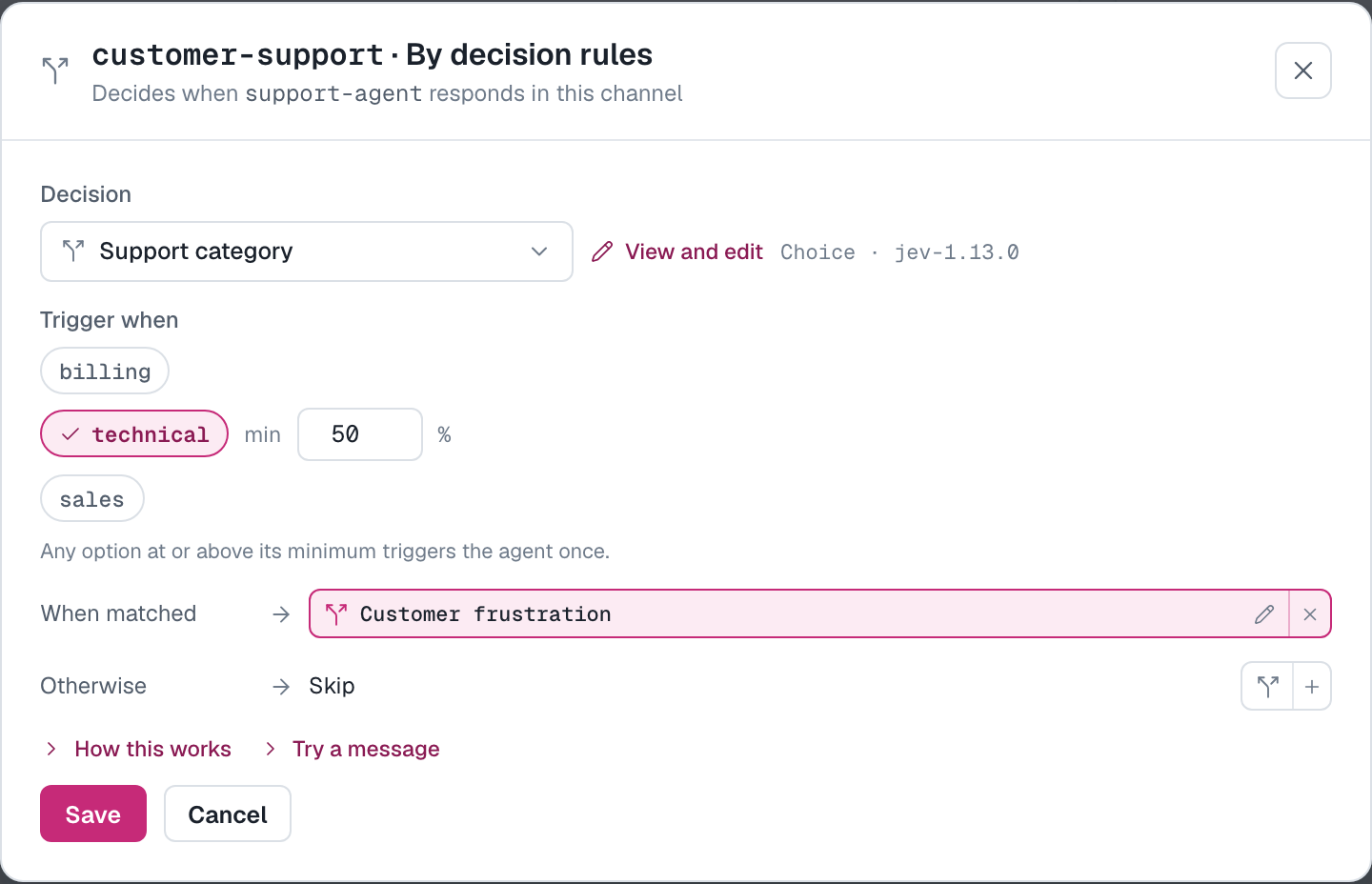
Each chained step appears as a chip that you can click to edit. A chain supports up to eight Decisions, and all steps share a single five-second timeout, so each extra step adds latency before the agent starts.
When a Decision cannot answer
An evaluation returns unavailable if the provider errors or times out, no API key or credits are available, or the daemon is at capacity. Unavailable results are never treated as No or as a skip:
| Where | What happens instead |
|---|---|
| Chat channel | The message continues to the agent as if the channel triggered on it |
| Shared bot | Addressed or continuing agents keep the message; a new conversation goes to the channel's default agent, even when Otherwise is Do not trigger |
| Issues and pull requests | Every watching agent handles the event, just as it would without a Decision |
| Runtime | The session starts with the fallback provider and model |
When an attachment can't run its Decision at all, its row shows the reason: Pending sync, Needs review, Daemon offline, Unsupported (upgrade the daemon or relay), or Access revoked.
How is this guide?