Integrations overview
How agents connect to chat platforms, issue trackers, and webhooks: bots, channel settings, shared bots, and conversation commands.
An integration binds one agent to a platform or event source. Supported platforms:
| Platform | The agent responds to | How to connect |
|---|---|---|
| Slack | Channels, threads, and DMs | Add to Slack, or connect your own Slack App |
| Microsoft Teams | 1:1 chats, group chats, and team channels | Connect with Microsoft as an administrator, or register your own bot |
| Google Chat | Space @-mentions and DMs | Create a Chat app and connect its service-account JSON key |
| Discord | Channels, threads, and DMs | A bot token (AgentConnect builds the invite link) |
| Telegram | DMs and group messages | A bot token from @BotFather |
| Lark / Feishu | Group messages and one-to-one chats | One-click app setup, or an App ID and secret |
| DingTalk | DMs and group @-mentions | An internal app's Client ID and Client Secret (mainland China or international) |
| WeCom | Direct chats and group @-mentions | A smart bot's Bot ID and Secret |
| Your own one-to-one chat with the agent | Scan a QR code with your personal WeChat | |
| Private chats and group @-mentions | An official bot's AppID and AppSecret (self-hosted only) | |
| GitHub | Issues, PRs, comments, deployments, and releases | Install a GitHub App and authorize the agent's repositories |
| GitLab | Issues, merge requests, comments, and releases | Connect with OAuth (AgentConnect creates a service account per agent) |
| Azure DevOps | Azure Repos PRs and comments | Connect with Microsoft, or use your own application |
| Gitea / Forgejo | Issues, PRs, comments, and reviews | A dedicated bot user's token, per organization |
| Linear | Delegated issues and @-mentions | Authorize the workspace in Linear |
| Webhooks | JSON events from external systems | Create a webhook and send requests to its generated endpoint |
Add an integration from an agent's page (Integrations → Add integration) or from the Agents list.
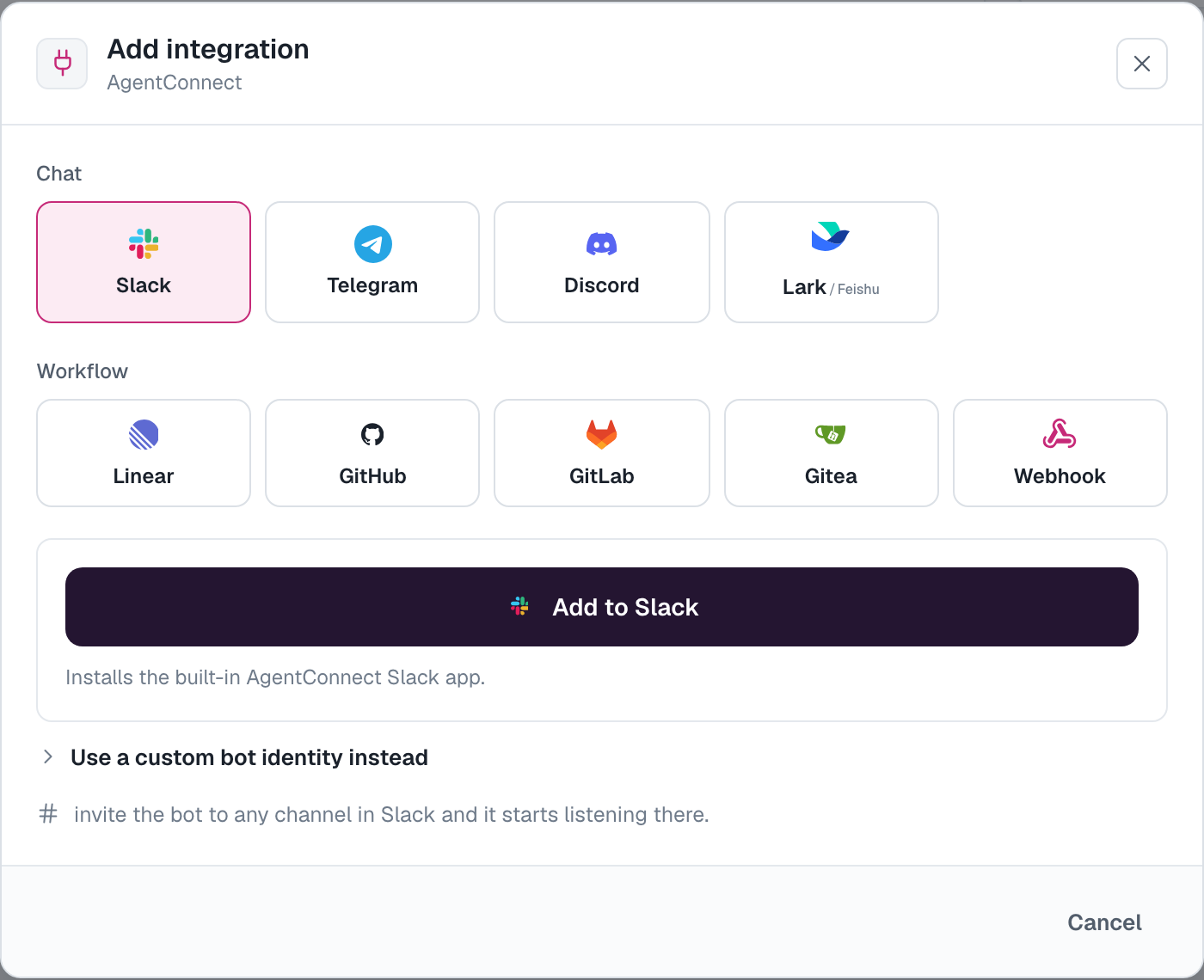
Bots are identities, integrations are bindings
On chat platforms, a bot is the identity that exists in your Slack workspace, Telegram group, Discord server, or Lark / Feishu tenant, with its own tokens. An integration binds that bot to one agent.
- Deleting an integration frees the bot without deleting it. You can reuse it with another agent from the Use an existing bot picker.
- Manage bots across your organization under Integrations → Messaging apps. See Bots for details.
Which platform tiles appear depends on the agent's daemon capabilities and deployment settings. QQ is self-hosted only. Check each platform guide for prerequisites and self-hosting configuration.
Binding channels
There's no channel picker up front. Invite the bot to a channel, and it appears in AgentConnect. On the agent's Integrations card, open a channel's settings and choose its Session mode first.
Session mode
Session mode determines how the agent organizes work in a conversation:
- Auto: A coordinator reads root messages and messages in threads that don't have a task yet. It can route a request to an existing task working on that topic, open a new task in the message's thread, answer a quick question directly, or skip replying. Any message that @-mentions the agent is always handled; if the coordinator can't handle it, a task opens for it automatically. People then talk directly to that task in its thread. While the coordinator is deciding, platforms that support reactions show 🤔.
- Per thread: Each admitted root message starts its own session, and replies in that thread continue it.
- Single session: Every admitted message in the conversation, whether at the root or in a thread, joins one continuous session. Send
!newto start a fresh one.
In Auto mode, the coordinator decides which messages need a reply, so Respond to is hidden. Off remains available at the bottom of the menu. Auto can't be combined with By decision or a shared bot's Or pick by decision. Switch the row to Per thread first if you want to use a decision.
In a task's thread, !new restarts that task, and !stop pauses it until someone mentions the agent there. At the conversation root, !new starts a new coordinator while keeping open tasks running, and !stop stops the coordinator's current turn. Open the coordinator's session in Sessions and check the Tasks tab to view its tasks and each task's progress summary.
Self-hosted daemons run Auto by default unless config.json sets "features": { "autoSessionMode": false }. With Auto disabled, the daemon handles Auto conversations as Per thread.
Respond to: Per thread and Single session
After choosing Per thread or Single session, use Respond to to set which messages trigger the agent. Available options depend on the platform:
- @-mentions: Respond when mentioned. Unmentioned follow-ups continue in threads the agent has already joined.
- All messages: Run the channel's agent for every message.
Use the row's + Decision control to evaluate messages with a Decision and respond only when the result matches your rules. An active gate shows as By decision. Click its × button to remove it and return to standard channel settings.
Linear works the same way for workspace teams, which appear automatically once you connect. Because Linear events are already addressed to the app, each team row offers only @-mention, By decision, or Off.
Turn off a conversation
Off appears separately at the bottom of the menu. It stops responses to all inbound activity in that channel, including mentions, active thread affinity, control commands, and shared-bot fallback. When closed, the button shows the active setting (such as Auto or Per thread · @-mentions), or Off when disabled. Pick a session mode to turn the conversation back on.
Turning a conversation Off keeps the bot in the channel and preserves past sessions; it only mutes inbound triggers. Schedules and deliberate handoffs from another agent can still post there. To remove the bot from a channel or server, manage its membership on the chat platform.
New channel defaults
At the bottom of the agent's Integrations card, New channels start on sets the default behavior for newly discovered channels and group conversations:
- Auto: The default where the platform and daemon support it. Otherwise, the conversation starts on Per thread with @-mentions.
- @-mentions · Per thread: Start with a separate session per thread, triggered by mentions.
- Off: Wait for an editor to enable the conversation.
Changing this default leaves existing conversations and one-to-one DMs unchanged. Restricted agents and conversations the platform marks as external still start Off. In assistant mode, supported conversations use a fixed coordinator session where Auto is available, or a fixed Single session otherwise. This overrides the regular session mode while preserving Off.
Direct messages
A direct message appears once someone writes to the bot, and each agent manages its own direct conversations. One-to-one DMs use an On / Off toggle. Slack also offers Per thread and Single session (in assistant mode, a Slack DM uses its coordinator where Auto is supported). Telegram, Discord, and Lark / Feishu always use one continuous session for a one-to-one DM. Group conversations support the same session modes as channels on that platform, including all three for Slack group DMs. Conversations for a restricted agent start Off until an allowed editor enables them.
Shared bots
Usually, one bot connects to one agent. A shared Slack bot can serve multiple agents through one identity, and a connected Linear workspace always works this way: every agent enabled on it shares the deployment's Linear app. Under Integrations → Messaging apps, expand the bot and pick a Default dispatch agent for each channel. That lets you expose one "@Assistant" in Slack backed by different specialists per channel. To choose the specialist per conversation instead, use Or pick by decision with a Decision.
The channel trigger applies to the shared bot. Switching it to Off stops routing through that bot in that channel.
Restricted agents
When an agent's team visibility is set to Selected, its chat conversations are restricted too. Newly discovered channels and direct messages start Off until an allowed editor enables each one from the integration card. Any agent can also be switched to Off later as an explicit mute. See Team visibility.
Reading and posting in other conversations
When someone asks an agent to read or post in a conversation other than the one it's answering in, the agent acts on that person's behalf and enforces their permissions. The conversation it's currently answering in is always open to it.
The agent reads messages, threads, reactions, or bookmarks from another conversation only when the requester can view that conversation:
- A public channel, if they're a full member of that workspace (not a guest).
- A private channel or group DM they're a member of.
- Their own direct message with the agent. Another person's direct message is never readable.
The agent posts, reacts, schedules messages, starts conversations, or modifies bookmarks, canvases, and lists only where the requester could post themselves. Three cases have extra rules:
- Direct messages: Allowed only to members of your organization (on Slack, full workspace members, not guests).
- Conversations shared with another organization (such as a Slack Connect channel): Posts from another conversation are sent as drafts. A member of your organization, usually the requester, receives a card in a Slack direct message to Approve or Discard it. Unanswered drafts expire after 24 hours.
- Runs without a human requester (such as webhooks, GitHub events, or requests from another agent): These runs read only public channels and their own conversation, and post only in their own conversation. A schedule acts for the person who last edited it, or the person who created it if it hasn't been edited.
When the agent uses content from a private conversation, it states where the content came from. When a request is refused, it explains that it can't share that content or can't post there, without confirming whether the conversation exists.
Slack and Lark / Feishu expose conversation membership. Telegram and Discord don't, so on those platforms only groups or channels marked as public count: a Telegram group with a public @username, or a Discord channel everyone in the server can view.
Cross-platform handoffs
If you connect the same agent to multiple chat platforms, it can hand off work from one conversation to another. Only use this between messaging workspaces you trust and have approved to exchange information. The destination starts its own linked session instead of merging both transcripts.
Before acting on another platform (or through another of the agent's bots), AgentConnect must recognize the requester as a member of your organization via a chat account linked under Your profile → Sign-in methods. Access at the destination then follows two rules:
- Linked destination workspace: The agent checks the chat account linked for that workspace. Public channels require full membership; private channels and group DMs require membership in that conversation.
- Unlinked destination workspace: If the requester hasn't linked an account for that workspace, the agent can read or post only in conversations whose sessions they can open under Sessions. Telegram and Discord accounts can't be linked, so this rule always applies to them.
On AgentConnect Cloud, you can link a Slack account. That lets you hand off from Slack into a Telegram, Discord, or Lark / Feishu conversation where the agent already has a session you can open. Handoffs don't work from Telegram or Discord into Slack or Lark / Feishu because AgentConnect can't identify who sent the request; those users can reach other channels and groups only on the same bot. Self-hosted deployments can also link Lark and Feishu accounts. See Hand off conversations between trusted workspaces.
In-conversation commands
Use these commands to control the current conversation directly without prompting the model. Slack uses ! because Slack reserves / commands for apps.
| Action | Other platforms | Slack |
|---|---|---|
| Stop and mute | /stop | !stop |
| Cancel the current turn | /cancel | !cancel |
| Resume | /resume | !resume |
| Queue a message | /queue <message> | !queue <message> |
| Show session status | /status | !status |
| Change model, effort, or permission | /models, /effort, /permission | The same commands with ! |
| Toggle fast mode | /fast on, /fast off | !fast on, !fast off |
In Per thread mode and in an Auto task's thread, Stop also mutes that thread until someone mentions the agent again or sends resume. In Single session mode and at an Auto conversation's root, Stop interrupts the current turn without muting the conversation (use Off to mute it). Cancel interrupts only the current turn.
The runtime-setting commands (/models, /effort, /permission, /fast) work only when the agent's What people can do in chat setting is Talk, approve and change settings. On Slack with Follow Slack access on, only the agent's editors can run them; anyone else gets a private reply naming who can make changes. On Telegram and Discord, these commands appear in the native command menu, registered as /models instead of /model (both work when typed).
When a tool call needs approval, Slack, Telegram, Discord, Lark / Feishu, and Google Chat post an approval card in the conversation, unless the agent is set to Talk to the agent. That same setting decides who can respond to it. See When a run asks for permission.
How chatty should an agent be?
The agent's Output mode controls what gets posted to the platform:
- Minimal: Keeps one live-updating reply.
- Low: Posts replies only.
- Medium: Adds tool calls and plans.
- High: Also includes reasoning and tool output.
- None: Keeps output in the web session only.
The complete transcript is always available in Sessions.
How is this guide?