MCP connector
Connect AgentConnect to Claude or any MCP client to inspect and manage agents, sessions, schedules, and integrations in plain language.
AgentConnect hosts an MCP server at:
https://mcp.agentconnect.mdConnect it to Claude (or any client that supports MCP over streamable HTTP) so your assistant can inspect and manage your organization:
"Which of our agents are online right now?" "What did we spend on tokens this week, per agent?" "Did the nightly report schedule run, and did it succeed?" "Create a weekday schedule for the reviewer agent."
Inside AgentConnect, you don't need to configure anything: in a single-agent Playground conversation, the agent already has these tools, and each change waits for your approval in the console.
Connect from Claude
Claude (claude.ai / desktop): Go to Settings → Connectors → Add custom connector, paste https://mcp.agentconnect.md, and complete the browser flow: sign in with an enabled provider, pick the organization to bind, review the read and write access requested by the client, and click Authorize. You don't need to copy any keys; this uses standard OAuth 2.1 with dynamic client registration.
Claude Code:
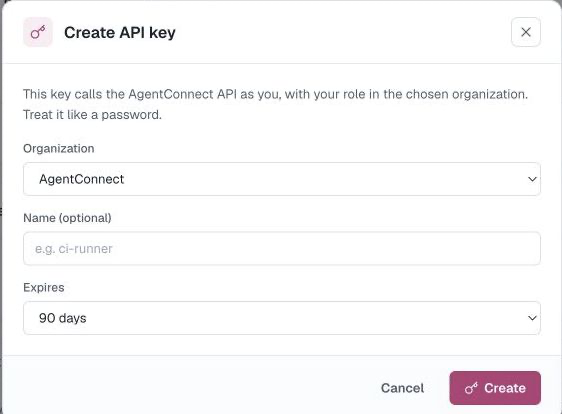
claude mcp add --transport http agentconnect https://mcp.agentconnect.mdThen approve the browser sign-in when prompted (/mcp → authenticate). In headless environments such as CI or servers, skip OAuth and pass an API key instead:
claude mcp add --transport http agentconnect https://mcp.agentconnect.md \
  --header "Authorization: Bearer $AGENTCONNECT_API_KEY"
Other MCP clients work the same way: use OAuth if the client supports the authorization-code flow, or pass a personal API key in the Authorization: Bearer header.
Read tools
With mcp:read, an assistant can inspect:
| Area | Tools |
|---|---|
| Identity | whoami |
| Agents | listAgents, getAgent |
| Daemons | listDaemons, getDaemon, listDaemonCapabilities |
| Workspaces | listWorkspaceFiles, readWorkspaceFile |
| Schedules | listCrons, getCron, listCronRuns |
| Sessions | listSessions, getSession |
| Analytics | getUsage |
| Integrations | listIntegrations, listBots, listAgentHooks, listHookRuns |
| Code hosts | listGithubInstallations, listGithubRepositories, getGithubRepositoryAccess, listGitlabConnections, listGitlabBots, listGitlabProjects, listGiteaConnections, listGiteaRepositories |
| Decisions | listDecisions, getDecision, listDecisionProviders, getBotDecisionRouting, getCodeHostDecisionRouting, listDecisionEvaluations |
| Members | listMembers |
whoami returns your current identity, organization, and role. Session tools return status, usage, and links, without transcript contents. listBots returns metadata only (no token material), and getUsage returns totals along with per-agent breakdowns. getDaemon lists each runtime's models and the effort levels and permission modes they accept. Workspace tools read an agent's files directly from its daemon. Transcripts stay on your daemons.
Write tools
When the client requests and you approve mcp:write, it can also make these changes:
| Area | Tools |
|---|---|
| Agents | createAgent, updateAgent, setAgentWorkspace, deleteAgent |
| Daemons | renameDaemon |
| Schedules | upsertCron, runCron, deleteCron |
| Integrations | setChannelTrigger, createGithubTrigger, removeIntegration |
| Decisions | createDecision, updateDecision, deleteDecision, saveBotDecisionRouting, saveCodeHostDecisionRouting, deleteCodeHostDecisionRouting, previewDecision, previewIntegrationChannelDecision, previewBotDecisionRouting |
The write surface is intentionally narrower than the console and REST API. It doesn't expose credentials, members, organization settings, access-control lists, or bot secrets.
deleteAgent, setAgentWorkspace, deleteCron, removeIntegration, deleteDecision, and deleteCodeHostDecisionRouting are destructive. In particular, setAgentWorkspace can discard the agent's checkout on its daemon, including uncommitted work. In addition to the client's own approval prompt, each destructive tool requires an exact live confirmation value (the agent name for the two agent tools, the integration or Decision name, the schedule name/ID, or the repository's owner/repo). Missing or mismatched confirmations are rejected.
Console dialogs
Some setup tasks require credentials or interactive choices in the browser. These tools open the matching console dialog instead of applying changes directly:
| Dialog | Tool |
|---|---|
| Add or edit an integration | configureIntegration |
| GitHub, GitLab, and Gitea connections | manageCodeHosts |
| An agent's editor | configureAgent |
| An agent's tools and skills | manageAgentTools |
| Install a skill | installSkill |
| Add an MCP server | installMcpServer |
In a single-agent Playground conversation, the dialog opens in the console with fields prefilled where possible so you can finish there. Other clients display a page linking you to the console.
Permissions & trust
- Each connection acts as you, in one organization: the one you selected during consent (or the organization your API key is bound to). Add another connection to access a different organization.
- OAuth permissions are scoped:
mcp:readgrants access to read tools only, whilemcp:writeis required for write tools. A personal API key follows its permission level: a Full access key matches your full role, a Read-only key can use only read tools, and an Agent chat key can't use the connector at all. - Your role and per-resource visibility apply unchanged. Because these tools call the same REST endpoints as the console, a Viewer's connector can't view or modify anything beyond what that Viewer can do in the console, and restricted resources stay hidden.
- Revoke the OAuth connection or personal API key whenever a client should no longer act on your behalf.
How is this guide?