Sessions
Review agent runs, inspect transcripts, and understand where session data lives.
Sessions records every agent run across Slack threads, GitHub events, Linear delegations, webhooks, schedules, and the Playground. You see the runs allowed by each session audience. An Agent's Team visibility controls access to that Agent separately and doesn't hide sessions you're allowed to read.
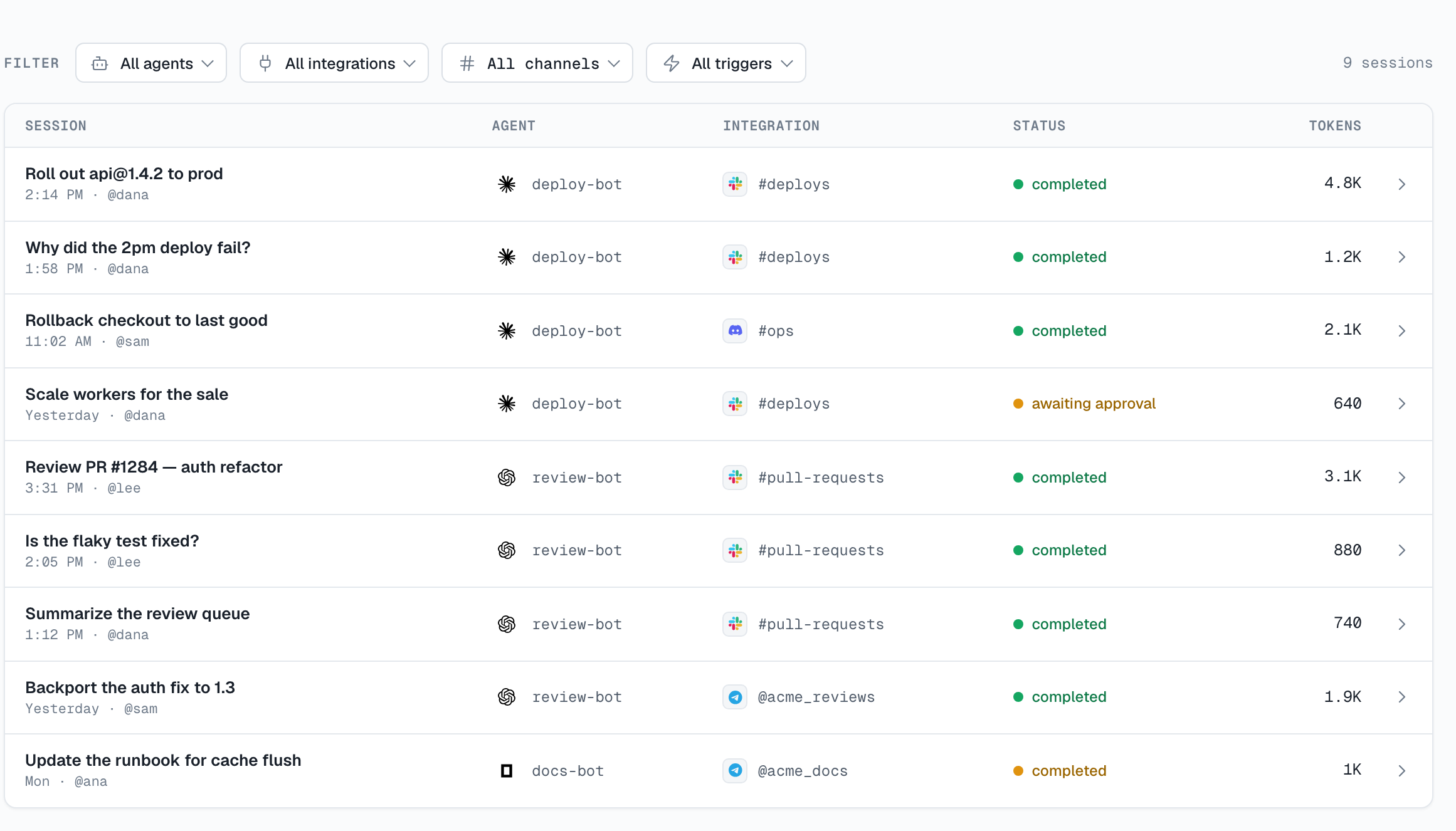
Find a session
Filter the session list by agent or source, and trace scheduled runs back to the schedule that started them. When you can read a session for an Agent you don't otherwise have access to, its Agent name still appears as a plain filter label instead of a clickable link. When multiple agents join the same supported conversation, the list groups their sessions into one row.
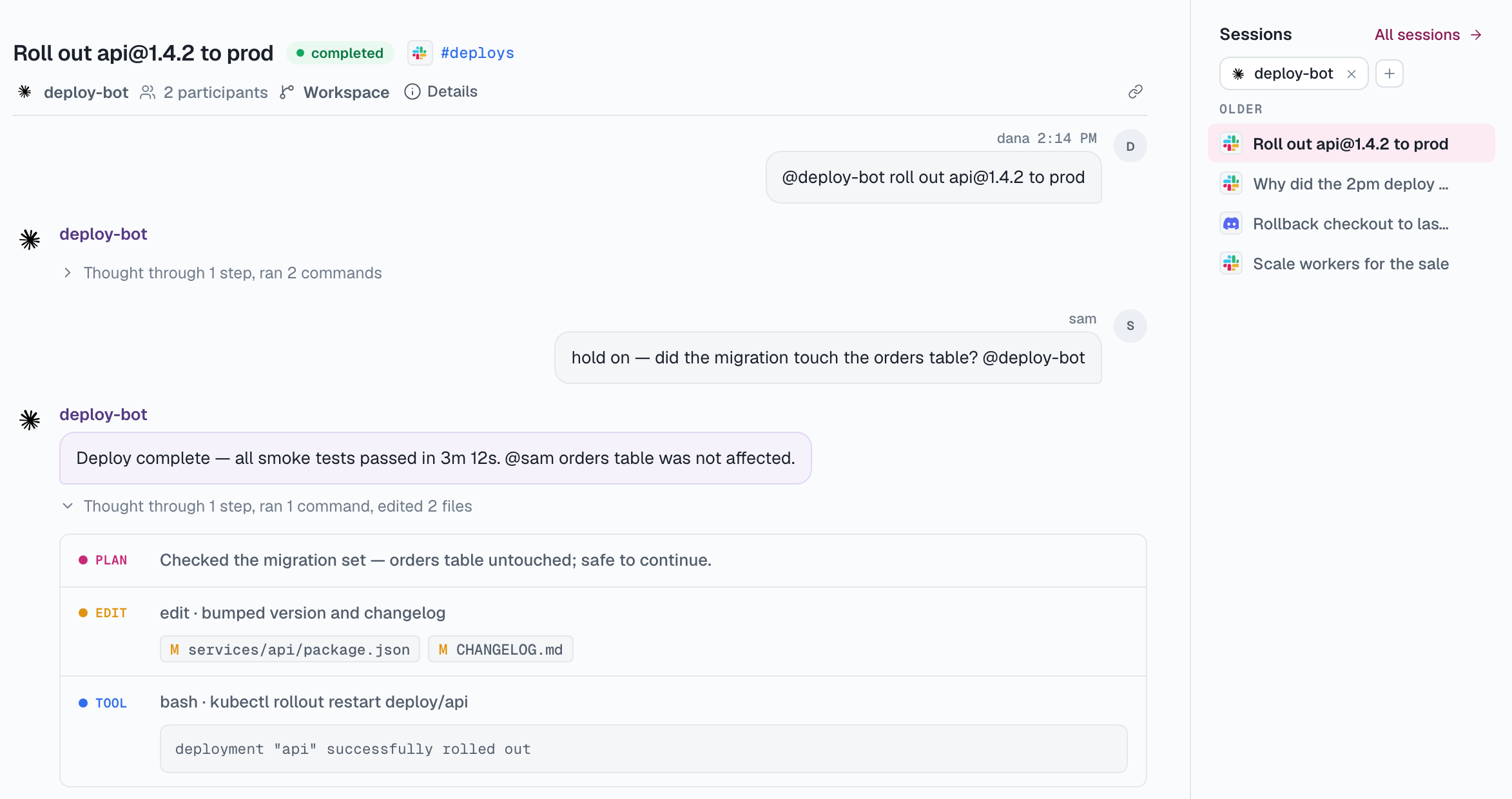
Review a run
Each session records its source, agent, participants, daemon, runtime, and model, along with duration, token usage, cost (when available), and tool activity. When the platform supplies a link, the session links back to the original conversation.
Sessions snapshot their execution config: the header shows what the run actually used, even if you've changed the agent's configuration since.
The transcript
The transcript separates messages, reasoning, plans, tool calls, and file edits. Tool activity includes available input and output, with diffs for file changes, so you can trace how the agent reached its result.
When a run asks for permission
Depending on the agent's permission mode, a runtime can pause mid-turn and ask before taking an action. The turn waits until someone responds, which can happen in three places:
- In the console: Anyone who can edit the agent can approve or deny the request, including an organization Owner who isn't on its Selected list. Respond from the agent page, or from the session page if the session's audience lets you open it. The notification bell adds an unread Approval needed item pointing to the waiting session and marks it resolved once answered. In a Playground or agent chat API conversation, the conversation owner can also respond to pending requests above the composer, unless the agent is set to Talk to the agent.
- In a Slack or Teams direct message: When no card is posted in the conversation, or when only editors can respond there and the person who asked isn't one, the agent sends the same card in a DM to one eligible editor who has linked their Slack or Microsoft account. The DM links to the session and, on Slack, to the message that started the run. Answering there works the same as answering in the console, and the console records who decided.
- In the conversation: When the agent's What people can do in chat setting includes approving tool calls (on by default), Slack, Telegram, Discord, Lark / Feishu, Google Chat, and Microsoft Teams post the approval card where the work is happening: in the thread, or in the Telegram topic or reply chain. The card presents the runtime's own options, including always allowing a tool when the runtime supports it. On Slack with Follow Slack access enabled, or Teams with Require Microsoft Teams access enabled, only the agent's editors can respond; when permissions aren't synced that way, anyone in the conversation can. If someone without permission clicks a button, only they see the refusal, and the card stays unchanged for everyone else.
Whichever response arrives first takes effect, and the card updates to show who answered and what they chose.
With Talk to the agent, or in a conversation set to Off or By decision, the conversation gets a short notice instead explaining that an approval is waiting for an agent editor. On platforms that support approval cards, that notice updates with the outcome once someone decides. QQ has no approval card, so QQ conversations always get this notice and approvals happen in the console. Conversations shared with another organization don't get an inline card; the approval goes by DM to a member of your organization. A Linear session posts the same notice into the issue's activity feed with a link to the console.
For Slack and Teams DM notifications, AgentConnect picks one recipient. It checks the agent's Slack workspaces before its Teams organization, evaluating these candidates in order:
- The person who sent the message that triggered the turn.
- The session owner.
- For a Selected agent, its explicitly selected members in their saved order.
- The agent's creator.
Every candidate must be a current organization member who can edit the agent and has a linked Slack identity in that workspace, or a linked Microsoft account for Teams. Owners qualify even when they aren't selected, though being an Owner alone doesn't add them to the recipient list. An Owner receives the DM only when this order selects them.
AgentConnect rechecks edit permission and the linked account when the recipient clicks. If no eligible recipient is found, the approval stays available in the console and the conversation keeps its waiting notice.
When several agents share a conversation
Each agent still runs in its own session with its own configuration and permissions. In a multi-agent Playground or supported IM conversation (Slack, Telegram, Discord, Lark, and Feishu), the console groups those participant sessions into one conversation view with attributed activity and combined current usage.
This grouping is only a view over the sessions, not a new permission boundary. You see only the participant work allowed by each session's audience, including readable work from an Agent whose page is hidden from you. See Multi-agent work modes for ways to coordinate multiple agents.
Where transcripts live
The Control Plane stores session metadata such as title, status, timestamps, and token totals. Transcript messages and tool payloads stay on the daemon that ran the session.
When an authorized person opens a transcript, the console fetches it from the daemon on demand without saving the body in the Control Plane. Session metadata remains visible while a daemon is offline, but its transcripts can't load until the daemon returns.
Retention and cleanup
Each daemon keeps finished session content for 7 days by default. When adding or editing a daemon, use Expire sessions to pick a preset window, enter a custom number of days, or keep sessions indefinitely.
Once the retention period passes, the daemon deletes the transcript, tool details, and any Git worktree created for that session. Session metadata stays in the Control Plane, so the session still appears in the list and indicates that its content was deleted under the retention policy.
Active sessions aren't removed. AgentConnect also keeps a session worktree if it contains uncommitted changes or commits that haven't been pushed to a remote.
Session audience
For a directly managed session, the header shows Everyone / Private when its matched owner can change visibility. A provider-bound session can instead follow Slack members, Feishu / Lark members, or GitHub members after the organization enables the corresponding setting under Settings → Session access. Making a session private hides the transcript right away and can also change future memory capture; review Session visibility before tightening it.
Cross-platform handoffs stay separate
Conversation grouping doesn't merge different platforms or threads. A cross-platform handoff keeps one session on the source platform and starts a linked session on the destination. Replies stay where they were written unless the agent explicitly sends a result back.
See Hand off conversations between trusted workspaces for a Slack-to-Discord example and a reusable agent instruction.
Agent-to-agent handoffs
Delegated work runs in a linked child session and inherits the parent session's audience. If you can read that audience, you can open the child session even when you can't open the target Agent. The Agent name appears only as non-clickable session context and grants no access to the Agent's configuration or workspace.
Live sessions
Running sessions update in real time, and the session page shows a composer for sessions you're allowed to continue:
- Playground and webchat: Continue directly in the browser, as usual.
- Chat platforms (Slack threads, Telegram or Discord chats, Lark / Feishu conversations): Your message from the console is mirrored into the original thread first so people there can see what changed the agent's context. The agent's reply follows that session's normal output mode.
- GitHub, GitLab, webhook, or schedule events: Continued in the console only. Nothing is posted back to the pull request, issue, or original event source.
Continuing a session is a write action, so a Viewer can't do it, and only the owner can continue a private session. Beyond that, continuing follows the session's audience and requires the owning agent to be visible to you and its daemon to be online. When any of those conditions isn't met, the page explains why instead of showing the composer.
How is this guide?