Let agents use a computer
Grant a Computer to an agent from its Tools tab, then configure what it can do: view-only or control, approval before the first input, turn-taking between agents, command and file access, and usage policy limits.
New computers aren't accessible to any agent by default. You grant access per agent, and the computer's usage policy defines what every agent with access is allowed to do.
Give a computer to an agent
- Open the agent and go to its Tools tab.
- In the Computers card, select Add and pick a machine from Computers you can see.
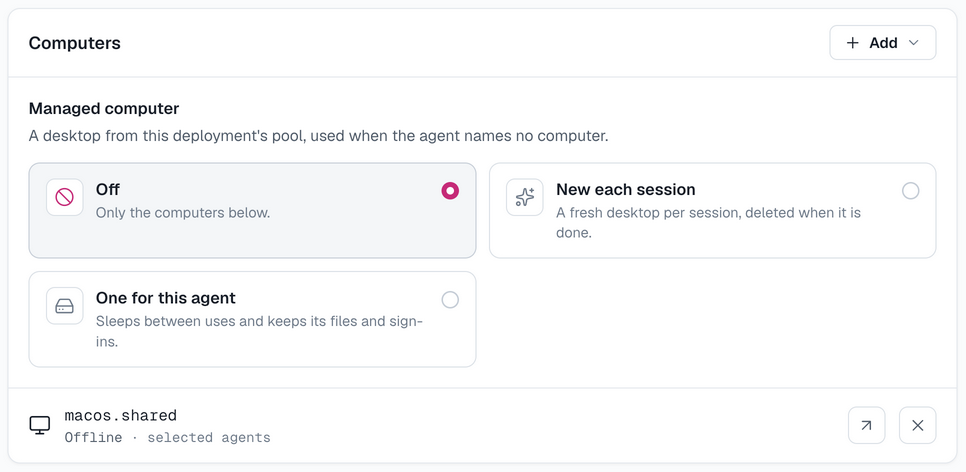
The agent receives the computer_* tools starting with its next new session. To revoke access, select Take away this agent's access on its row in the same card.
You must be able to see both the agent and the computer, and Viewers can't change access. As a result, a computer's visibility determines who can assign it to agents. On the computer's page, the read-only Agent access card lists every assigned agent and links to each agent's Tools tab.
Your own desktop has no isolation. When another member's agent has access to it, the Agent access card labels that agent Not your agent. It works on your machine with access to your apps and active sign-ins.
What the agent gets
| Tools | What they do | Needs control |
|---|---|---|
computer_list | Lists the agent's computers with their OS, status, and screen size | No |
computer_screenshot, computer_cursor_position, computer_wait | Views the screen, or waits and looks again | No |
computer_click, computer_move, computer_drag, computer_scroll | Sends pointer input using coordinates from the latest screenshot | Yes |
computer_type, computer_key | Types text or presses key combinations such as ctrl+s | Yes |
computer_launch | Launches an app by name | Yes |
computer_acquire, computer_release | Acquires or releases control explicitly | — |
computer_exec, computer_read_file, computer_list_dir, computer_write_file | Command line and files, when allowed | No |
Every input action returns a fresh screenshot afterward so the agent can verify the result. If an agent has only one computer, it uses it without naming it. If it has multiple computers, it specifies which one to target.
The session's standing instructions tell the agent how to work on a desktop: wait for pages to settle, look again before clicking, and treat on-screen content as untrusted.
Approvals
When Ask once per session is enabled (the default), an agent's first click, drag, keystroke, or app launch in a session waits for human approval. Screenshots, pointer moves, and scrolling don't require approval.
The approval card shows the computer name and requested action, with Allow for this session and Deny buttons. For typed text, it shows the character length only, never the text itself. Once approved, no further prompts appear for the rest of that session.
Only someone permitted to control the computer (its owner by default) can respond. The card appears in the session's conversation, and the owner is also notified so requests still reach them even if they aren't in that conversation. If a request is denied or no one can be reached to answer it, the tool call fails without sending anything to the computer.
Taking turns
A desktop has one pointer and one keyboard focus, so only one agent can control it at a time. An agent acquires control on its first input and releases it when its turn ends.
- Waiting: Other agents' input requests queue first-come, first-served for up to Wait in line (45 seconds by default). After that, the call fails and names who currently has control.
- Releasing: Control is released after Idle release without input (120 seconds by default), and a single session can hold control for at most Longest control (30 minutes by default).
- No turn needed: Screenshots and live viewing never wait in line.
On Linux, each agent gets its own desktop. Instead of sharing your screen, each agent runs on a separate virtual desktop on the same computer. Multiple agents can work in parallel while your own screen stays free. Sessions belonging to the same agent still take turns on that agent's desktop. You can view an agent's virtual desktop through the viewer.
- When Share browser logins is on (the default), an agent desktop's browser starts with a copy of the computer's Chromium logins and those from other agent desktops. When off, each agent desktop keeps its own browser profile.
- Agent desktops share the computer's user account and home directory. Give agents separate computers if they shouldn't share them.
- To switch back to one shared, visible desktop, uncheck Separate desktop for each agent in the tray menu, or run
npx -y @agentconnect.md/cli computer desktops offon the machine.
On macOS, Windows, and Linux systems where virtual desktops aren't available, a computer has a single desktop that agents take turns using.
Usage policy
The Usage policy tab on a computer's page contains the settings below, which apply to every agent with access. Only the owner can change them. Everyone else sees them as read-only.
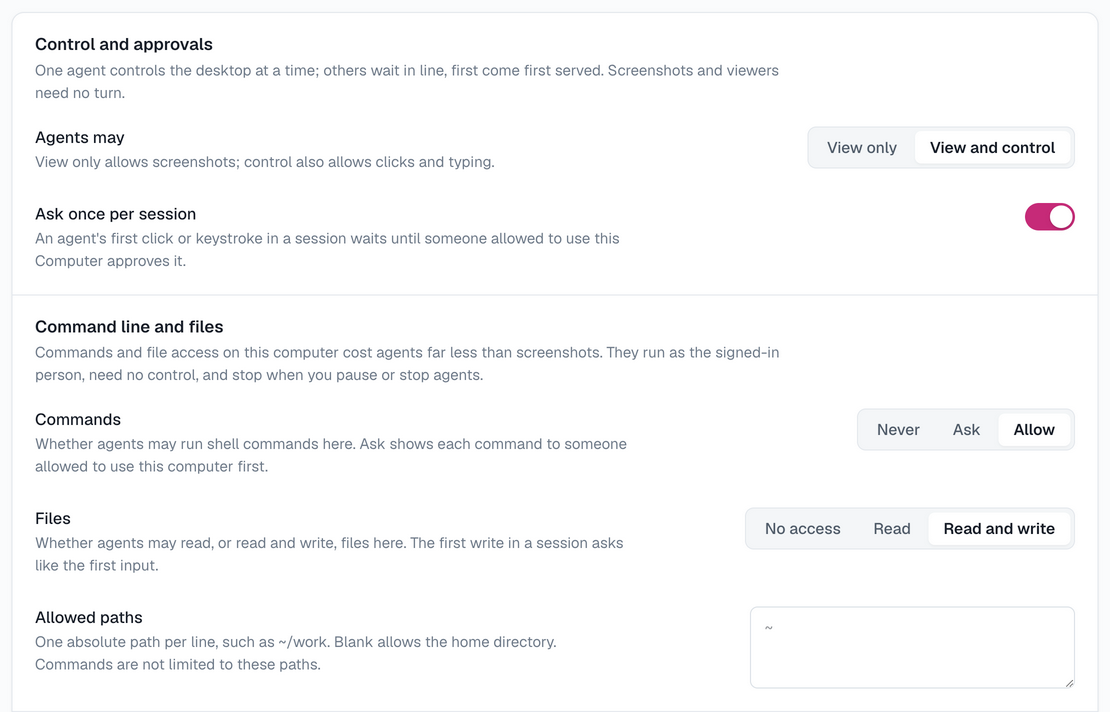
| Setting | What it does | Default |
|---|---|---|
| Agents may | View only allows screenshots; View and control also allows clicks and typing | View and control |
| Ask once per session | Requires approval before the first input in a session | On |
| Administrator prompts (UAC) | Windows: selects who answers an administrator prompt that appears while an agent has control | People approve each one |
| Commands | Whether agents can run shell commands: Never, Ask (approve each command first), or Allow | Never |
| Files | No access, Read, or Read and write | No access |
| Allowed paths | Paths file tools can access (one absolute path per line; leave blank to allow the home directory) | Home directory |
| Idle release | Seconds without input before releasing control (10 to 3600) | 120 |
| Longest control | Maximum seconds one session can hold control (60 to 86400) | 1800 |
| Wait in line | Seconds an agent waits for a turn before giving up (0 to 600) | 45 |
| Keep screenshots | Days stored screenshots are retained (0 disables storage; leave blank for the deployment default) | Deployment default |
| Share browser logins | Linux: whether agent desktops start with a copy of the computer's Chromium logins | On |
| Expose driver tools | Exposes the driver's own window-level tools to agents | Off |
| Peer-to-peer viewing | Allows direct viewer video between browser and desktop across networks, exposing the desktop's public IP | On while only the owner can watch |
These defaults apply to computers you add yourself. Cloud computers allow commands and file access by default, as shown above. Cloud computers created automatically for an agent don't ask for approval either, because they don't contain personal data. Shared cloud computers you add manually still ask once per session.
Windows administrator prompts that ask for an administrator password can never be approved by an agent or by a policy setting. A person must answer them at the machine.
Command line and files
Operating a terminal through screenshots is slow and expensive. When allowed by the owner, an agent can run shell commands and read or write files directly on the computer. These tools don't need a turn on the desktop, so they work even while a person or another agent is using the screen.
| Tool | What it does | Needs |
|---|---|---|
computer_exec | Runs a command in the signed-in user's shell and returns its output | Commands not Never |
computer_read_file | Reads a text file by lines, or reads an image | Files not No access |
computer_list_dir | Lists directory contents | Files not No access |
computer_write_file | Writes a file | Files: Read and write |
- Supported on Linux computers, including desktop containers. The Usage policy tab notes when a computer's daemon doesn't support these tools.
- Commands run as the signed-in user without a terminal, for 30 seconds by default and 90 seconds at most. Any command still running at the timeout is terminated.
- View-only computers can't run commands.
- Allowed paths restricts file tools only. Shell commands can access whatever the signed-in user account can.
- With Commands set to Ask, each command and its working directory appear on an approval card with Allow once, Allow for this session, and Deny. The first file write in a session prompts for approval just like the first desktop input.
- Pausing or stopping agents also terminates running commands.
Allowing commands on your own desktop hands your user account to the agent: it can read your keys, your signed-in browsers, and anything else you can access. Keep Commands on Never unless you'd trust that agent with a terminal on the machine.
Cloud computers
When your deployment runs a computer pool, Infra includes a Cloud computers section, and each agent's Computers card starts with a Managed computer setting:
| Setting | What the agent gets |
|---|---|
| Off | Only the computers explicitly listed in the card |
| New each session | A fresh desktop for each session that uses one, deleted along with its files when the session ends |
| One for this agent | The agent's own desktop, created on first use; it sleeps between uses and keeps its files and logins |
Any editor of the agent can change this setting. When an agent doesn't name another computer, it uses its managed computer.
Select Add cloud computer in the Cloud computers section to create a shared cloud computer instead. Give it a name, choose who can see it, and assign it to agents from their Tools tab like any other computer. It sleeps when idle, wakes on the next use, and stays until you delete it. Its actions menu provides Wake, Sleep, and Reset desktop (which deletes its files, browser profile, and sign-ins and restarts it clean).
How is this guide?