Watch and take over
Watch a Computer's screen live from the console, take over the mouse and keyboard, stop agents from the console or on the machine, and review activity and stored screenshots.
When people and agents share a computer, people always take priority. You can watch live without interrupting an agent, take over the mouse and keyboard whenever needed, or stop all agents at once.
Watch the screen
Open the computer from Infra. The Screen card on the Overview tab shows who currently has control. Select Watch to see the screen live. Watching never blocks agents, and several people can watch at once.
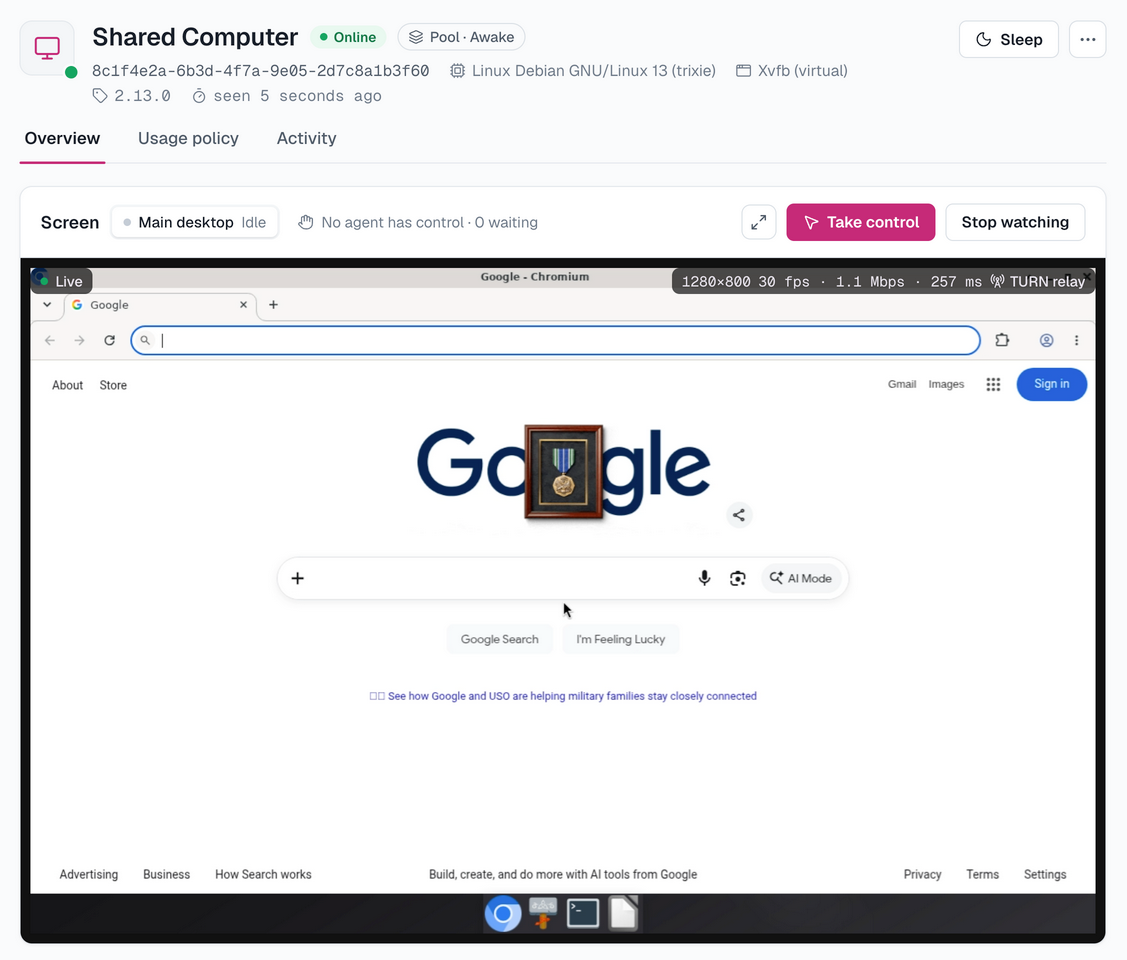
On a Linux computer where each agent has its own desktop, use the Desktop picker to switch between the Main desktop and each agent's desktop.
Every session page also has a Computer tab in its side panel showing the computer that session's agent is using, so you can follow a task without leaving the conversation.
How the video travels
The viewer uses the first connection path that succeeds and displays a badge for it:
| Badge | Path |
|---|---|
| Direct | Straight from the desktop to your browser, on the same network or via an address the desktop publishes |
| Peer to peer | Direct between browser and desktop across networks after both learn their public address from the relay |
| TURN relay | Routed through the deployment's TURN server when no direct path connects |
| Screenshots | Polls screenshots through the relay at a few frames per second when video can't connect |
Video never passes through the Control Plane. Because peer-to-peer connections expose the desktop's public IP address to viewers, each computer's Peer-to-peer viewing setting controls whether it's allowed (see Usage policy). Audio and clipboard sync aren't supported.
Take control
While watching, select Take control. Your mouse and keyboard drive the desktop immediately, and agent input is refused until you select Hand back. Control is also released shortly after you close or leave the page.
- Use the text box below the screen to paste text or enter characters that require an input method.
- On a computer with a separate desktop for each agent, taking control pauses only the desktop you're viewing. Agents on other desktops keep working.
- Only someone permitted to control the computer (its owner by default) can take over. Everyone else who can see the computer sees Watching only.
An agent whose input is refused is told that a person is in control. It can still take screenshots, so it sees what you did once you hand control back.
Stop and resume
Selecting Stop in the computer's header immediately ends agent control and blocks every agent until you select Resume. Any Owner or Collaborator who can see the computer can stop it. Only the owner can resume their own desktop, and an API key or an agent can never resume it.
Stopping also terminates any commands agents are running on the computer. Screenshots keep working while it's stopped.
At the machine
When sitting at the machine, you don't need the console:
- Just use the mouse or keyboard: Moving the pointer yourself blocks agent input for a few seconds. On Linux X11 sessions, pressing a key or mouse button does the same.
- Stop all agent input: Use the tray icon on Linux X11, the menu bar icon on macOS, or the taskbar icon on Windows. Agents stay paused until you resume them from that menu.
- Stop hotkey: On Linux X11, press
Ctrl+Alt+Shift+Escape. - From a terminal: Run
npx -y @agentconnect.md/cli computer pause, andcomputer resumeto let agents continue.
A pause made on the machine must be resumed on the machine. Agents can't lift a pause themselves: the local controls on the desktop can only stop agents, and agent input is refused while paused.
When each agent has its own virtual desktop, your input on the main screen doesn't pause agents because they aren't running on it. Stopping from the tray, the hotkey, or the console still pauses every desktop.
What agents cannot do
Regardless of the usage policy, the desktop daemon always blocks:
- System shortcuts: On Windows, Windows-key combinations and Ctrl+Alt+Del. On macOS, lock screen, log out, and force quit.
- Security surfaces: Lock and sign-in screens, authentication dialogs, and OS privacy and security settings. Windows administrator prompts are handled only as the computer's Administrator prompts (UAC) setting allows.
- Its own controls: The status indicator and stop controls.
If an action's outcome is unknown because a call timed out or the connection dropped, the daemon never retries it automatically. Instead, the agent gets a fresh screenshot and decides what to do from what it sees.
Review activity
The Activity tab is visible only to the computer's owner and groups events by day. You can filter by Viewers or Agents. Each entry lists the agent, action, duration, approval status, and a link to the session. Entries are retained for 90 days.
Typed text is recorded by character length only. Shell commands record the command and its exit code, never its output. File access records the path and size, never the file contents.
Stored screenshots
When the deployment has screenshot storage enabled, screenshots returned by agent tools are saved and displayed on computer tool rows in the session timeline. Viewing a screenshot requires access to both the session and the computer.
Keep screenshots in the usage policy sets how many days screenshots are retained (0 disables storage). Lowering this value also applies to screenshots already stored, and deleting a computer hides its screenshots immediately. Screenshots that have expired or were never stored appear as unavailable in the timeline.
Live viewer video is never stored.
How is this guide?