Team visibility
Choose which people can discover and use an agent, daemon, schedule, MCP provider, or shared skill source.
Team visibility controls which people can access a resource. It's separate from Agent visibility, which controls which agents can call each other. New resources are visible to the whole organization by default. Switching to Selected limits access for Collaborators and Viewers while keeping the resource accessible to organization Owners.
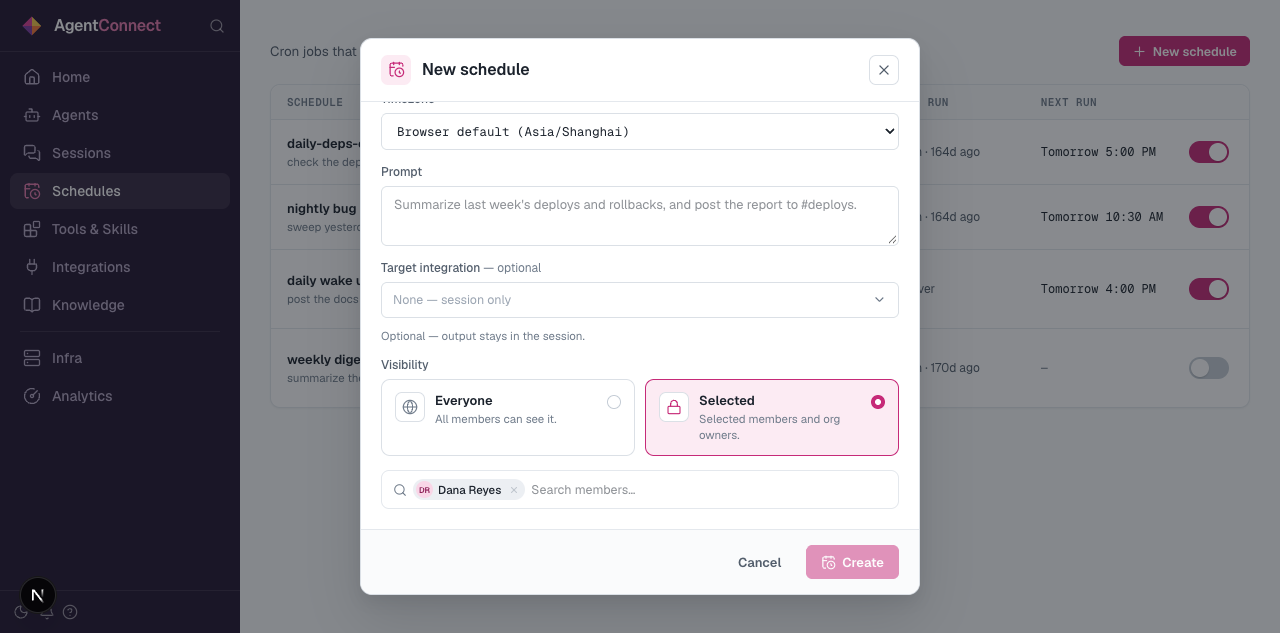
Setting visibility
Supported create and edit forms include a Visibility or Team visibility field:
- Everyone: Every organization member can see the resource.
- Selected: Only the members you pick, plus all organization Owners, can see it.
A Selected list must always include at least one current organization member. Owners can view and edit the resource even when they aren't listed, and removing an Owner from the selection doesn't revoke their role-based access. A member's role still determines whether they get read-only or edit access.
Anyone who can edit a resource can also change its visibility. A selected Collaborator can share it with more people, while a selected Viewer remains read-only.
When a member leaves
AgentConnect removes departing members from every Selected list. Affected resources stay Selected, and AgentConnect keeps at least one current member explicitly selected.
Resources with their own visibility
These resources have independent visibility settings:
- Agents
- Daemons
- Schedules
- MCP providers and OpenConnector connections
- Shared skill sources
Agent and daemon visibility are independent. A member can see an agent without seeing the daemon that runs it, though they can't place or move an agent onto a daemon they can't see.
Other resources inherit access from their parent. Integrations, webhooks, and workspace operations follow their agent. Schedule configuration and run history follow the schedule. Daemon keys follow the daemon. Bots are organization-wide infrastructure and don't have a Selected list.
Analytics gives Owners full organization-wide usage attribution. For Collaborators and Viewers, attribution requires access to both the agent and the session.
Sessions have their own visibility rules. Metadata, transcripts, tool details, relationships, and live updates can remain readable even when the agent is hidden. Likewise, Owner access to a resource doesn't grant access to its private or provider-restricted sessions.
What a restricted agent changes
For unselected Collaborators and Viewers, a restricted agent disappears from agent lists and pickers, detail and configuration pages, workspace operations, invocation controls, and Analytics attribution. Organization Owners keep full access.
Restricting an agent doesn't hide its sessions. Anyone who passes a session's access check can still read its metadata, transcript, tool details, relationships, and live updates. The console may display the agent's name as a plain label or filter, without linking to it. That text grants no access to the agent itself.
Chat integrations on a restricted agent are also gated by conversation. Newly discovered channels and direct messages start Off. An editor must turn on each conversation from the agent's integration card before the agent responds there. Enabling a channel trusts its current and future members; it isn't a per-person allowlist.
When you switch an agent from Everyone to Selected, existing channels keep their configured triggers, while known direct messages switch to Off. Review the integration card after tightening visibility.
What team visibility does not control
Team visibility is separate from:
- Roles, which control what actions a person can take
- Session visibility, which can make an individual transcript private
- Agent visibility, which controls which agents can call each other
- Runtime permission mode, repository access, and provider app scopes
How is this guide?