Linear
Delegate an issue to the app and an agent picks it up, posting progress and the final answer directly in Linear's agent session.
A Linear integration turns your agents into delegatable teammates inside Linear. Assign an issue to the app, or mention it in a comment with instructions. The agent acknowledges within seconds, works in its own workspace, and streams progress (thoughts, tool actions, and a plan checklist) into Linear's agent session feed before posting the final response. Reply in that session thread to steer it, or use Linear's Stop control to interrupt it.
You connect one workspace at a time, and every agent enabled on it works through the same Linear app. Routing is decided per team.
Before you connect
Linear delivers events over HTTP callbacks, so your deployment needs a public callback endpoint and a single Linear OAuth application registered for the deployment. AgentConnect Cloud already includes both. On AgentConnect OSS, an operator must register the deployment's Linear application first. Until then, the Linear pane shows that Linear isn't set up on this deployment.
Connect a workspace
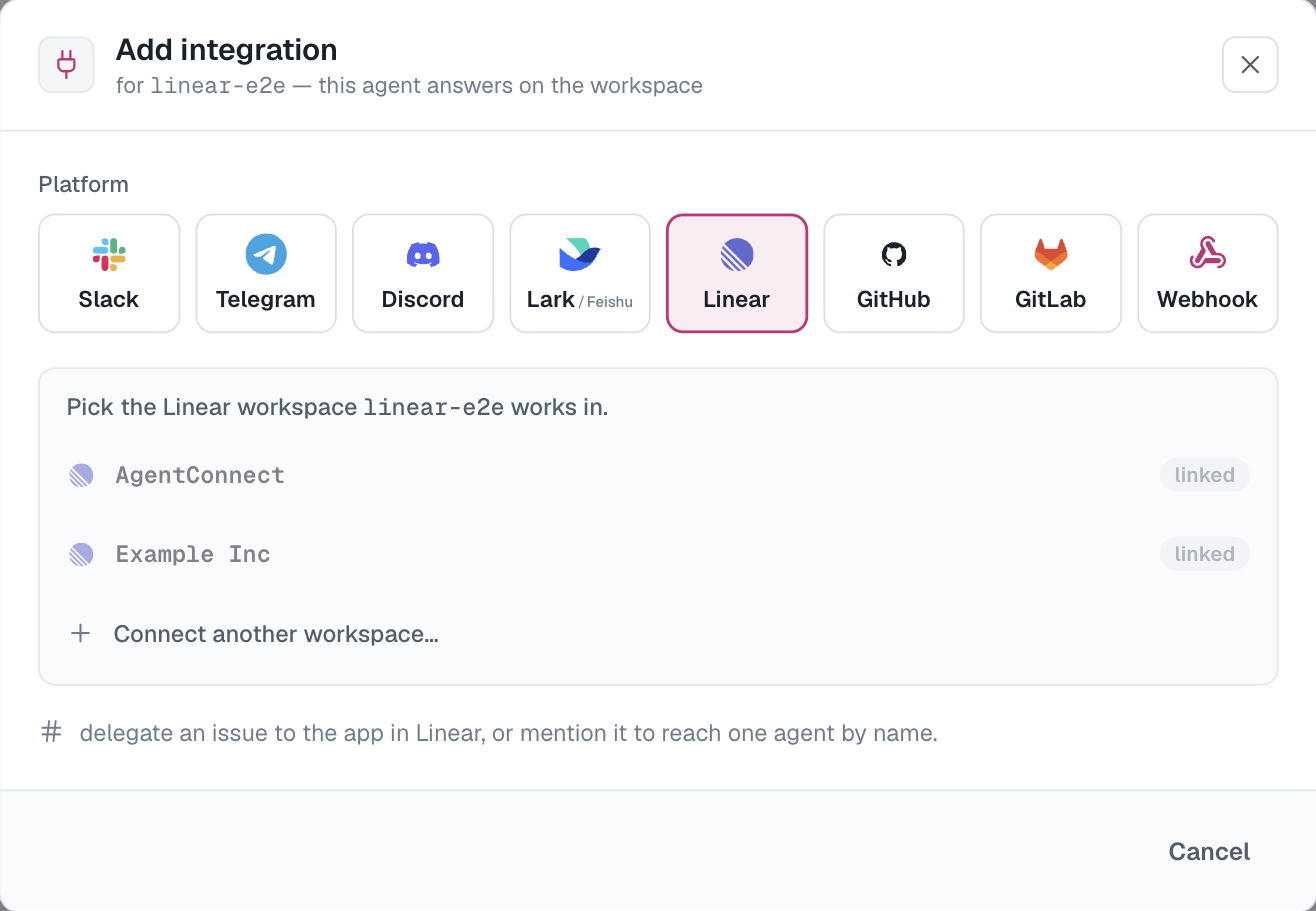
On your agent, open Integrations → Add integration → Linear.
There's nothing to fill in. Choose Connect Linear, approve the workspace in the Linear tab that opens, and you'll return to the console. The agent you started from becomes each team's dispatch default (the agent that receives delegations without a specific agent name).
Authorization requests read and write access, permission to be assigned and mentioned as an app, and initiative access. If you connected a workspace before initiative support existed, everything else keeps working and only the three initiative tools ask you to reconnect.
To add a second agent to the same workspace, open that agent's Add integration → Linear and pick the connected workspace from the list. To connect a different workspace, click Connect another workspace… in the same pane.
Teams are the channels
A connected workspace lists one row per Linear team on the agent's Linear card. Each row has the same two controls used for channels elsewhere in AgentConnect:
- Dispatch default: The agent that picks up a bare delegation in that team.
- Trigger: Mention or Off.
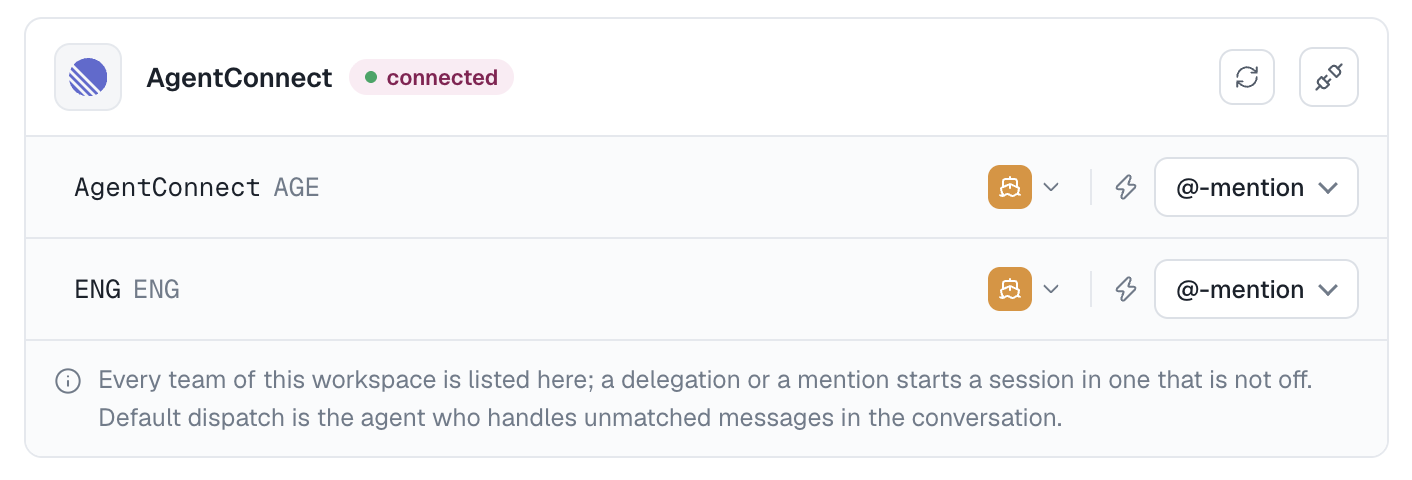
There is no "any message" setting because every Linear event is already addressed to the app, so a team either accepts delegations and mentions or is turned off. Turning a team Off mutes it for every agent on the workspace. To stop a single agent from answering anywhere in that workspace, unlink that agent from the workspace instead.
Each team's name links to the team in Linear, with its key shown beside it. Use the row's selector to change the team's default agent. When the current default is a restricted agent, the console warns you first because being the default is what allows it to act there. When the linking agent is restricted, teams start Off until someone enables them.
Start work on an issue
- Delegate the issue to the app: The issue's team dispatch default takes it. Linear automations that delegate issues route the same way.
- Mention the app with instructions: Write
@<agent name>anywhere in your instruction to target a specific agent. Without a name, the team default takes it. If you name multiple agents, the first one is selected, and the acknowledgement tells you which agent took the turn.
Each delegation or mention creates one Linear agent session bound to one agent. Follow-ups and Stop apply to that agent. To reach a different agent, post a new mention to start a separate session.
What the agent does in the issue
- Acknowledges in under ten seconds: Opens with its own name, even when queued behind other work.
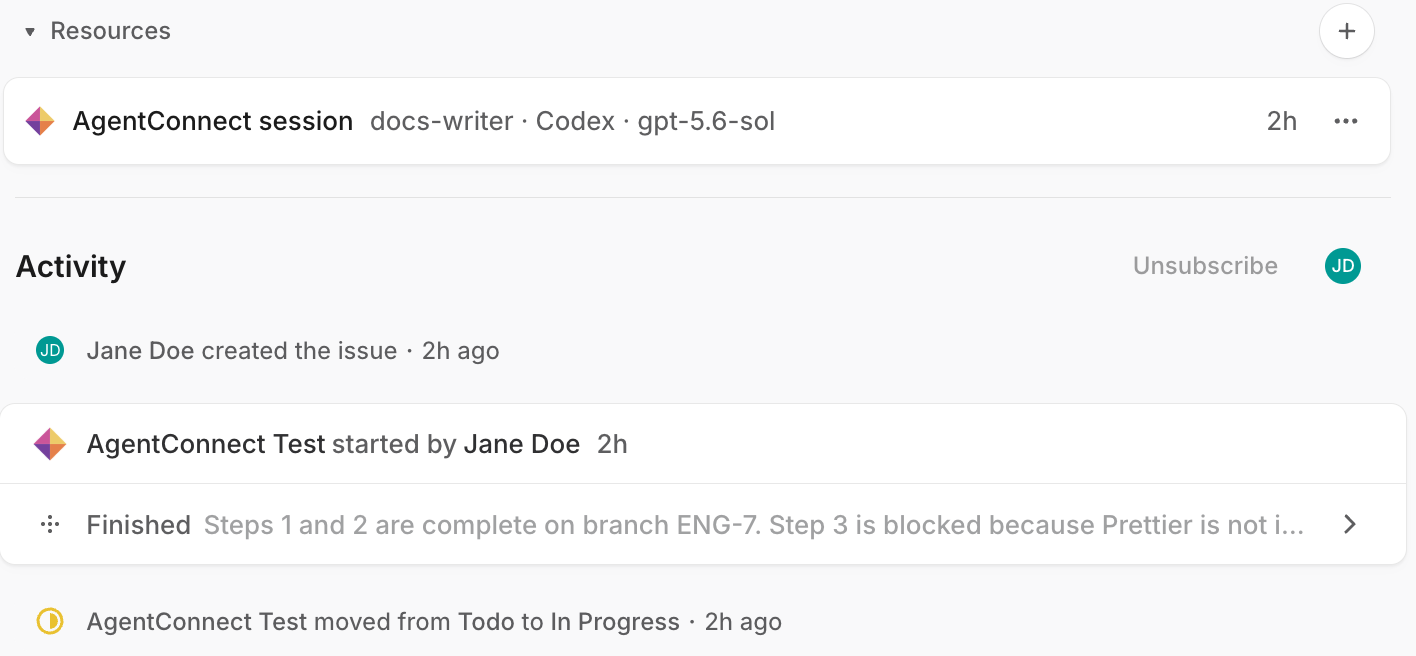
- Moves the issue into a started status: On the opening delegation, an issue that isn't already started, completed, or canceled moves to the team's first started state. Triage statuses are left alone so Linear-side automation keeps human triage intact, and teams with no started state are skipped. Follow-ups don't change the issue's status.
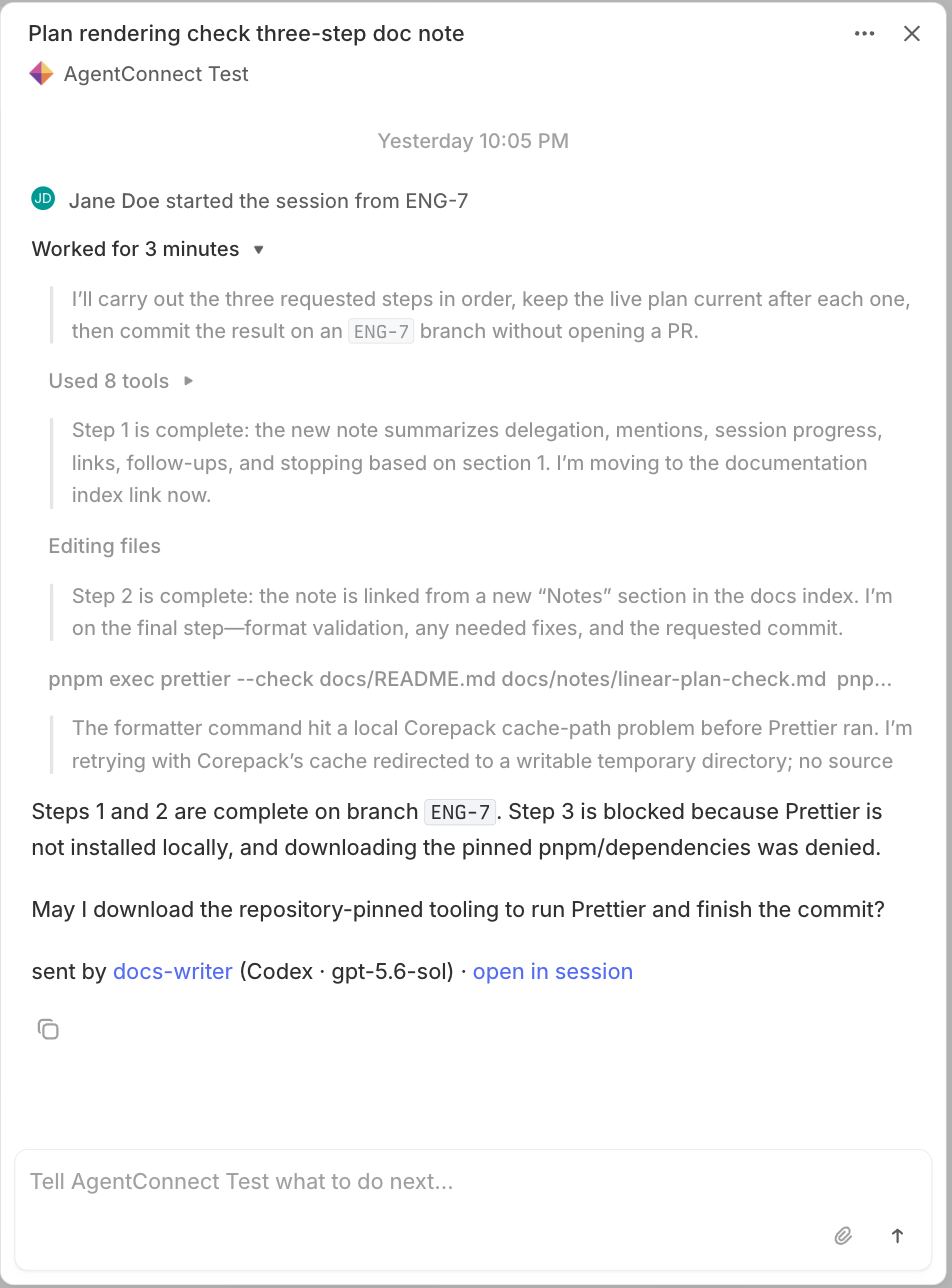
- Streams progress: Posts thoughts and tool actions, and keeps its todo list in sync with Linear's plan checklist.
- Attaches links: Pull requests and merge requests the agent opens are attached to the agent session, and the AgentConnect session appears in the issue's Resources from the first turn.
- Answers: Posts the final response, including the agent's attribution footer when its output settings include one.
- Stops on request: Interrupts the run and ends the session with a note telling you to reply to continue.
The full transcript is always saved in Sessions, regardless of what appears in Linear.
How much reaches the feed
The agent's Output mode controls what gets posted:
| Output mode | Acknowledgement | Progress | Tool actions | Plan | Answer |
|---|---|---|---|---|---|
| None | — | — | — | — | — |
| Minimal | ✓ | — | — | — | ✓ |
| Low (default) | ✓ | ✓ | ✓ | ✓ | ✓ |
| Medium | ✓ | ✓ + reasoning | ✓ | ✓ | ✓ |
| High | ✓ | ✓ + reasoning | ✓ + results | ✓ | ✓ |
Low already includes tool actions and the plan because showing progress is the point of a Linear agent session. None posts nothing to Linear at all, leaving the session unanswered, so the console flags it as a misconfiguration on any agent with a Linear integration.
What the agent can do in Linear
An agent working in a Linear session gets a set of Linear tools using the same app authorization. It can read and search issues, comments, statuses, labels, teams, users, projects, cycles, documents, and initiatives, and it can write issues, comments, and initiative updates. updateIssue accepts a state, assignee, or label by name and resolves it against the team, so "move it to In Progress" requires no lookup first.
These tools exist only in Linear sessions. The same agent doesn't have them when working in Slack or on a pull request.
The agent also receives the issue's identifier, title, URL, and team as standing context, plus a short working convention: work the ticket as written and ask only when blocked; comment with the outcome instead of repeating the plan (which is already live in the session); and name the branch and pull request after the issue identifier so Linear's code-host integration links them back. Any guidance a workspace admin writes in Linear for the app is passed along on each turn.
The issue description and earlier comments are passed to the agent as quoted context rather than instructions, since they often contain text written outside your workspace. Files and images attached in Linear aren't read.
Approvals
When a step needs permission the agent can't grant itself, the feed shows a card naming the action with a link into the console session. Once you approve or deny it there, a follow-up note appears in Linear. Approving from inside Linear isn't supported yet.
Manage the connection
| Action | Where | Effect |
|---|---|---|
| Unlink an agent | The agent's Linear card | Removes that agent from the workspace. The workspace and all other agents stay intact. |
| Reconnect | The agent's card, or Integrations → Messaging apps → Linear | Re-authorizes the workspace after a grant expires or is revoked. |
| Disconnect | Integrations → Messaging apps → Linear only | Disconnects the workspace for the whole organization and revokes authorization at Linear. |
Disconnect isn't shown next to a single agent's membership so one member can't accidentally cut off everyone else's access.
If someone revokes AgentConnect from Linear Settings → Applications, the workspace shows a revoked badge shortly afterward (Linear takes a minute or two to report it), and agents report that authentication is required. Reconnect repairs the authorization and restores existing memberships.
Limits
- Configuration is per team. There are no per-issue or per-project settings.
- Mentioning the app on a document or another non-issue surface posts a short note saying that surface isn't supported yet, and no agent run starts.
- Linear names its own agent sessions from the issue, while AgentConnect session titles stay in the console.
How is this guide?