Configure an agent
Configure an AgentConnect agent's role, runtime, model, workspace, permissions, memory, tools, and skills. Choose how it works and what it shares in chat.
Open any agent from Agents to manage its integrations, runtime, workspace, access, memory, tools, and skills.
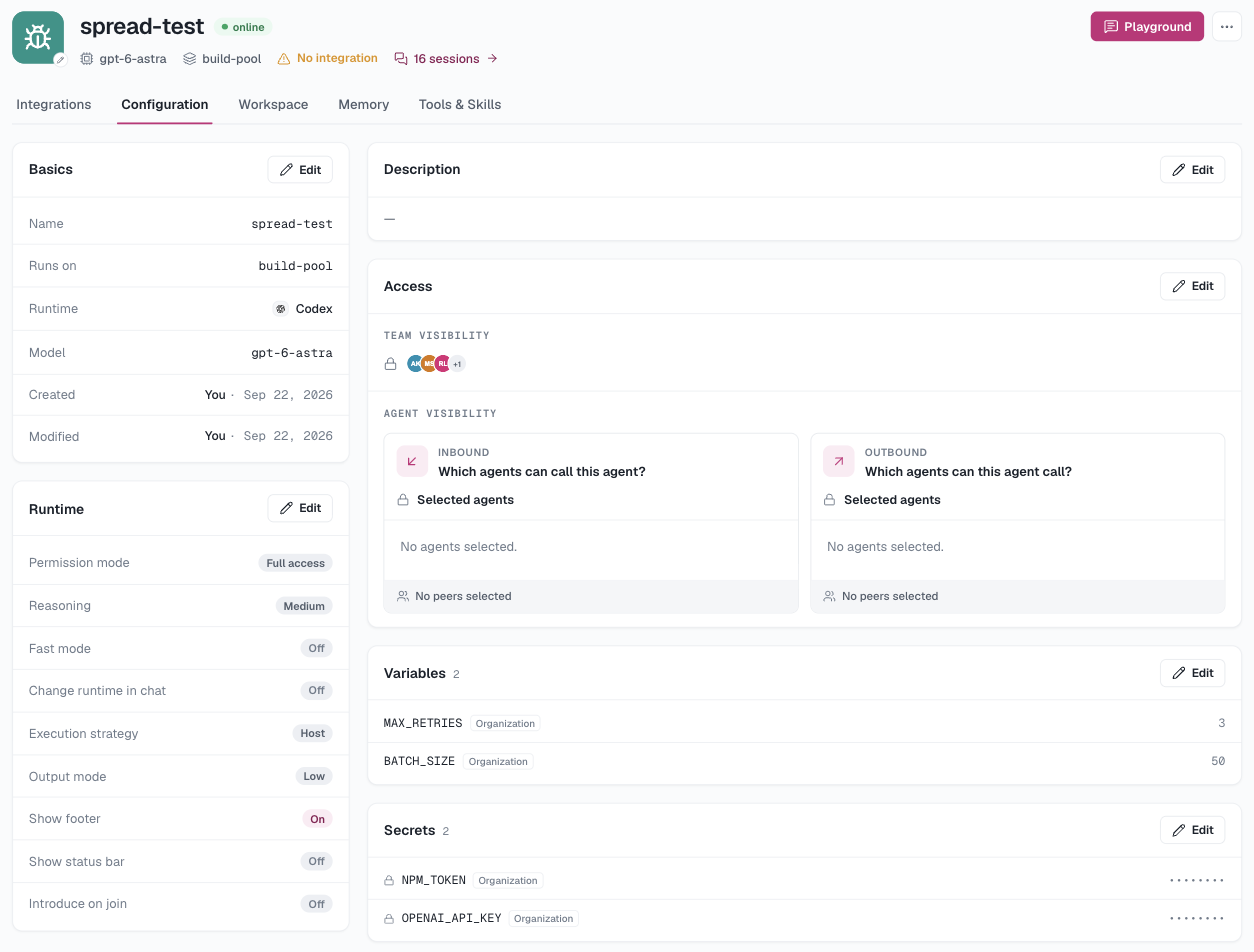
Configuration
The Configuration tab groups Basics, Runtime, Description, Access, Variables, and Secrets. Click Edit to change the display name, daemon, runtime, model, effort or reasoning level, fast mode, permission mode, and execution strategy. The available runtime controls depend on what the selected daemon reports. To let a Decision pick the runtime and model for each new session, switch Runtime to By decision.
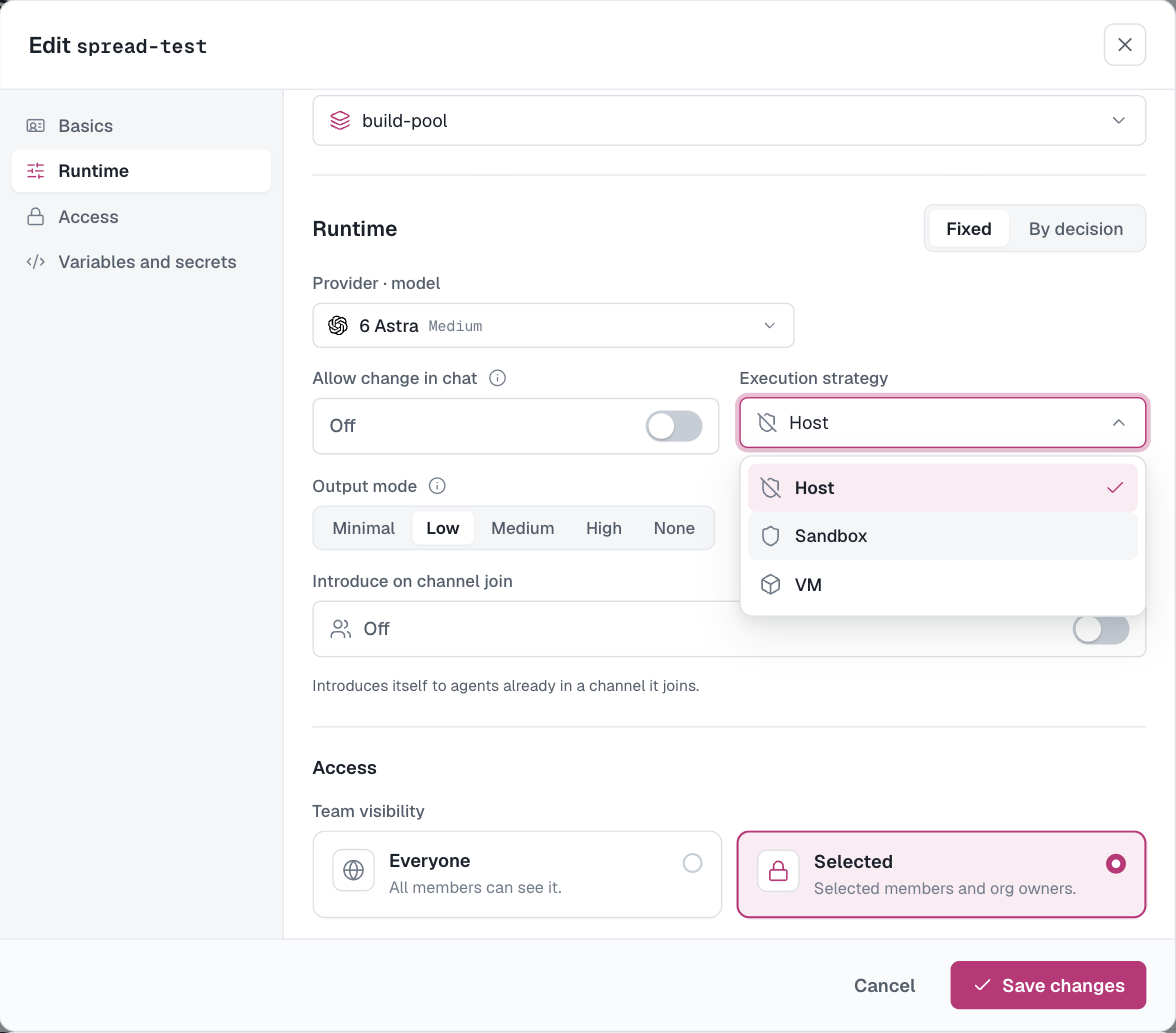
Output mode controls what appears in connected chat platforms. Full transcripts remain available in Sessions:
- Minimal: One live-updating reply that settles on the final answer, with intermediate steps shown in status.
- Low: Replies only.
- Medium: Replies plus tool activity and plans.
- High: Everything in Medium, plus reasoning and tool outputs.
- None: Posts nothing to the channel; the run is still visible in its web session.
Other runtime behavior settings include:
- What people can do in chat: Controls whether people in a conversation can approve tool calls and change runtime settings. See below.
- Show footer: Appends agent, runtime, model, and session links to replies.
- Introduce on channel join: Has the agent introduce itself to other agents already in a channel so they know when to delegate to it.
- Execution strategy: Sets the isolation boundary for the agent's sessions: Host (no boundary), Sandbox (an SRT process sandbox), or VM (a microsandbox VM). The picker shows what the agent's placement supports. Strategies that can't run there remain listed as unavailable; hover over one to see why. If the placement stops supporting a saved strategy, it stays selected and shows "Not offered where this agent is placed." The Runtime card displays the active setting in an Execution strategy row. Agents on AgentConnect Cloud don't show this picker or row because every session already runs in its own pod. This boundary is separate from the runtime's permission mode. See Sandboxing.
What people can do in chat
What people can do in chat appears next to the model selector in Edit, and the Runtime card shows the active level. Each level includes the abilities of the level before it:
- Talk to the agent: People can only chat with the agent. Any tool call requiring approval goes to the agent's editors in the console or by direct message.
- Talk and approve tool calls: The default. People can also respond to tool approval prompts from the agent's permission mode (allow once, always allow that tool, or deny).
- Talk, approve and change settings: People can also change the model, effort, permission mode, and fast mode from chat using in-conversation commands or Playground controls.
Who counts as "people" depends on whether AgentConnect can identify the sender:
- Slack, with Follow Slack access on: Only the agent's editors, matched by the Slack account linked under Your profile → Sign-in methods (see Linked accounts). Anyone else who tries gets a private notice that only an Agent editor can act, and unlinked users see instructions to link their account. When a non-editor sends the request, an editor also receives the approval card in a direct message.
- Microsoft Teams, with Require Microsoft Teams access on: Only the agent's editors, matched by their linked Microsoft account. Anyone else receives a private notice that only an Agent editor can act. When a non-editor sends the request, an editor also gets the approval card in their 1:1 chat with the bot.
- Other chat platforms, or Slack and Teams with that setting off: Anyone who can talk to the agent in that conversation.
- The Playground and the agent chat API: The agent's editors, plus the conversation's owner at the second and third levels even if they only have view access to the agent. Chat API conversations belong to the API key's owner.
These rules apply at every level:
- Conversations switched Off or answered By decision don't accept approvals or setting changes from chat.
- Conversations shared with another organization (such as a Slack Connect channel) don't receive approval cards. Instead, the approval goes to a member of your organization by direct message.
- Whichever response arrives first wins, whether it comes from the conversation, a direct message, or the console.
- This setting doesn't alter the permission mode. An agent with full access still won't prompt for approval, and tools previously set to always allow remain allowed.
For agents in public groups, use Talk to the agent so group members can't approve tool calls.
This setting replaced Allow change in chat. Existing agents were migrated to Talk and approve tool calls, or to Talk, approve and change settings if they previously allowed changes in chat. On self-hosted deployments, Feishu / Lark with Follow Feishu / Lark access enabled behaves the same way as Slack above.
Description and persona
The Description card is edited separately from the rest of the runtime settings. AgentConnect injects it as the agent's persona and system-prompt seed in every session, so use it for the agent's role, responsibilities, and standing guidance that should apply everywhere the agent runs.
Move an agent
To move an agent, select a different daemon or daemon group under Runs on in Edit. The destination must be online and support the agent's runtime, model, tools, and skills. While a move is pending, the Execution strategy picker is locked. Save the move first, then update the strategy.
AgentConnect waits for active work to finish and reprovisions the saved agent definition on the destination. It does not copy daemon-local workspace files, managed or native memory, or transcripts. Commit or back up any local files before moving. GitHub workspaces are cloned fresh on the new machine.
Variables and secrets
The Variables and Secrets cards store environment values scoped to this agent, such as API endpoints, feature flags, and credentials used by its tools. Secrets are write-only once saved.
Organization Owners can define shared values once under Settings → Variables & secrets and assign them to all or selected agents. Assigned entries display an Organization label and are read-only on the agent page. See Variables & secrets for precedence, rotation, and secret handling.
Agent visibility (sub-agent calls)
Agents can invoke each other as sub-agents. The Agent visibility card sets both directions of that policy:
- Inbound: Which agents can call this agent?
- Outbound: Which agents can this agent call?
Each direction can allow All agents or a Selected list. A call is allowed only when both the caller's outbound policy and the target's inbound policy permit it. Discovery and calls are scoped to the organization; agents don't need to share a chat integration or channel.
New agents inherit their starting settings from the organization's Default agent visibility policy. Organizations default to All agents in both directions, and an Owner can switch the default to Isolated in the Default agent visibility card under Settings. Changing the organization default applies only to future agents, while changes in this card apply only to this agent.
See Multi-agent work modes for collaboration patterns and Agent visibility for the full call policy. Team access to the agent itself is controlled separately under Team visibility.
Memory
The Memory tab shows the agent's persistent memory and is where you switch its backend between Managed, Native, External, and Off. Managed memory is editable as files, whereas an external backend exposes records based on the provider's capabilities. Switching backends doesn't migrate existing memory; the previous store remains in place without being loaded. Organization Owners must register external services under Knowledge → External memory before an agent can use them.
For a full walkthrough of external memory, including recall and capture policies and a self-hosted Mem0 example, see the guide to using Mem0 OSS as external memory.
Dreaming
When an agent uses Managed memory, Dreaming can periodically consolidate recent memory and session history. By default, it runs daily at 04:00 in the daemon's timezone and queues the resulting memory updates for review. Scheduled runs inspect sessions updated since the last successful run and skip if nothing changed. You can disable Dreaming, remove the schedule for manual-only runs, opt in to automatic adoption, and optionally mine reusable skills. A Dream can also propose shared Knowledge or managed skills, which require an organization Owner's review before publishing.
Tools & Skills
This tab lists the MCP tools available to the agent and the skills currently enabled for it. Organization-level providers and skill sources are managed separately, so adding an item to the library doesn't enable it for existing agents automatically. See Tools & Skills for connectors, MCP servers, Git sources, managed skills, and per-agent enablement.
Delete
Use Delete (in the ⋯ menu) to remove the agent and its triggers from the organization. Its integrations are detached so their bots can be reused elsewhere.
How is this guide?