GitHub
Trigger agents from GitHub issues, pull requests, and comments, and let them reply in the thread.
A GitHub integration lets an agent watch a repository, or every repository in an installation. New issues, pull requests, and comments start sessions, and the agent can reply as PR or issue comments. This uses the deployment's AgentConnect GitHub App. On AgentConnect Cloud, you don't need a webhook per repository. On AgentConnect OSS, an operator configures a single deployment-level GitHub App webhook on the Relay.
Watch a repository
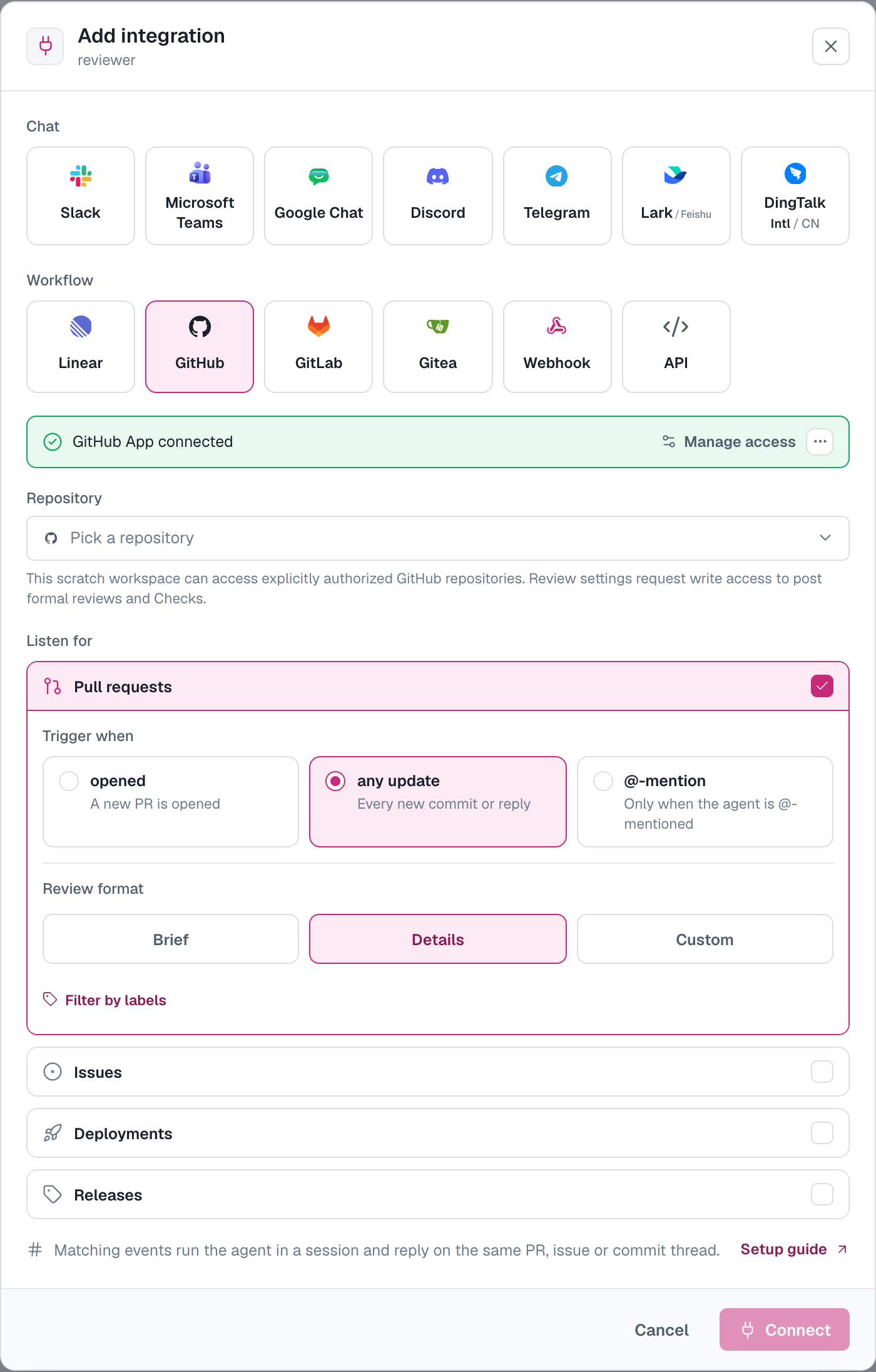
On the agent page, go to Integrations → Add integration → GitHub.
-
Repository: Pick a repository covered by the GitHub App that the signed-in user can access. Public repositories are available for read-only setup; private repositories require a linked GitHub identity with access. Picking a repository the agent isn't authorized for opens the authorization step inline. Each GitHub App installation also appears at the top of the list as All of
<account>(see below). -
Listen for: Pull requests, issues, deployments, releases, or any combination. Each selected type creates its own trigger.
-
Trigger when: Choose which events start the agent:
- opened: Runs when a PR or issue is opened, plus on later explicit mentions in that selected event type.
- any update: Runs on openings plus supported new revisions, label changes, and replies. Closing, reopening, and body edits don't trigger the agent.
- @-mention: Runs when someone @-mentions the assigned agent or GitHub App. Requesting the App natively as a PR reviewer also counts as an explicit mention and starts matching PR reviewers.
Deployments and releases don't have a comment thread for mentions. The agent runs when a deployment is created or on any status it reports, and when a release is published or on any update (every publish, edit, or unpublish).
When several agents watch the same repository, use Add decision on an issue or pull request row to let a Decision choose which agents handle each item.
Watch every repository of an installation
Picking All of <account> watches every repository covered by that installation, including repositories added later. Each event type you listen for becomes one watch named <account>/*, with its own trigger cadence and review settings.
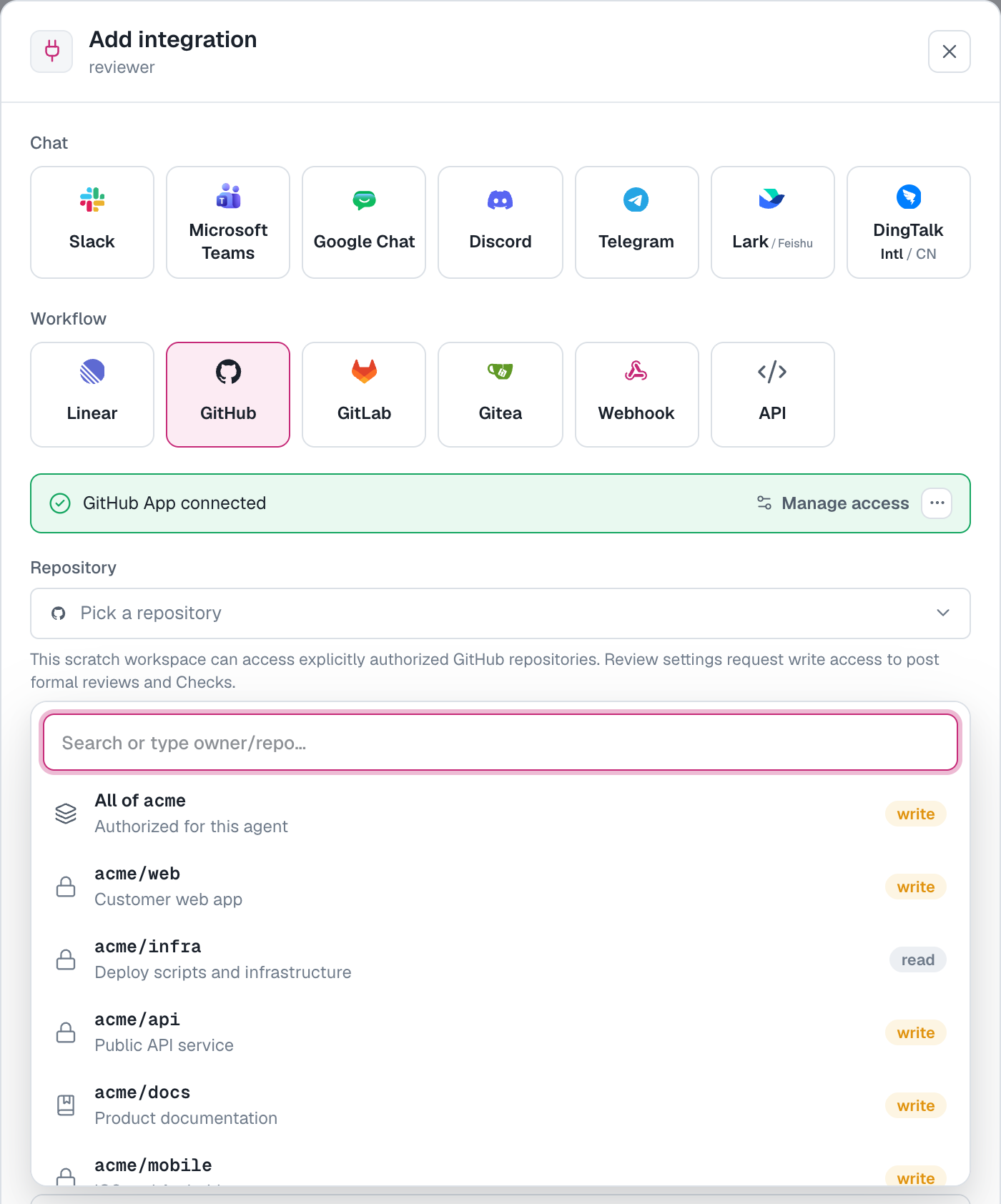
- This requires the agent's installation authorization, which only an organization owner can grant. If it's missing, an owner is taken directly to that step; everyone else can pick the installation once it's authorized.
- Formal reviews and informational Checks require Read & write on that installation authorization. Individual repositories don't need separate authorization, even for Checks.
- If the same agent also has a per-repository watch for the same repository and event type, the repository-level watch takes precedence so the agent never runs twice for one event. Use a repository-level watch to override settings for a specific repo.
- To exclude a repository, remove it from the GitHub App installation, or watch individual repositories instead.
- You can't revoke the installation authorization while the agent still has an installation-wide watch. Delete those watches first.
Who may trigger an agent
AgentConnect checks the content author's current repository permission through GitHub. Only users with triage, write, or admin permission (Maintain counts as write), or users on the repository's trusted users list, can start an agent automatically. GitHub's webhook author_association label isn't used for authorization.
- An issue or pull request opened by someone below that bar doesn't start an agent, even if the body mentions the agent or GitHub App.
- A current maintainer or trusted user can explicitly mention the agent or App in a comment to request the first turn on an externally authored thread. If someone below the trigger bar posts the same mention, no turn starts. Instead, the App replies once per thread with a fixed note explaining that a maintainer can mention the agent to have it take a look.
- Unmentioned follow-up comments follow the configured cadence only when both the commenter and the original issue or PR author still meet that requirement.
- Native review requests and Check reruns follow the same current-maintainer check.
AgentConnect verifies the author of each comment, including edited content, instead of substituting the webhook sender. Trigger permission is separate from what the agent can do once it runs: comments, formal reviews, Checks, and repository writes still require the configured AgentConnect repository grant and GitHub App permissions.
Public repositories: External issue bodies, pull requests, diffs, and comments are still untrusted input, even though only a maintainer or trusted user can dispatch an agent on them. Use a conservative permission mode and narrowly scoped repository credentials, and run the agent in microsandbox or Kubernetes (execution environments).
A GitHub identity linked to a signed-in AgentConnect profile is used in two separate console-user checks:
- Optional per-user repository authorization uses it to verify private-repository access and every write grant.
- Settings → Session access → Require GitHub access uses it to decide whether a viewer can read a session from a private repository.
Public-repository read-only setup and public-repository sessions don't require a linked GitHub profile. Linking GitHub doesn't install the GitHub App, grant repository access, or change the webhook-author rules above. See Linked accounts.
Trusted users
To let someone below that bar start an agent (for example, an outside contributor or a teammate with read-only access), add their GitHub username under Trusted users in a pull-request or issue watch's settings (⋯ → Settings…). Editing the list requires edit access to the agent.
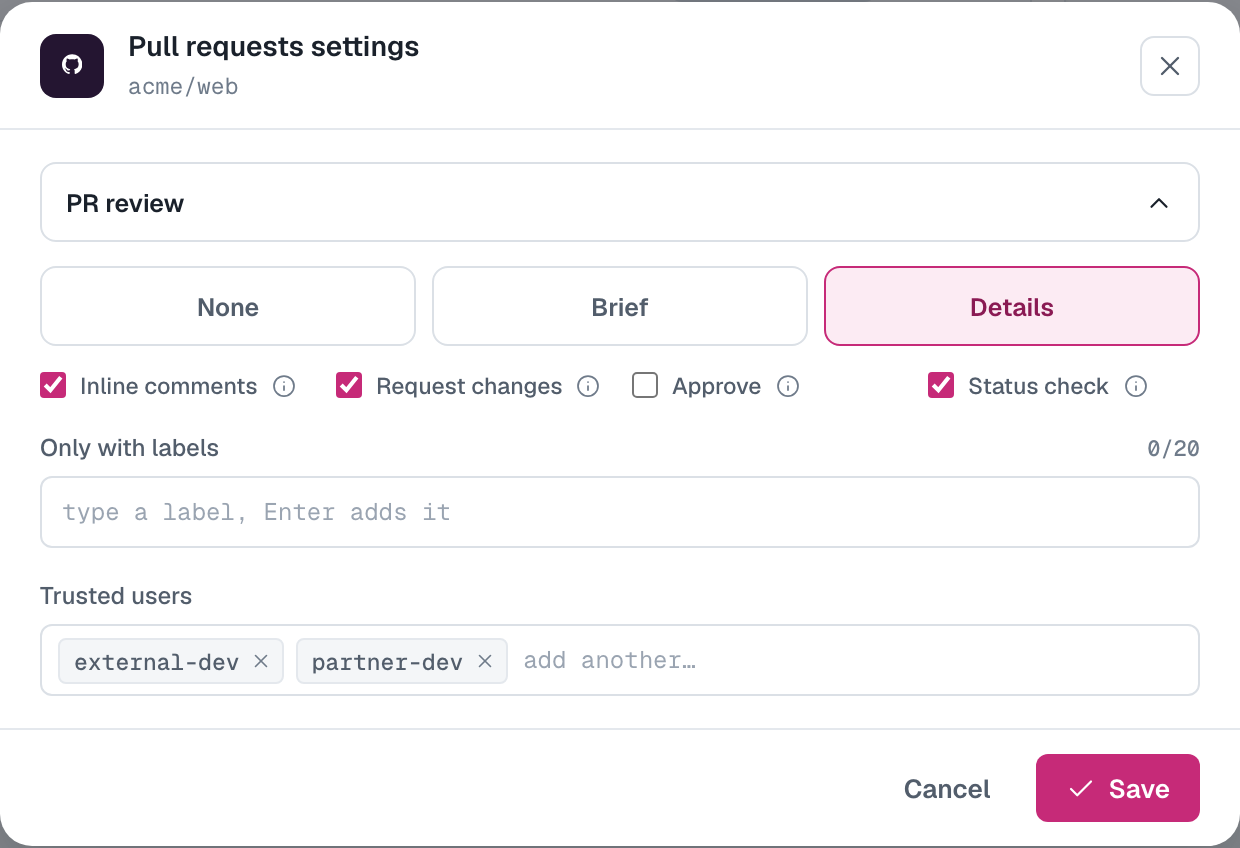
- The list is scoped to the repository: every watch on that repository reads the same list, regardless of agent or event type. A trusted user passes every check above just like a maintainer, whether as the commenter, as the issue or PR author, or in unmentioned follow-ups.
- AgentConnect resolves the username to the account's numeric ID using the repository's App credential and matches on that ID. Unresolvable usernames are rejected when added, so a later rename or reused login can't grant access to someone else.
- An installation-wide watch doesn't have its own list. It reads the list of whichever repository an event came from, and that list can only be edited from a watch on that specific repository.
What the agent does
Each qualifying event starts a session on the agent's daemon with the event as context (title, body, and diff excerpt when applicable). An enabled watch can post the agent's ordinary final reply even when its workspace is Read only. Formal reviews, status Checks, and repository changes require Read & write authorization. See Workspaces & repositories.
Sessions triggered from GitHub appear in Sessions with the repo and thread as their channel, linked back to GitHub. When repository access sync is enabled, their read-only GitHub members audience follows the source repository's current visibility and the viewer's GitHub access instead of an AgentConnect role override.
PR reviews
For pull-request watches, expand PR review and pick a mode:
- None: Run the agent and post its final reply as an ordinary PR comment, with no formal review or Check.
- Brief: Allow a formal
COMMENTreview and inline comments. - Details: Expose controls for inline comments,
REQUEST_CHANGES,APPROVE, and an informational status Check.
Formal reviews require agent repository write access and GitHub App pull_requests:write permission. Informational Checks also require checks:write.
Multiple agents can watch the same repository. In a PR conversation, @<agent-name> targets one matching agent, while @<github-app-name> broadcasts to every matching reviewer. Both forms still enforce event-type, label, installation, live maintainer authorization, and bot-sender safety checks.
When a PR can't start automatically (most commonly because its author isn't a current maintainer), an enabled status Check can offer a Request review button. A current maintainer can click it to start the review without posting a comment.
For a complete two-model setup, see Fast PR reviews with deep review on demand.
Require a review before merging
AgentConnect doesn't block merges on its own. To gate merges on a reviewer, require its informational Check in the target branch's ruleset or branch protection:
- Give the reviewer a pull-request watch with the any update cadence and an empty Only with labels field, then turn on its informational Check under PR review → Details. A Check only appears on revisions the watch reviews, so other settings can leave some pull requests waiting indefinitely.
- In GitHub, enable Require status checks to pass and add
AgentConnect PR Review: <agent-name>. Set its source to the AgentConnect GitHub App so nothing else can satisfy the check.
Merges are then blocked while the review is queued or running, when the agent requests changes, and when the review fails or hasn't run. Note that this isn't an approval gate:
- A review that ends with comments only reports
neutral, which GitHub treats as passing. - Changing the target branch without a new commit keeps the head commit's existing Check, so the earlier result stands until the new review publishes its own.
To recover from a failed or interrupted review, click Re-run on the pull request's Checks tab or use the Check's Request review action. A pull request from an author below the trigger bar who isn't a trusted user waits until a maintainer starts the review (Who may trigger an agent).
Make the agent name autocomplete
GitHub's comment box autocompletes organization teams when you type @, but it can't autocomplete agent names. If you create a team in the organization with the exact same name as the agent, @<organization>/<agent-name> appears in autocomplete and targets that agent:
- In your GitHub organization, go to Teams → New team.
- Name it to match the agent's name exactly (for example,
review-bot, not "Review Bot"). - Keep visibility set to Visible. Secret teams aren't suggested in the comment box.
- Add a description like "AgentConnect Agent shortcut" so teammates know what the team is for.
The team doesn't need any members. AgentConnect matches the typed text, not team membership. All event, label, authorization, and safety checks work the same way, and plain @<agent-name> continues to work whether or not the team exists.
AgentConnect doesn't create, rename, or delete these teams; you manage them yourself. Because teams only exist in organizations, repositories under a personal account only support @<agent-name>.
Give an agent its own GitHub App
Every agent starts on the deployment's built-in GitHub App. All agents sharing that App act as the same GitHub user, and GitHub doesn't allow a PR's author to submit a review on their own PR. As a result, a reviewer can't approve or request changes on a PR opened by another agent on the same App. Give the reviewer its own GitHub App so it acts as a separate identity.
- On the agent's GitHub card, choose GitHub App. In Edit workspace, you can open the same dialog via ⋯ → Use its own GitHub App… next to GitHub App connected.
- Pick an unused App belonging to your AgentConnect organization, or choose Create a new GitHub App…. App logos help tell the identities apart.
- For a new App, select its App owner: My personal GitHub account, or Choose from my GitHub organizations to authorize the existing built-in GitHub App and load the organizations it can see. Pick an organization where you have permission to manage GitHub Apps. You can also select Enter an organization manually… and type its GitHub organization name.
- Click Continue on GitHub. AgentConnect pre-fills the App's permissions, events, and webhook, and GitHub checks your permission to create it under the chosen owner. Confirm creation and install the App on the account and repositories it needs.
- Back in AgentConnect, the dialog checks whether the App covers everything the agent uses: its workspace repository, authorized repositories and installations, and watched repositories. Missing items are listed with Add on GitHub. Add them there, then click Check again.
- Click Switch once everything is covered.
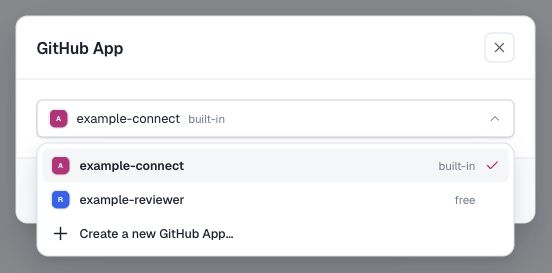
The screenshot shows example accounts and App logos. App owner is the GitHub account that owns the registration, which is separate from the accounts where you install the App. New Apps are public by default so you can install them on other accounts later. Making an App public doesn't make any repository public or grant repository access; each installation grants access on its own. See GitHub App visibility.
Once switched, the agent uses that App for everything (events, repository credentials, reviews, and Checks), and its GitHub card displays via <app-slug>. Mentioning @<app-slug> targets only this agent. Pull requests opened by any App in your organization still count as internal, so agents on different Apps automatically review each other's PRs.
Each App serves one agent at a time. Switching the agent back to the built-in App, or deleting the agent, frees its App for another agent to use.
Your organization's Apps are listed under Integrations → Code hosts → GitHub below the built-in App, showing which agent uses each one. Expand an App to see which accounts it's installed on. An owner can uninstall it from an account there or delete an unused App. Deleting an App in AgentConnect leaves the registration on GitHub until you delete it on GitHub as well.
If your organization is missing
The account picker only lists organizations visible to the existing built-in GitHub App, not every organization you belong to. Linking GitHub in your profile doesn't grant this visibility, and no separate OAuth App is required.
- Use Enter an organization manually… if your organization isn't listed. GitHub still verifies your permission to create an App there; manual entry doesn't bypass that check.
- To make an installed organization discoverable, the built-in App needs Organization permissions → Members: Read-only, and an organization owner must approve that permission update on the existing installation. Self-hosted operators can follow Update an existing GitHub App.
- After approval, click Refresh GitHub accounts. If the authorization popup is blocked, allow popups for the console and try again.
If you don't approve the Members permission update, the installation keeps its existing permissions. Current repository access, PR/issue operations, and webhook delivery keep working as before, though organization discovery may stay incomplete.
Install the same App on another account
Open the App's public page on GitHub and click Install, or go to https://github.com/apps/APP-SLUG/installations/new using your App's slug. Choose the additional account and repositories, and complete any required organization-owner approval. Clicking Add on GitHub in the coverage check opens this same flow.
The settings page for an existing installation only manages repository access for that one installation; it can't add another organization. If an older App is private, its owner must first change its visibility to public before other accounts can install it. Return to AgentConnect and click Check again to finish switching the App.
Manage watches
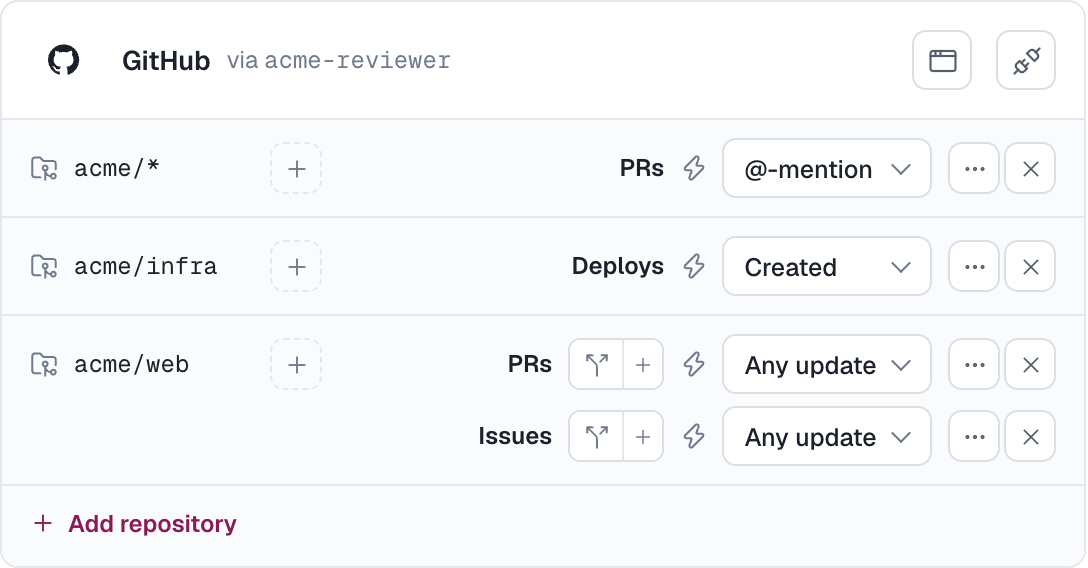
The agent page groups all GitHub watches into a single card, with one row per watched repository (or <account>/* for an installation). Each card shows:
- Event toggles and trigger cadence selectors (Opened / Any update / @-mention; Created / Any status for deployments; Published / Any update for releases)
- Recent deliveries (what fired, when, and which session it started)
- Add repository to watch more repositories with the same agent
Requirements
- The GitHub App must be installed for your org (Integrations → Code hosts → GitHub → Install on GitHub). If it isn't installed yet, the integration dialog shows an install button along with an I've installed it — sync refresh button.
- An enabled watch can post its ordinary final reply with Read only access. Formal reviews, Checks, and repository changes require Read & write.
- On AgentConnect OSS, the operator must first configure the deployment GitHub App and its Relay webhook.
How is this guide?