Members & roles
Invite teammates and control what Owners, Collaborators, and Viewers can do.
Everything in AgentConnect belongs to an organization. A person must be a member of the organization before any role or visibility rule grants them access.
When you sign in for the first time, AgentConnect creates your profile and opens Create your organization. Choose a URL name (lowercase letters, digits, and hyphens) and an optional display name (defaults to the URL name). If a teammate sent you a collaborator invite link, open that link to join their organization directly.
Use the organization switcher to move between organizations you belong to.
Members
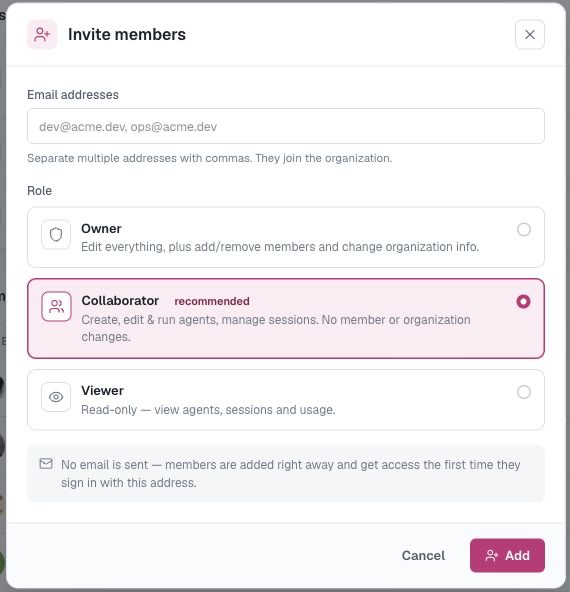
Settings → Members lists everyone in the organization. Owners can:
- Add a member by email and assign a role
- Generate or revoke the organization's collaborator invite link
- Change a member's role
- Remove a member
An organization must always have at least one Owner, so you can't demote or remove the last Owner.
If your organization has verified an email domain, you can let anyone who signs in with an address on that domain join as a Collaborator automatically, without an invitation. Configure New members on the same tab. See Single sign-on.
Service accounts
A service account represents a backend service your organization runs, such as the server behind an Ask AI panel. Because it doesn't belong to a human account or sign in interactively, its keys keep working if the person who created it leaves.
Owners manage service accounts under Settings → Members → Service accounts, separately from human members. Give the account a name and choose a Collaborator or Viewer role (service accounts can't be Owners). AgentConnect assigns a permanent address such as docs-bot-k3x9p2@sa.agentconnect.md. Open Keys to create API keys with the same options as personal keys. Each key authenticates as the service account with that account's role. Sessions started by a service account are visible to the entire organization, and deleting the account revokes all of its keys.
Roles
| Owner | Collaborator | Viewer | |
|---|---|---|---|
| See team resources | All organization resources | Everyone or explicitly selected | Everyone or explicitly selected |
| Read sessions and transcripts allowed by their session audience | ✓ | ✓ | ✓ |
| Read organization-wide usage totals | ✓ | ✓ | ✓ |
| See complete Analytics attribution | ✓ | — | — |
| Create resources and edit resources they can see | ✓ | ✓ | — |
| Talk to an agent they can see in the Playground | ✓ | ✓ | ✓ |
| Start a scheduled run with Run now | ✓ | ✓ | — |
| Change sharing on resources they can edit | ✓ | ✓ | — |
| Install or sync the GitHub App and manage organization bots | ✓ | ✓ | — |
| Uninstall a GitHub App installation | ✓ | — | — |
| Manage members, roles, and organization settings | ✓ | — | — |
Organization Owners can view, edit, and change sharing on every team resource, even if they aren't on the resource's Selected list. Collaborators and Viewers need access through Team visibility.
When a member leaves or is removed, AgentConnect removes them from every Selected list while keeping at least one current member explicitly selected on each resource.
Session visibility applies to every role independently. A Private session is visible only to its matched owner, and organization Owners still have to pass provider access checks to read provider-restricted sessions.
Owners can see full Analytics attribution, including usage from sessions they can't read. Collaborators and Viewers see attribution only for Agents and Sessions they have access to. Everything else appears in organization totals as unattributed usage.
Collaborators can change sharing settings on any resource they can edit, including adding more members or switching it back to Everyone. Only share sensitive resources with collaborators you trust to manage who can see them.
Viewers have read-only access to configuration (they can't create, edit, or delete team resources), with two intentional exceptions to keep in mind:
- A Viewer can change the visibility of a session whose owner identity matches theirs.
- A Viewer can talk to any agent they can see in the Playground. This starts a real run on the daemon with the agent's full configuration, including its tools, MCP servers, repository access, and secrets. The Viewer can't edit the agent's settings, but they can run it. Use team visibility to restrict sensitive agents instead of relying on the Viewer role.
Your profile
Open the avatar menu → Your profile to see your name, email, role, and join date, or to edit your display name. You can also manage your personal API keys and any social sign-in methods enabled on your deployment from this page.
How is this guide?