Install the daemon
Install the AgentConnect daemon on any machine: one command to try it out, and one more to run it as a background service.
The daemon runs on your machine: it hosts your agents, drives their runtimes over ACP, and maintains all chat platform connections. This guide covers installing it on a machine and keeping it running.
Requirements
- macOS, Linux, or Windows: Background service mode uses launchd on macOS and systemd on Linux. On Windows, run the daemon in the foreground. Sandboxing (
srt,microsandbox) is Linux-only; on macOS and Windows, agents run withhost. - Node.js 24.12 or newer: Use
@agentconnect.md/cli, the stable CLI that installs, launches, and upgrades the daemon for you. - At least one installed, signed-in agent runtime: For example, Claude Code (
claude) or Codex (codex). The daemon detects runtimes automatically from the machine's installed launchers via the ACP registry and reports available runtimes, versions, and models to the console. - Outbound network access only: The daemon connects out to your Control Plane and chat platforms. It doesn't listen on a public port, so it works behind NAT on a laptop or private server.
- Optional Linux sandboxing: The daemon enables all execution strategies by default, exposing each one only when the machine meets its requirements. SRT requires
bubblewrap,ripgrep,socat, and unprivileged user namespaces. On Ubuntu 24.04 and later, allow user namespaces for bubblewrap first. microsandbox requires KVM and vsock access. See Sandboxing for setup and Credential protection for login details.
Connect a machine
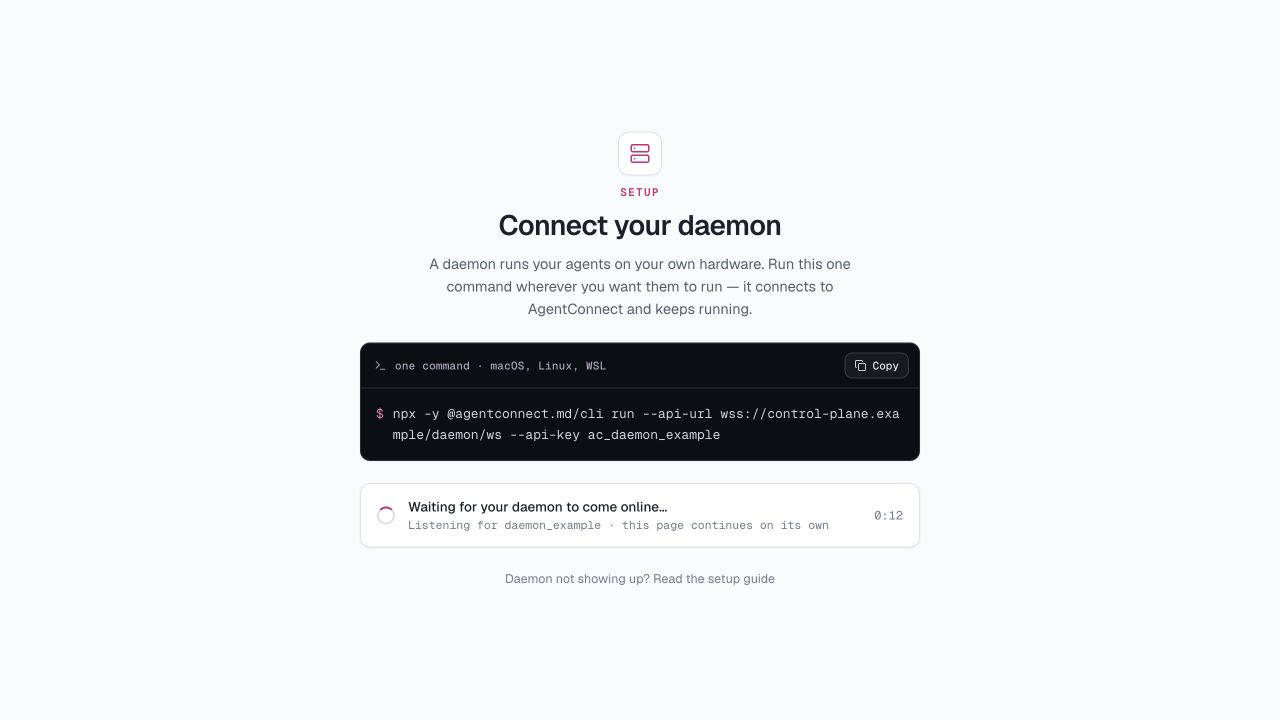
In a new organization, onboarding displays the connection command directly. If you skipped onboarding, open Infra → Add daemon. Both generate a one-time key and give you the exact command to run on the target machine:
npx -y @agentconnect.md/cli run --api-url <your-control-plane-ws-url> --api-key <one-time-key>Copy the command from the console (the key is shown only once) and run it. The page moves forward as soon as the daemon comes online. The Run command starts the daemon in the foreground with those credentials. On first run, the CLI downloads the right daemon release, registers the machine, and starts sending heartbeats.
Run it permanently
agentconnect run stays in the foreground. That's handy for a quick test, but not for a machine serving your team. Switch the Add daemon dialog to Install as service and copy its login command instead:
# Verifies the key and saves it, then offers to install and start the service.
npx -y @agentconnect.md/cli login --api-url <your-control-plane-ws-url> --api-key <one-time-key>
If you've already authenticated with login, you can install and start the service separately:
npx -y @agentconnect.md/cli install-service   # register launchd / systemd service
npx -y @agentconnect.md/cli up                # start it
Install and sign in to agent runtimes as the OS user that runs the service. Whenever you change that user's runtime installation or PATH, restart the daemon.
What a runtime sign-in brings
Signing in to a runtime gives its agents access to that provider's models. For some runtimes, signing in also exposes cloud account tools (mail, chat, files, issue trackers) that act as the signed-in person on any machine using that login. AgentConnect disables those account tools when starting a runtime, so an agent only gets the MCP servers you assign it plus the runtime's local config. Model access works as usual.
AgentConnect disables these tools using each runtime's own published switch, which only exists starting from certain runtime versions. Keep your runtimes up to date, since older builds quietly keep their account tools enabled. If a runtime inherits account tools with no safe way to disable them, or if AgentConnect doesn't recognize the runtime, the daemon logs a note.
On a personal machine, you can allow those account tools. Add this to config.json and restart:
{
  "security": {
    "isolateAccountApps": false
  }
}
This setting applies to the whole daemon and every runtime on it, so every agent on that machine can use the account tools of whichever account its runtime is signed in to. There's no per-agent override by design: this is a host-level call for the machine owner, not something an agent editor can turn on.
Manage the service with:
| Command | What it does |
|---|---|
npx -y @agentconnect.md/cli status | Show service state, PID, and the log file path |
npx -y @agentconnect.md/cli up / down / restart | Start, stop, or restart the background service |
npx -y @agentconnect.md/cli uninstall-service | Stop and remove the service |
npx -y @agentconnect.md/cli run | Run in the foreground (ignores the service) |
npx -y @agentconnect.md/cli upgrade --restart | Upgrade, restart, health-check, and roll back on failure. See Upgrade the daemon. |
What lands on disk
The daemon stores all of its files under a single root directory, ~/.agentconnect by default:
~/.agentconnect/
├── config.json          # control-plane URL + key, daemon identity
├── agents/              # one directory per agent: config + workspace
├── state/local.sqlite   # local state (sessions, queues)
├── logs/daemon.log      # daemon log
├── run/                 # runtime sockets
├── versions/            # installed daemon releases
├── current              # active daemon release
└── versions.json        # release channel and upgrade history
Useful CLI and daemon-run flags:
| Flag | Meaning |
|---|---|
--root <dir> | Change the root (AGENTCONNECT_ROOT) |
--config <path> | Use another config.json |
--api-url <url> / --api-key <key> | Set Control Plane credentials for run or login |
--agents-dir <dir> | Change the agents directory |
--max-agents <n> | Cap how many agents this daemon will host |
--log-level <level> | trace debug info warn error |
Good to know
- Updates: The CLI keeps installed daemon releases under the daemon root. Run
npx -y @agentconnect.md/cli upgrade --restart, or use Upgrade in the console, to switch releases with a health check and automatic rollback on failure. See Upgrade the daemon. - Sandboxing: On a supported Linux daemon, each agent's Execution strategy sets its isolation boundary. You can also configure the daemon to reject unsandboxed sessions, and the daemon won't start if none of its enabled strategies can run. Read Sandboxing before relying on it in production.
- Short Control Plane outages don't stop active work: Existing sessions and chat platform connections keep running until the daemon reconnects.
- Multiple machines: Add as many daemons as you need, such as a fast workstation for heavy agents and a laptop for experiments. You can move an agent between compatible online daemons later; see Manage daemons.
How is this guide?