GitLab
Connect GitLab.com or a self-managed instance, give each agent its own bot account, and trigger runs from issues and merge requests.
A GitLab integration lets an agent watch a project. New issues, merge requests, and comments start sessions, and the agent replies with merge-request notes and reviews. It works the same way on GitLab.com and on a self-managed instance. A deployment connects to one or the other, not both at the same time.
Unlike the GitHub integration, which acts through a single App installed on an organization, GitLab gives each agent its own user: a group service account created the first time you assign a project to that agent. Every action the agent takes on GitLab (cloning, pushing, commenting, and reviewing) is attributed to that account, so revoking it affects only that one agent.
Connect GitLab
An administrator connects the deployment once under Integrations → Code hosts → Connect GitLab. After completing OAuth in the browser, that account becomes the deployment's administration identity. AgentConnect uses it to discover projects, create agent service accounts, and manage project webhooks. Agents don't run as this identity.
On GitLab.com, connect an account that is an Owner of the top-level group containing your projects. Creating agent service accounts requires top-level group Owner permissions; project-level Maintainer access isn't enough. On AgentConnect OSS, an operator must first configure the deployment's GitLab OAuth application. That guide also covers requirements for self-managed instances and the two ways to grant service-account creation permissions there.
Each organization has its own connection, and each deployment targets one GitLab instance. Once GitLab state exists, you can't change the instance address. Stored connections, tokens, and numeric project IDs aren't scoped to a hostname, so changing the address would send one instance's credentials to another.
Give an agent a project
There is no separate "install on this project" step. A project is provisioned the first time you assign it to an agent, either as its workspace or as an authorized additional repository. Provisioning does three things:
- Creates that agent's service account in the project's top-level group if it doesn't exist yet.
- Adds the service account to the project with the Developer role.
- Configures the project webhook that delivers events to AgentConnect.
The project must belong to a group. Projects in a personal namespace can't be set up because GitLab service accounts are group-owned. If you try, AgentConnect returns personal_namespace_unsupported and makes no changes.
Under Integrations → Code hosts, the GitLab card lists your agents and the service accounts each one uses. Projects that need attention are grouped under a N projects need attention badge; expand it to inspect them. Each project row offers three actions:
- Repair: Re-runs provisioning. Use this if someone manually deleted the bot or webhook.
- Remove: Deletes the webhook and removes the project's bots so agents stop responding there. Your project's code and Git history aren't affected.
- Take over administration: Transfers project administration to your own connection. Use this if the connection that originally set up the project was disconnected or its owner left. Cleanup requires the managing connection's token, so without taking over, you can't remove the project or delete the old connection.
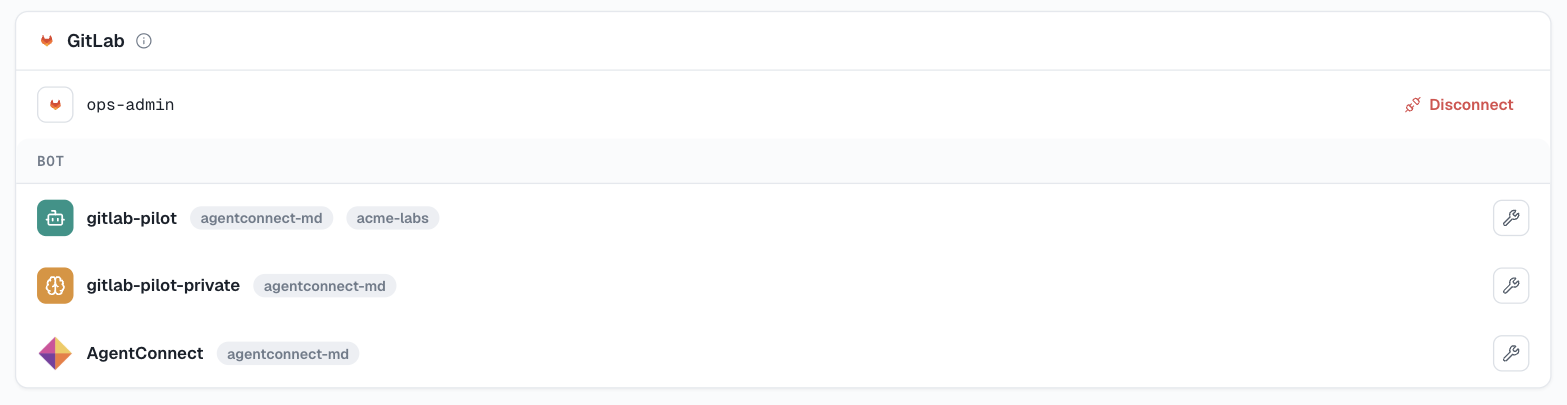
Removing a connection is a two-step process. Disconnect releases the connection while keeping its row; deleting the released row removes it permanently. You can't delete a connection while it still administers projects. Take over or remove those projects first, as noted on the card.
GitLab.com Free allows up to 100 service accounts per top-level group, and self-managed Free or Community Edition instances allow 100 across the entire instance. Only agents assigned to projects count toward this limit. If creation hits the quota, AgentConnect reports a quota failure and leaves existing accounts intact.
Watch a project
On the agent page, go to Integrations → Add integration → GitLab.
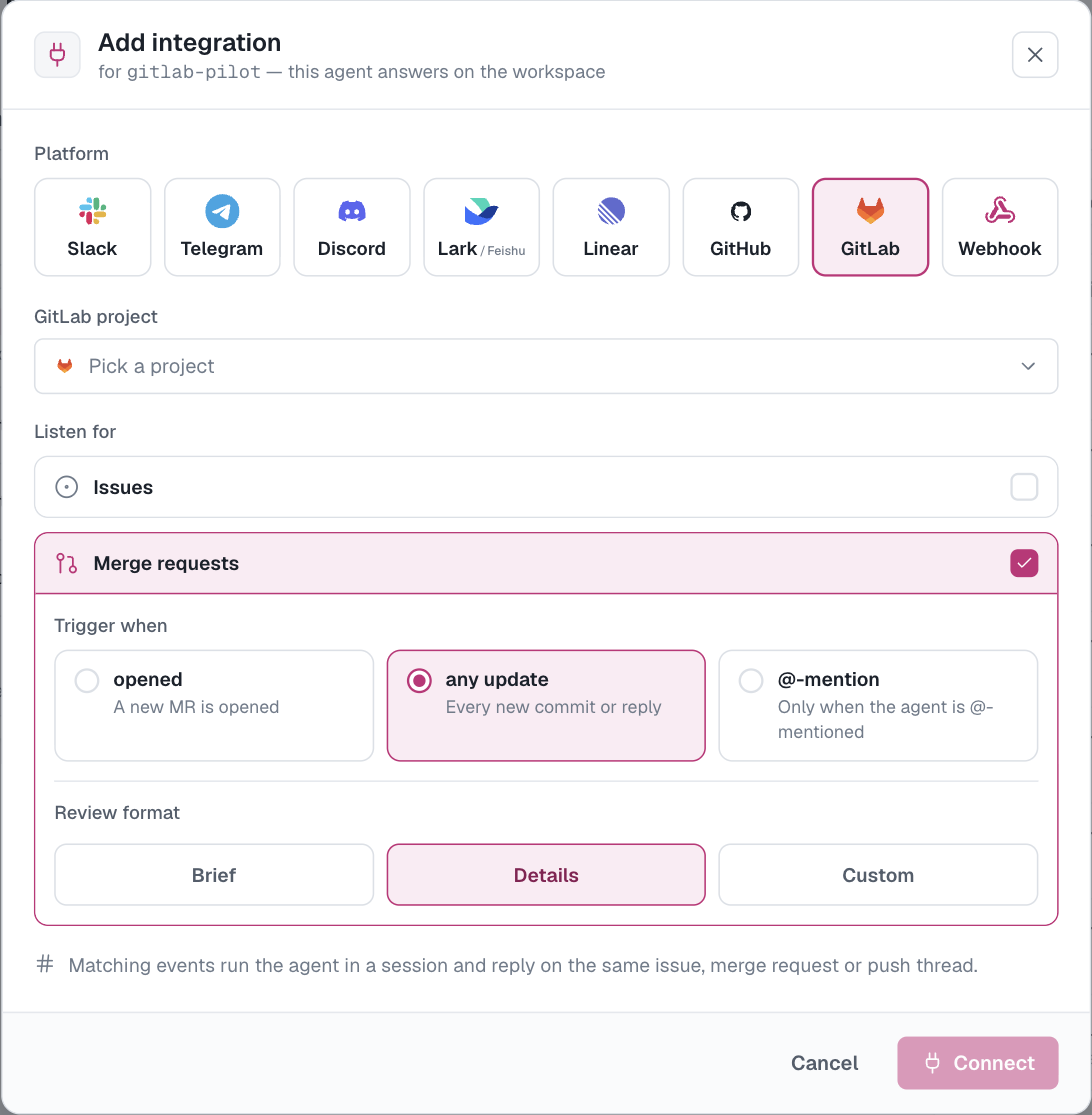
A trigger uses an existing repository authorization and doesn't create one. The project must already be configured as the agent's workspace or an authorized additional repository, or adding the watch will be rejected.
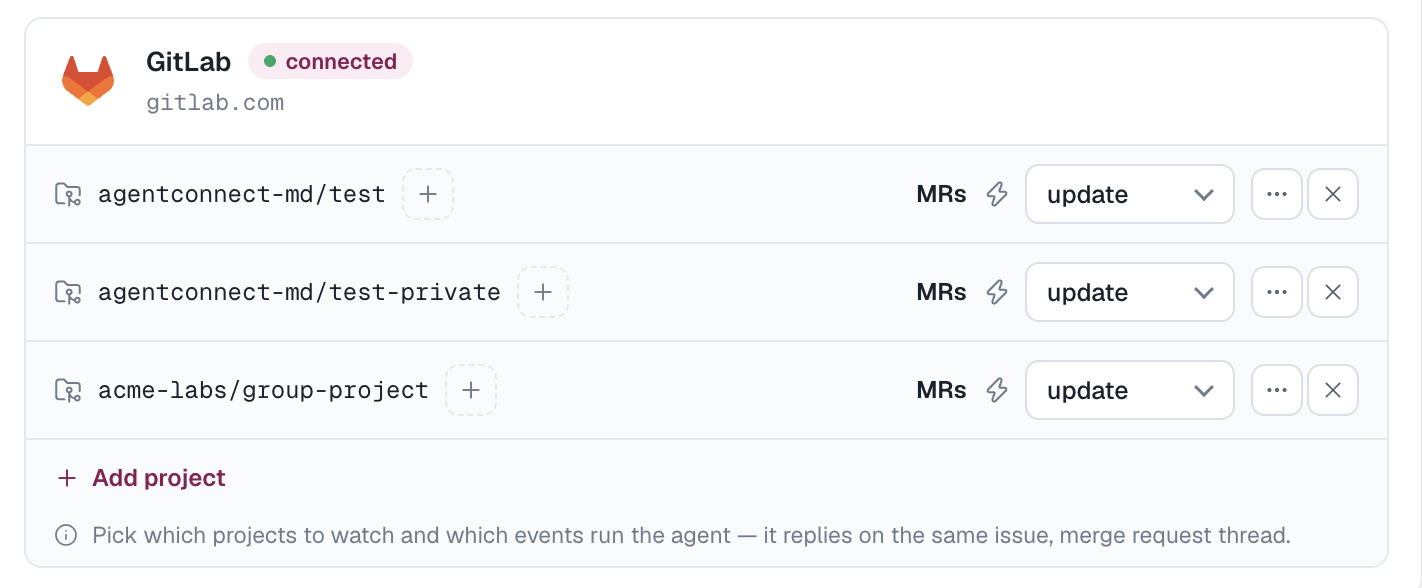
Pick the project, choose what to listen for (issues, merge requests, releases, or any combination), and select when the agent runs:
- opened: Runs when an issue or merge request is opened, plus on later explicit mentions in that event type.
- any update: Runs on openings plus new revisions, label changes, and replies.
- @-mention: Runs when the agent is @-mentioned.
Releases only support the published trigger.
When several agents watch the same project, use Add decision on an issue or merge request row to let a Decision choose which agents handle each item.
Who may trigger an agent
When an event arrives, AgentConnect checks the content author's current project membership through the GitLab API. Labels included in the webhook payload aren't used for authorization.
Only members with Developer or higher access on the target project can trigger an agent. Pending, expired, lower, missing, or unverified memberships fail closed, so the agent won't run. Direct, ancestor-group, and invited-group memberships all count, using the highest effective role.
This is stricter than the GitHub integration, which allows the triage role. Because GitLab's Reporter role doesn't include merge-request permissions, the minimum role here is Developer.
A merge request from outside the project doesn't start an agent automatically. A current Developer-or-higher member can trigger the first turn by explicitly mentioning the agent. To allow someone below Developer to start an agent, add them under Trusted users in the watch's settings. This list works the same way as on GitHub and is the only way for users below Developer to trigger runs. Trigger permission is separate from what the agent can do afterward: comments, reviews, and pushes still require the repository authorization granted to the agent.
What the agent does
Each qualifying event starts a session on the agent's daemon with the event as context. Those sessions appear in Sessions with links back to GitLab.
- Ordinary reply: A single note posted by the agent's service account.
- Reviews: Inline comments are drafted and published together as one review. Approve publishes the review and submits an approval tied to the reviewed commit. Request changes blocks merging on GitLab Premium and above; on GitLab Free, it is visible but advisory. AgentConnect doesn't modify the reviewer list.
- Run state: A single note on the merge request that updates as the run progresses and links back to the session in the console. Because GitLab Free doesn't support external status checks, this note serves as the run status indicator instead of a pipeline check.
To run an agent again on a thread, re-request its service account as a reviewer, mention it, or re-run the session from the console.
Git and glab authenticate to GitLab through the daemon's credential proxy. The agent's session never gets a GitLab token, and each agent can only access what its own service account can access. API reads work normally, while writes go through AgentConnect's tools.
Self-managed instances
Everything above works the same way on a self-managed GitLab instance. The only extra step is one-time operator setup per deployment: pointing the deployment at your instance, registering the OAuth application, and meeting the instance requirements (GitLab 18.11+, a single HTTPS URL, a trusted certificate, and an ingress endpoint GitLab can reach). See GitLab on AgentConnect OSS for the full setup.
You don't need to configure instance details on your daemons. Daemons receive the instance settings automatically from the agent they serve.
How is this guide?