Gitea
Connect gitea.com or a self-hosted Gitea or Forgejo instance with a bot token, and trigger agents from issues, pull requests, comments, and reviews.
A Gitea integration lets an agent watch a repository. Issues, pull requests, comments, and submitted reviews start sessions, and the agent responds with comments, formal reviews, and commit statuses. It works the same way on gitea.com and on a self-hosted instance. A deployment connects to one or the other, not both at the same time.
While GitHub uses an installed App and GitLab creates a separate service account per agent, Gitea uses one bot user per organization. Every action agents perform on Gitea (cloning, pushing, commenting, reviewing, and setting commit statuses) runs under that single user, and its personal access token is the only Gitea credential AgentConnect stores.
This requires Gitea 1.23 or later or Forgejo 15 or later. Forgejo instances, including Codeberg, work identically to Gitea: they share the same API, tokens, and webhooks, so everything on this page applies to Forgejo without changes.
Connect Gitea
An organization connects Gitea once under Integrations → Code hosts → Gitea → Connect Gitea by pasting the personal access token for a bot user you create.
-
Create a dedicated bot user on your instance. Don't use a personal account or an instance administrator (administrators appear as owners of every repository, which defeats the permission checks described below).
-
Sign in as that bot user and go to Settings → Applications → Manage Access Tokens.
-
Create a token with these four scopes:
Scope What it is for read:userReading the bot's own identity and the organizations it belongs to. write:repositoryWebhook management, commit statuses, reviews, and repository reads. write:issueComments and reactions on issues and pull requests. read:organizationListing an organization's repositories for the repository picker. -
Paste the token into the card. Before saving anything, AgentConnect verifies the bot's identity, checks the minimum version, and confirms all four scopes. It also rejects any token whose user is already connected as a bot for another organization on this deployment.
The token is encrypted at rest, never returned by any API, and sent to daemons only as a short-lived lease over their authenticated connection. Because a token grants full bot capabilities, any agent working in a connected repository can do whatever the bot user can do there. Control access by choosing which repositories the bot can administer, rather than trying to split tokens.
Each organization can have one Gitea connection. If you need to switch to a different bot user, disconnect and connect again; replacing the token keeps the same bot user.
Give the bot Admin on each repository
AgentConnect installs, repairs, tests, and removes each repository's webhook automatically, and Gitea requires repository Admin permission for webhook routes. Give the bot Admin access on every repository where agents should work:
- Per repository: Settings → Collaborators → Add collaborator, with permission set to Administrator.
- Per organization: Create a team with Administrator unit access and add the bot to it.
Admin permission is also needed for contributor permission lookups: Gitea only lets repository admins query another user's permission level.
Repositories in use
Once Gitea is connected, a repository is added to the organization the first time you use it. Picking it in a trigger, assigning it as an agent's workspace, or adding it as an additional repository records the repository as part of saving, and it shows up on the Gitea card as ready. Repository pickers list every repository the bot currently administers, labeling unused ones as added on save. If a repository is missing from the picker, grant the bot Admin permission on it first.
The managed webhook is installed separately when you add the first enabled trigger for that repository. Right after the trigger is saved, AgentConnect installs the webhook for the trigger's events, sends a test delivery, and clears the row's warning once the relay receives it. A repository used only as a workspace or additional repository doesn't need a webhook and won't show webhook status until a trigger requires one.
You can also click Add repository on the Gitea card to register a repository before first use. This is optional and doesn't install a webhook until an enabled trigger is created.
Multiple agents can share a repository and its single webhook. The webhook subscribes to the union of all events watched by those agents and narrows automatically as triggers or agents are removed. Deleting the last trigger leaves the repository listed on the card without a webhook until you Remove it manually.
Each repository row shows its current state and actions:
| State | What it means |
|---|---|
| setting up | Provisioning is running. |
| ready | The repository is registered and the bot's Admin permission is confirmed. When a trigger requires a webhook, it's installed and verified here too; a warning indicates the test delivery never arrived. |
| setup incomplete | The bot lost Admin permission. Sessions still work (comments, reviews, statuses, and Git only need Write), but webhook repair stops and contributor checks fail closed. |
| bot access degraded | Gitea rejected the bot token. Replace the token on the connection, then run Repair. |
| removal incomplete | Removal didn't finish, so the webhook may still exist on the repository. |
- Repair: Re-runs provisioning. Use this if someone manually deleted the webhook, or after fixing the issue described in the row's status message.
- Rotate the webhook signing secret: Installs a replacement webhook and retires the old one once Gitea delivers an event signed with the new secret.
- Remove: Deletes the managed webhook on Gitea and stops agents from responding there, without touching the repository's code or history. If any trigger, workspace, or additional repository still references the repository, removal is blocked and lists the remaining references so you can remove them first.
If the test delivery never arrives, the repository stays ready with a warning about Gitea's outbound webhook allowlist, surfacing blocked delivery addresses during setup instead of after a missed pull request. For self-hosted instances, see Gitea on AgentConnect OSS.
Watch a repository
On the agent page, go to Integrations → Add integration → Gitea.
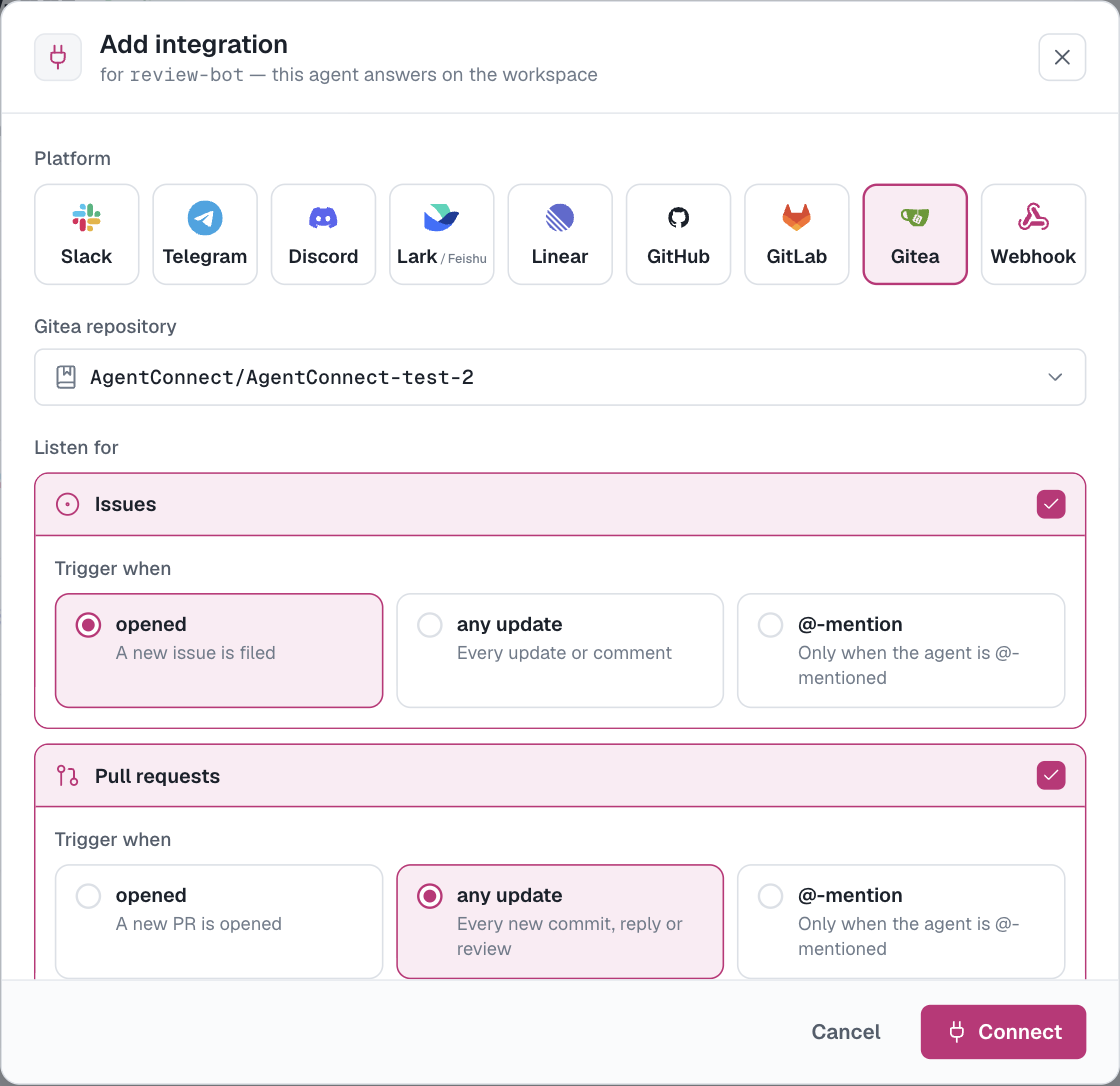
A trigger uses an existing repository authorization and doesn't create one. The repository must already be the agent's workspace or one of its authorized additional repositories, or adding the watch will be rejected. It doesn't need to be listed on the Gitea card beforehand; adding it as a workspace or additional repository registers it automatically.
Pick the repository, choose what to listen for (issues, pull requests, releases, or any combination), and select when the agent runs:
- opened: Runs when an issue or pull request is opened, plus on later explicit mentions in that event type.
- any update: Runs on openings plus new revisions, replies, and submitted reviews. Closing, reopening, and merging don't trigger the agent.
- @-mention: Runs when someone @-mentions the agent (
@<agent-name>or@<organization>/<agent-name>) or the organization's Gitea bot. Requesting the bot as a reviewer starts a turn regardless of trigger cadence.
For releases, the agent runs when a release is published or on any update (every publish or edit).
When several agents watch the same repository, use Add decision on an issue or pull request row to let a Decision pick which agents handle each item.
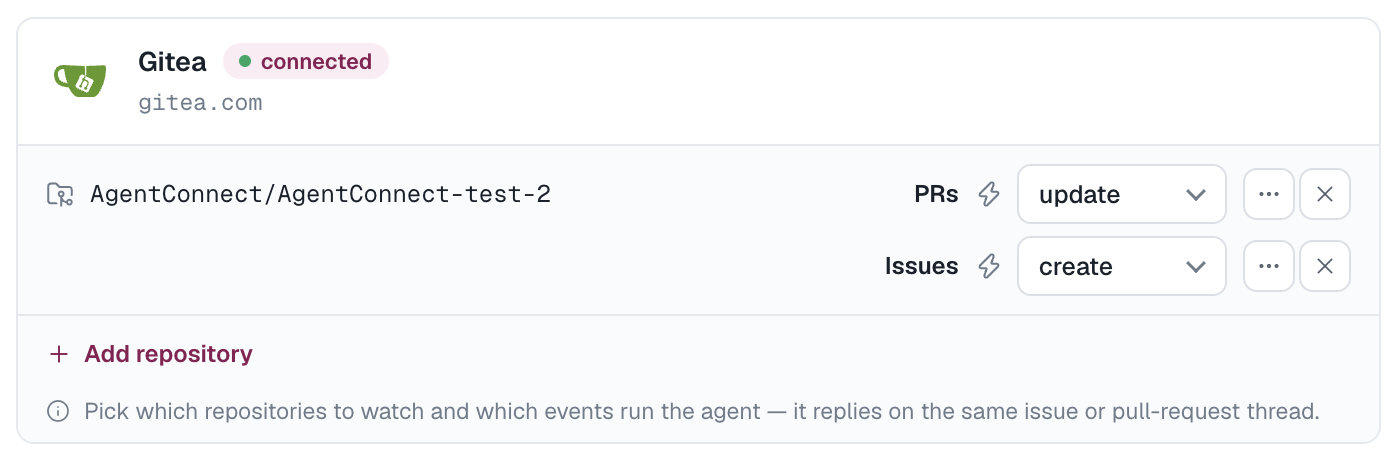
Multiple agents can watch the same repository. @<agent-name> targets one agent, while the bot's own handle broadcasts to every matching agent.
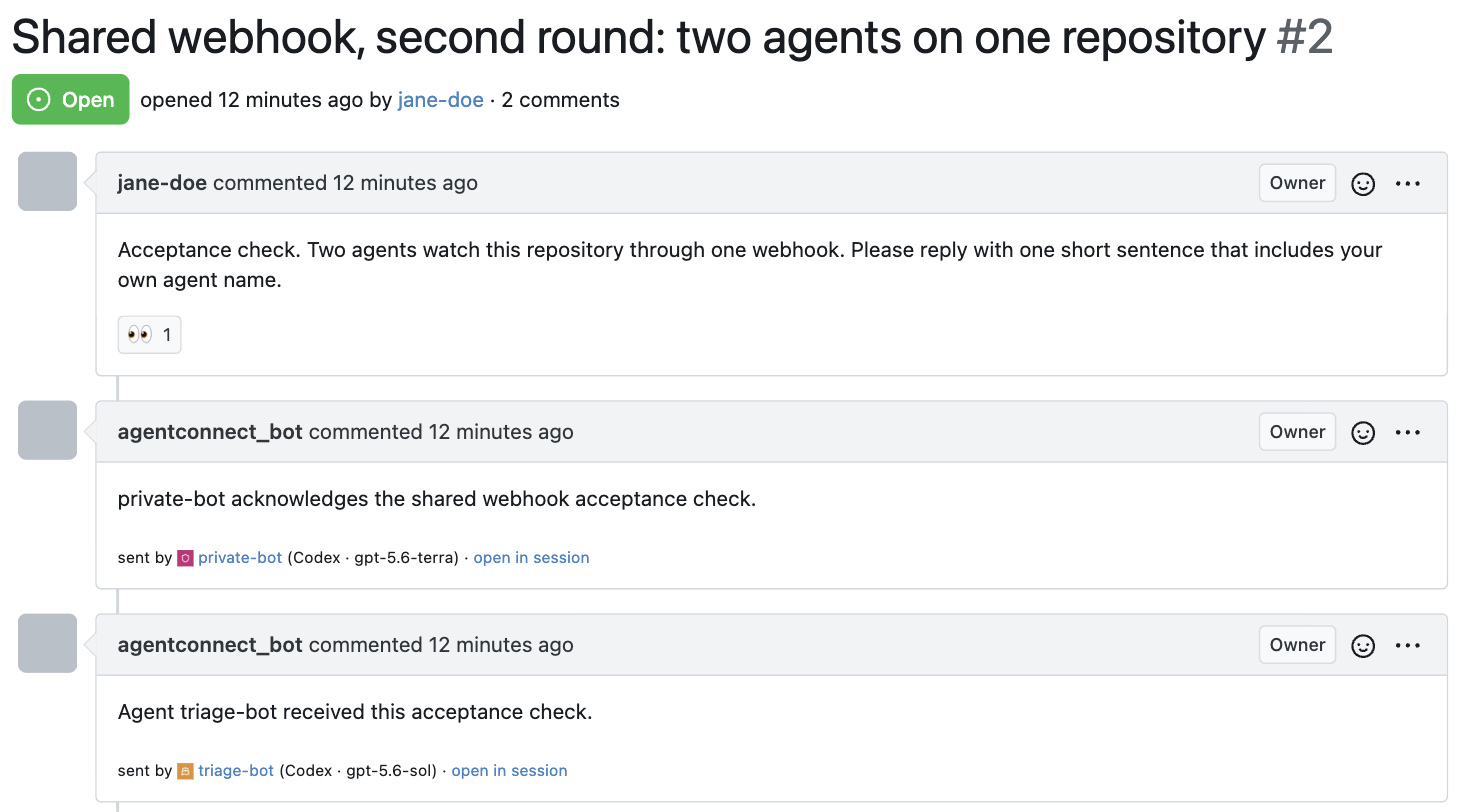
On an organization-owned repository, @<organization>/<agent-name> also targets that single agent. Gitea's comment box autocompletes organization teams when you type @, not agent names. If you create a team named to match the agent exactly (for example, review-bot, not "Review Bot"), that handle appears in autocomplete. Gitea shows all teams to organization owners and site administrators, and only teams they belong to for everyone else, so add teammates who should see the autocomplete shortcut as team members.
Team membership doesn't affect triggering: AgentConnect matches the typed text, not team membership. Typing @<organization>/<agent-name> by hand works either way, and plain @<agent-name> works whether or not the team exists. Because teams only exist in organizations, repositories under a personal account don't offer autocomplete; use @<agent-name> there.
Because Gitea shares one numbering space for issues and pull requests, sessions are keyed on both the event type and the number. Issue 12 and pull request 12 are always separate conversations.
Reviews in a Gitea comment
When a review is submitted, Gitea sends a single webhook event containing only the review summary, without inline comment paths, line numbers, or bodies. AgentConnect fetches the review's inline comments from the Gitea API before building the prompt, so the agent sees the complete review. Standalone inline comments left outside a formal review submission don't emit webhook events on Gitea, so there is no trigger for them.
Who may trigger an agent
When an event arrives, AgentConnect checks the content author's current repository permission through the Gitea API. Only users with Write or higher permission can trigger an agent. Lower, missing, or unverified permissions fail closed, so the agent won't run.
A pull request from a fork doesn't start an agent automatically. A collaborator with Write or higher permission can start the first turn by mentioning the agent or requesting the bot as a reviewer. To allow someone below Write to trigger an agent, add them under Trusted users in the watch's settings. This list works the same way as on GitHub and is the only way for users below Write to trigger runs. Trigger permission is separate from what the agent can do afterward: comments, reviews, and pushes still require the repository authorization granted to the agent.
Activity from the bot user itself doesn't trigger agents, with one exception: a pull request opened by the bot still enters review, allowing one agent to review another agent's work.
What the agent does
Each qualifying event starts a session on the agent's daemon with the event as context. Those sessions appear in Sessions linked back to Gitea.
- Ordinary reply: A comment posted by the bot user on the issue or pull request. AgentConnect adds Gitea's
eyesreaction to the triggering comment to acknowledge receipt before the reply is posted. - Reviews: Expand PR review on a pull-request watch to enable formal
COMMENTreviews with inline comments,REQUEST_CHANGES, andAPPROVE. Gitea only supports one comment per line, not multi-line ranges; any range collapses to its end line with the start line noted on the first line of the comment. - Run state: A commit status on the pull request's head commit with the context
agentconnect/<agent-name>, linking back to the session in the console. It doesn't block merges unless you add that context to branch protection's required status checks.
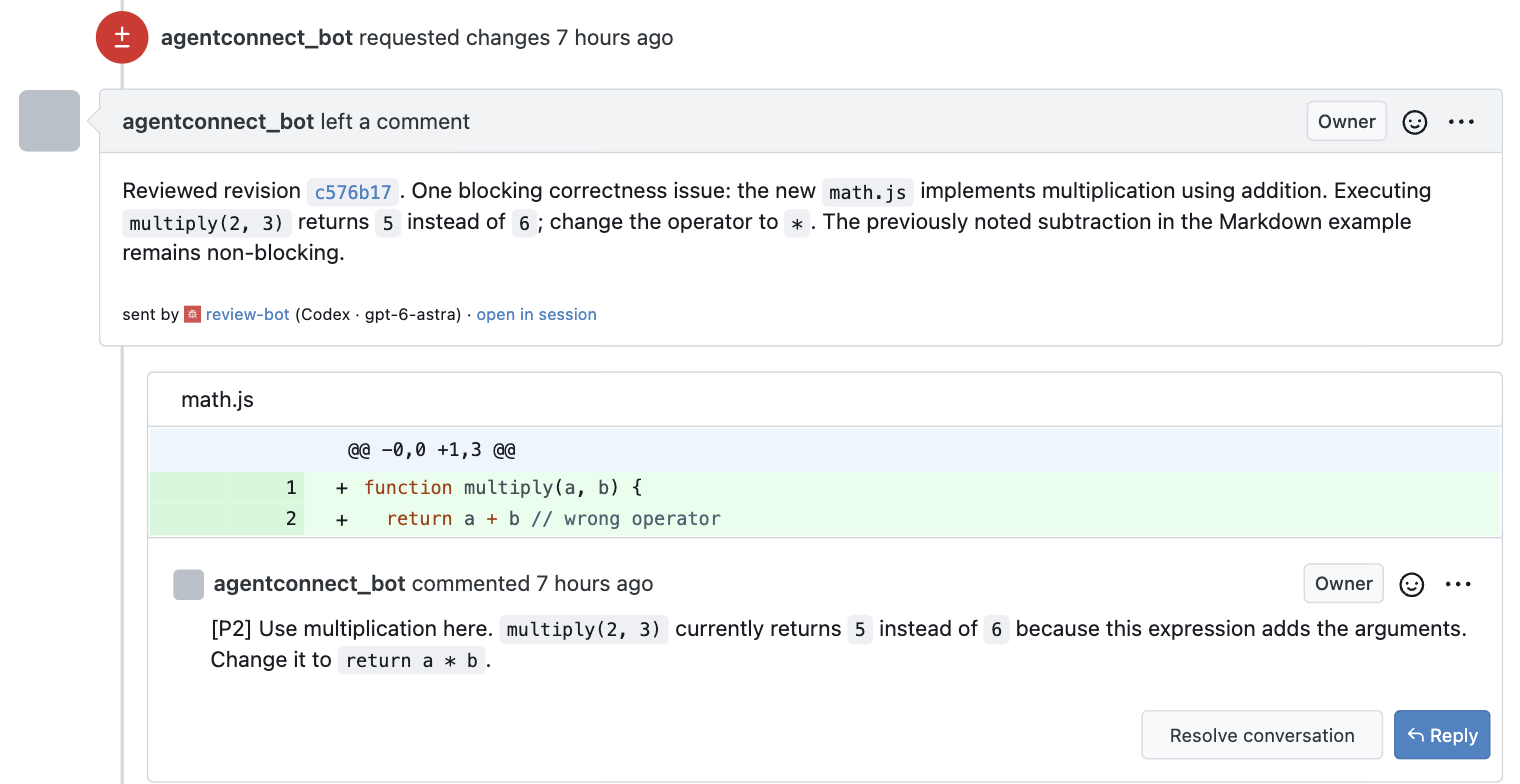
To run an agent again on a pull request, post a follow-up comment in the thread, push a new commit, or re-request the bot as a reviewer.
Git authenticates to Gitea through the daemon's credential proxy, so the bot's token never enters the agent's session. There is no Gitea CLI wrapper; agents read and write through AgentConnect's provider tools.
What Gitea refuses
Gitea doesn't allow a pull request's author to approve it or request changes on it. When the bot itself opened the pull request (for example, when one agent is reviewing another agent's PR), Gitea won't accept an approval or change-request verdict. In that case, AgentConnect posts the same review content as a plain review comment and notes the downgrade in the session, so all review feedback is preserved.
A COMMENT review also doesn't clear an earlier REQUEST_CHANGES verdict. Gitea only clears a reviewer's previous verdict when that reviewer submits a new approval or rejection.
Replace the token
Gitea tokens don't expire, and Gitea doesn't let applications create or revoke tokens without the user's password, so AgentConnect can't rotate them automatically. To replace a token in the console, click Replace token on the connection. This runs the same validation checks as initial setup, requires the same bot user, and swaps the stored secret atomically while clearing the old token from daemon caches.
Revoke the old token in Gitea manually, as AgentConnect can't revoke it for you. Because tokens have no expiry date, AgentConnect can't warn ahead of time; it detects an invalid token when Gitea rejects a request, moving every repository on that connection to bot access degraded until you replace it.
Disconnect
Clicking Disconnect removes every managed webhook from Gitea first and then releases the connection, stopping agents from responding on those repositories. Remember to revoke the token in Gitea afterward.
If the token has already been revoked or rejected, a repository can end up in removal incomplete with its webhook still present on Gitea. Replace the token and run removal again, or delete the webhook manually in Gitea.
Self-hosted instances
Everything above works the same way on a self-hosted instance. The one-time operator setup per deployment consists of pointing the deployment at your instance and meeting its prerequisites: Gitea 1.23+ or Forgejo 15+, a single HTTPS address, a trusted certificate, and an outbound webhook allowlist that lets Gitea reach your deployment. See Gitea on AgentConnect OSS for full instructions.
You don't need to register an OAuth application. Gitea OAuth tokens don't create a distinct bot identity (actions made with an OAuth token are attributed to the authorizing user, just like a personal access token), so the bot user and its token serve as the complete identity.
Once Gitea state exists, the instance address can't be changed. Stored tokens, numeric repository IDs, and webhook IDs aren't scoped to a hostname, so changing the address would send one instance's credentials to another. Daemons don't need instance configuration either; they receive the instance details automatically from the agent they serve.
How is this guide?