Assistant mode
Turn an agent into a teammate that keeps one conversation per place, follows up on what people ask, checks on progress by itself, and asks before it acts.
Assistant mode makes an agent work like one person on your team. It keeps one continuous conversation in every place it works, follows up on what people ask of it, checks on progress by itself, speaks up only when it has something to say, and asks before it acts.
Assistant mode is in beta.
What changes
- One conversation per place. Each channel, group DM, DM, and Playground conversation keeps one long-running session, so the agent remembers what was said there, even after a long silence. Where the daemon supports Auto, that session is the conversation's coordinator: it answers quick questions itself and opens a task for longer work.
- Follow-ups. Ask it to keep an eye on something, and it checks back on its own and tells you when something changes.
- It asks before it acts. When a check finds something worth doing, the agent posts a proposal for someone to approve.
- It learns the places it joins. Added to a channel, it reads the recent history once, introduces itself, and offers a few ways to help.
- It writes an organization Handbook. What it learns about your organization, its channels, and who works on what is published on the Knowledge page for the whole team.
- It goes back over its own work. Tasks that went quiet are picked up again or their owner is reminded.
Everything else stays as configured: the agent's triggers, workspace, tools, and who can see or use it. Reading and posting in other conversations follows the same requester-based rules as for any agent.
Turn on assistant mode
- Open the agent from Agents and go to the Configuration tab.
- In the Assistant mode panel, click Edit.
- Select Turn on assistant mode, adjust Limits if needed, and click Save assistant mode.
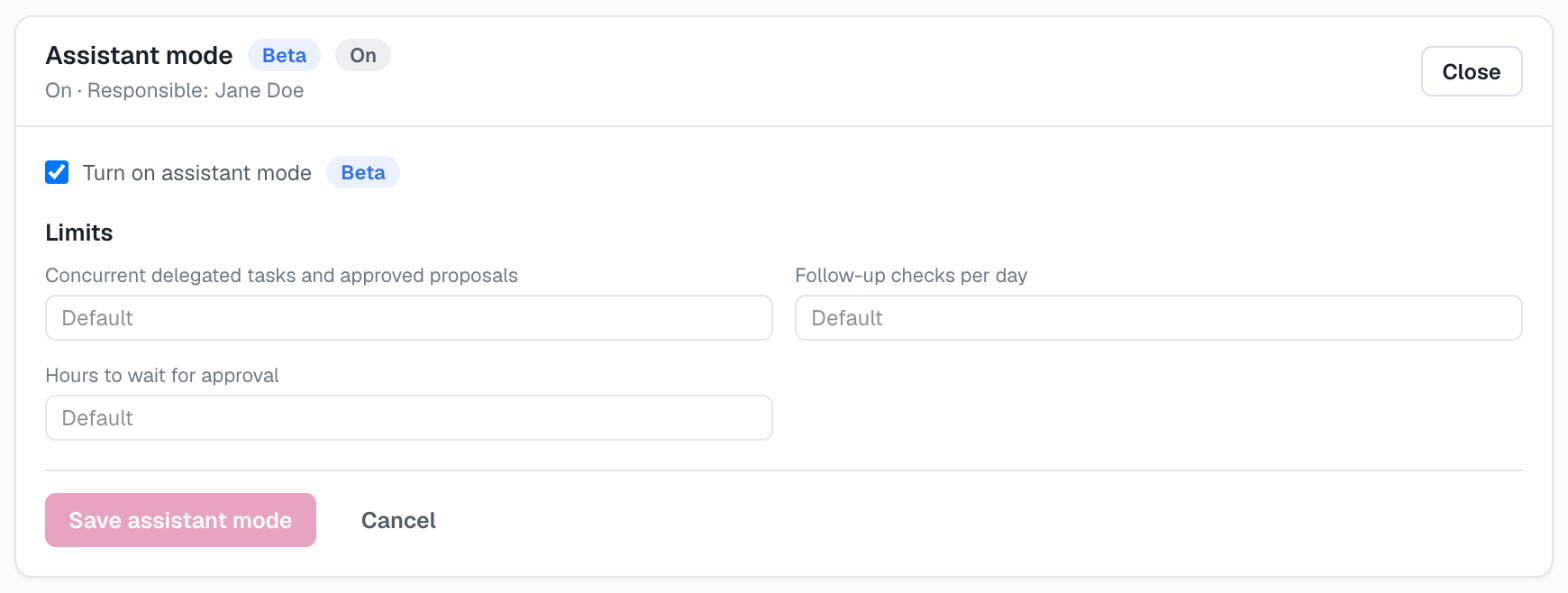
If the panel shows Unavailable, it names what to change first:
- Runtime: Claude Code, Codex, or OpenCode. The runtime must be able to turn off its own memory and resume a session after a restart.
- Memory: Managed. See Memory.
- Routing: No conversation of the agent can be answered By decision or routed through a shared bot. The panel lists the conversations to change.
What turning it on changes
- Permission mode. To keep unattended work from stopping for approval, an unset, read-only, or ask-before-acting permission mode switches to the runtime's auto mode (Auto on Claude Code, Auto review on Codex), or Full access when the runtime doesn't have one. You can choose a different mode afterward, and it stays. With a mode that asks before every action, the panel warns that tasks will often wait for approval.
- Memory. Memory kept on the daemon moves into AgentConnect in the same save. While the mode is on, the Memory tab offers only managed memory stored in AgentConnect.
- Sessions. Each conversation's row shows Auto (or Single session on an older daemon) and offers no other choice. Triggers don't change, so a conversation that was Off stays Off.
- A first greeting. The first time you turn it on, the agent says hello in your Slack DM with it. The first agent in your organization also researches the organization (see The organization Handbook).
Turning the mode off returns each conversation to its earlier session mode. The permission mode and memory stay where they are.
Responsible person and limits
The panel names the agent's Responsible person: the agent's creator as long as they can edit it, or otherwise the editor who joined the organization earliest. It isn't a setting. When nobody is behind a piece of work, such as a scheduled run, or an approval can't go to the person who asked, the card goes to the responsible person's DM. If they can't be reached either, it waits in the agent's Activity tab, where any editor can approve or deny it.
| Limit | Default | What it bounds |
|---|---|---|
| Concurrent delegated tasks and approved proposals | 3 | Work running in the background at once. Past the limit, new work is refused and the agent tells you. |
| Follow-up checks per day | 50 | Follow-up checks started in any 24 hours, including ones a message starts. |
| Hours to wait for approval | 12 | How long a task waits on a permission request before it's denied and the task stops. |
Talk to it
Talk to the agent the way you would to a colleague, in any place it's enabled. It speaks for the room it's in:
- It reads another conversation only for someone who may see it, and leaves it to that person what to share in the current one.
- What it remembers from your DM is used only in your own conversations with it.
- In a conversation shared with another organization, such as a Slack Connect channel, it answers as it does anywhere else. Approvals there go to a member of your organization, the conversation keeps its own memory, and the agent isn't reminded of your internal follow-ups.
Ask for longer work, such as "fix this bug and open a PR", and it runs as a task in the background. The conversation reports the result when the task finishes. If the task needs approval along the way, the request comes to the conversation you asked from.
Follow-ups
Ask it to watch something: "Keep an eye on the staging deploy and tell me when it's healthy." The agent restates what it will watch, what counts as done, and when it will look next, then takes the follow-up once you confirm. A follow-up belongs to the conversation it was taken in, and it reports there. Tell the agent in that conversation to change what or when it checks, or to stop.
At each scheduled time, the agent runs a check. A check only looks: it reads status, logs, and pull requests, but edits nothing, posts nothing, and runs nothing that needs approval. Each check ends one of three ways:
- Something changed that you should know about: one message in the conversation.
- Something should be done: a proposal to approve.
- Nothing new: silence.
A follow-up can also watch one GitHub pull request or issue, or a GitLab merge request or issue in a connected project. A merge, a review, finished CI, or a new comment wakes it before its next scheduled check. The agent needs read access to what it watches.
A few more rules:
- When a request is already covered by an open follow-up in that conversation, the agent offers to update that one instead of taking a second.
- On Slack, when the agent thinks something is worth following up and nobody asked, it posts a card instead of asking. Approving the card takes the follow-up.
- After five failed checks in a row, the follow-up stops checking and the conversation is told once. Ask the agent there to check it again to resume it.
- While the agent is paused, missed checks aren't replayed. An overdue follow-up is checked once after the agent resumes.
Proposals and approval
When a check finds something worth doing, the agent proposes it on a card: one sentence ("I want to rebase PR #12 onto main because it conflicts"), the reason, and Approve or Deny. On Slack, the card lands in the conversation the follow-up belongs to. Whoever could ask the agent there can approve it: in a DM, that person; in a channel, anyone whose message can trigger the agent. Approving grants no extra permissions beyond asking directly: the work runs once, as a task, with the agent's own permissions, and reports back in that conversation.
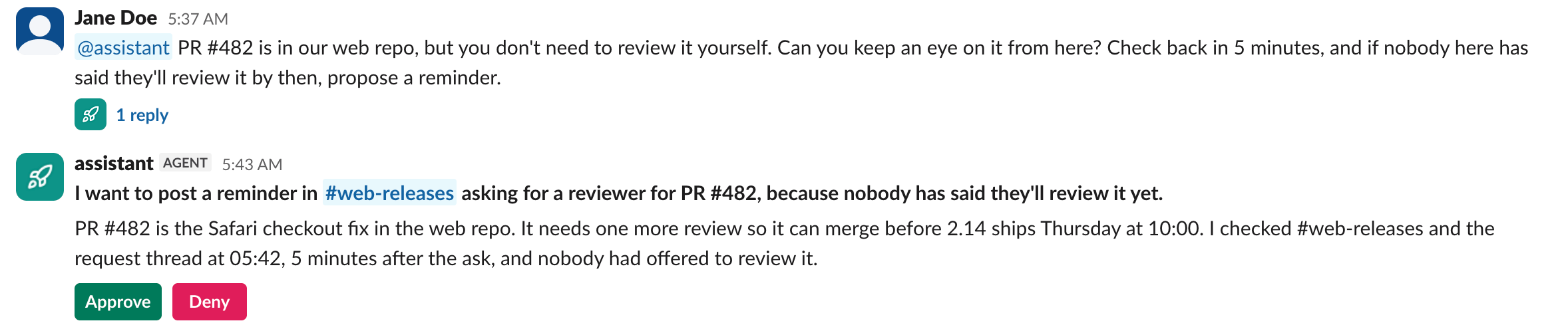
In a Playground conversation, the proposal waits in the pending requests above the composer instead. On other platforms and in conversations shared with another organization, the card goes to the responsible person's DM, or waits in Activity.
A proposal expires after 24 hours and never runs afterward. If a restart cuts an approved proposal short, it isn't run again: the conversation is told the outcome is uncertain so someone can check.
When a task needs permission partway through, it waits, and the request goes to the conversation the task belongs to. Where What people can do in chat allows approving tool calls, an approval card is posted there; otherwise an agent editor gets it by direct message. If nobody answers within Hours to wait for approval, the request is denied and the task stops.
Drafts from unattended runs
A run that nobody started, such as a scheduled task or a webhook, posts directly only in its own conversation. In assistant mode, a message aimed anywhere else becomes a draft for the responsible person to Approve or Discard, by Slack DM card or in Activity. Drafts expire after 24 hours. As with any agent, a message sent from another conversation to one shared with another organization also becomes a draft.
When it joins a channel
When the agent is added to a Slack channel or group DM, it gets to know the place once. It reads the last 30 days of history, up to 500 messages, and remembers how the place works: what it's for, how requests are made, and what recurs. It doesn't remember what's in flight or anything about a person beyond their role there.
Then it introduces itself once: who it is, one line on what it saw, and how to reach it. Below that it offers at most three ways to help, each as a card that anyone who can message it there can approve. It asks at most one question, then posts nothing more on its own.
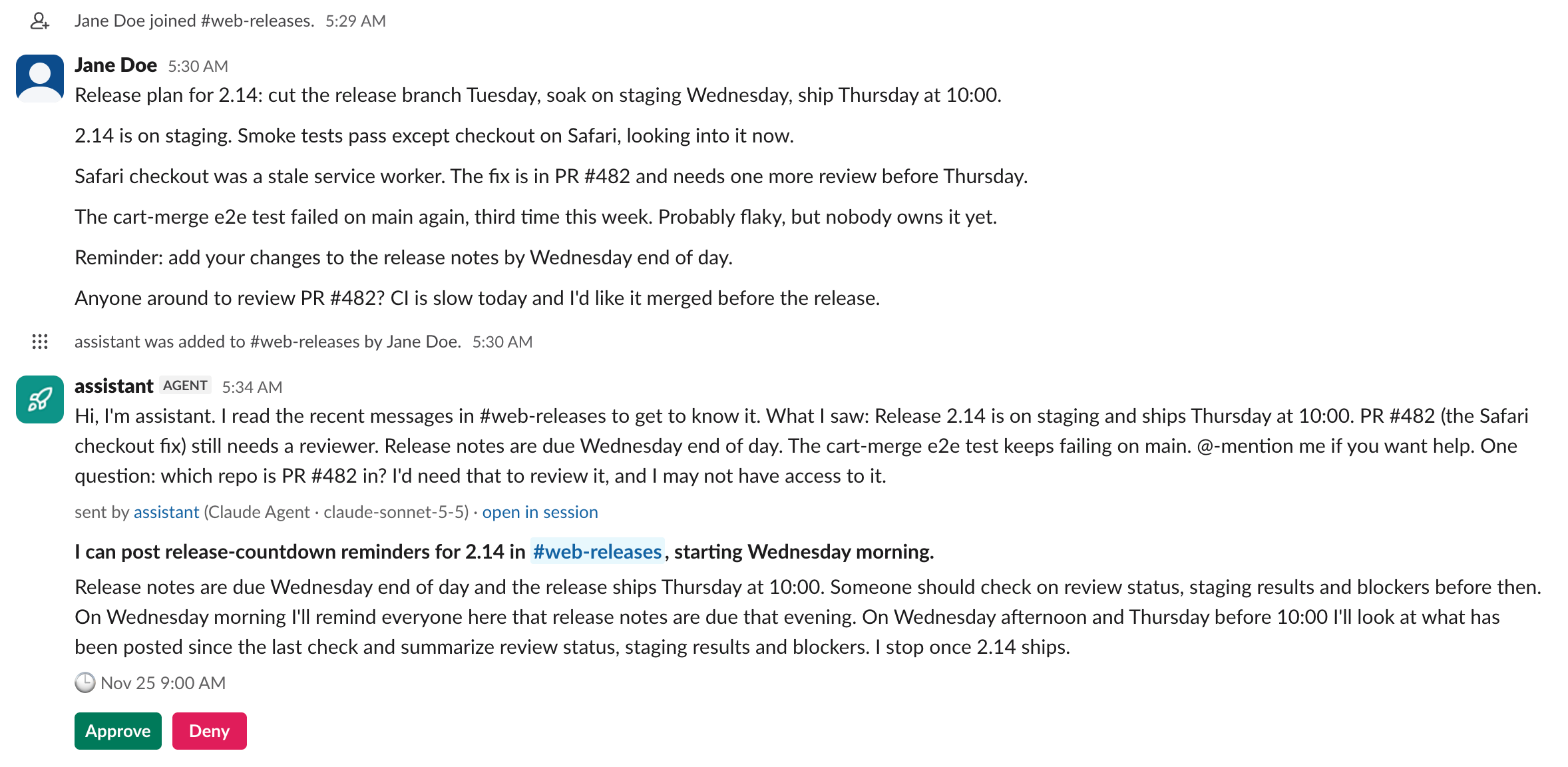
In a channel the agent was already in when the mode was turned on, or on Discord and Lark / Feishu, ask it to "get to know this channel". It doesn't do this in one-to-one DMs, in conversations shared with another organization, or on platforms that don't let a bot read history, such as Telegram. The Tasks list shows the read as Getting to know.
The organization Handbook
The first time assistant mode is turned on in your organization, the agent says hello in your Slack DM with it, then researches your organization in the background. It reads its shared memory, your published Knowledge, the names of channels it's in, the repositories it can read, and the public web. It reports back in the DM with what it learned, what it wrote, what it couldn't read, and at most two things it needs. Ask it there to research again at any time. Agents switched on later read what the first one wrote. Without a Slack DM with you, the agent greets its responsible person instead; with neither, no research runs.
What the agents learn goes into the Handbook at the top of the Knowledge page, one set for the whole organization:
- About: A short summary, then products and customers, how the organization works, and its repositories and systems.
- Channels: One line per conversation, with its purpose.
- People: Who works on what, what they know about, and what to ask them about.

Every line names its source and date, and your organization's own sources take precedence over the web. The Handbook holds only what is fine to say in any conversation. It's updated by research, by getting to know a public channel, and when someone states a fact in an internal public channel. Owners can edit or clear any entry on the Knowledge page. Every agent in the organization can look up About and Channels, and assistant-mode agents also read People.
People
People holds work facts only, taken from internal public channels: never opinions, judgments of someone's work, or anything from a DM, a private channel, or a conversation with outsiders. The agent never reads it in a conversation that includes people from outside the organization, and never contacts anyone because of it.
Your entry is yours. Ask the agent in your DM what it knows about you, and correct or remove your entry there, or on your own card under Knowledge → Handbook → People. Once removed, nothing more is written about you until you add an entry yourself. Entries are removed automatically after someone leaves the organization.
Keep track of its work
- Ask it. "What's on your plate?" lists the conversation's follow-ups, what the agent last saw for each, when it checks next, what's waiting for approval, and which tasks are running.
- The conversation's Tasks tab. Open the conversation's session in Sessions to see its tasks, follow-ups, and recent checks, or click Stop.
- The agent's Activity tab. Lists the agent's tasks and follow-ups across conversations. Editors also see everything waiting for approval (drafts, proposals, and task permission requests) and can approve or deny them there.
- A canvas in each Slack channel. In each internal Slack channel with open work, the agent keeps a canvas named after itself and the channel, such as assistant · #web-releases. It lists the channel's open tasks and follow-ups, and any scheduled tasks that post there, and updates it as that work changes. The agent posts no message about it.
Every few hours, the agent goes back over the tasks in a conversation that have gone quiet. If a task asked someone a question and nobody answered, it reminds that person in the task's thread. If a task stopped partway through work it was asked to do, it sends the task back to finish it. A task someone stopped is left alone.
Stop it
!stopat a conversation's root interrupts only the current turn. Tasks already running keep going.- To stop one task or follow-up, name it in the conversation that started it ("stop the PR task"). The agent confirms which one if it's unclear. You can also click Stop in the Tasks tab or in Activity.
- To stop everything, pause the agent with Pause on its page.
Stopping never undoes work that's already done. A background process the runtime started, such as a dev server, may keep running, and the agent will let you know.
Self-hosting
- Every daemon in the agent's daemon group must share one store.
- The agent's memory lives in the Control Plane. While the Control Plane is unreachable, the agent's memory is unavailable.
- With Auto turned off on the daemon, each conversation uses one Single session instead of a coordinator.
How is this guide?