Workspaces & repositories
Scratch and GitHub workspaces, isolated session worktrees, and repository access.
Every agent has a workspace, which is its working directory on the daemon. Pick a workspace source when creating the agent, or change it later from the Workspace tab.
From scratch
Creates an empty working directory on the daemon. Files the agent creates stay on that machine without version control. This fits reporting agents, chat-ops, and any task that doesn't start from an existing repository.
From GitHub
The daemon clones a repository and branch (optionally scoped to a subdirectory), and the agent works inside that checkout.
To pick repositories from a list, install the AgentConnect GitHub app:
- In Add agent → From GitHub, click Install GitHub app (or go to Integrations → Code hosts → GitHub → Install on GitHub).
- On GitHub, choose the account and repositories to grant access to.
- Back in the dialog, choose the repository and branch, set the agent directory if the agent should work in a subfolder, and pick push access:
- Read only: The agent can pull but can't push.
- Read & write: The agent can push changes to the repo.
Agents share the deployment's built-in GitHub App unless you give an agent its own, which gives it a separate actor identity on GitHub.
On AgentConnect OSS, the deployment operator needs to configure the GitHub App first. Public repositories can still be cloned read-only without installing the App.
From GitLab
Works the same way for a GitLab project on GitLab.com or a self-managed instance. Choose From GitLab, select the project, branch, agent directory, and access level, and the daemon clones it.
No separate app installation is needed. The deployment connects to GitLab once, and each agent gets its own service account on the instance the first time you pick a project for it. See GitLab. On AgentConnect OSS, the operator must configure the deployment's GitLab OAuth application first.
From Gitea
Works the same way for a Gitea repository on gitea.com or a self-hosted instance. Choose From Gitea, select the repository, branch, agent directory, and access level, and the daemon clones it.
No app installation is needed here either. The organization connects Gitea once using a bot user's token, and the picker lists the repositories that bot administers. Every agent shares that bot identity. See Gitea. On AgentConnect OSS, the operator must point the deployment at the instance first.
Worktrees for concurrent sessions
New GitHub agents turn on Worktree by default. Each session gets its own isolated checkout, keeping branches and file changes separate across concurrent sessions, and later turns in the same session reuse that worktree. Turn Worktree off if you want every session to share the primary checkout instead.
In the Workspace tab, you can switch between the primary checkout and worktrees from sessions you have access to read. Session worktrees are read-only in the console and follow the daemon's session retention policy.
Repository credentials
For an app-installed repository, the agent's session doesn't receive a GitHub token directly. Git and gh requests pass through the daemon's credential proxy, which attaches a short-lived credential scoped to that repository and its configured access level. Pushes to a Read only repository are rejected, and the daemon doesn't write long-lived Git credentials to disk. Revoking the repository grant or uninstalling the GitHub App cuts off future access.
The Workspace tab
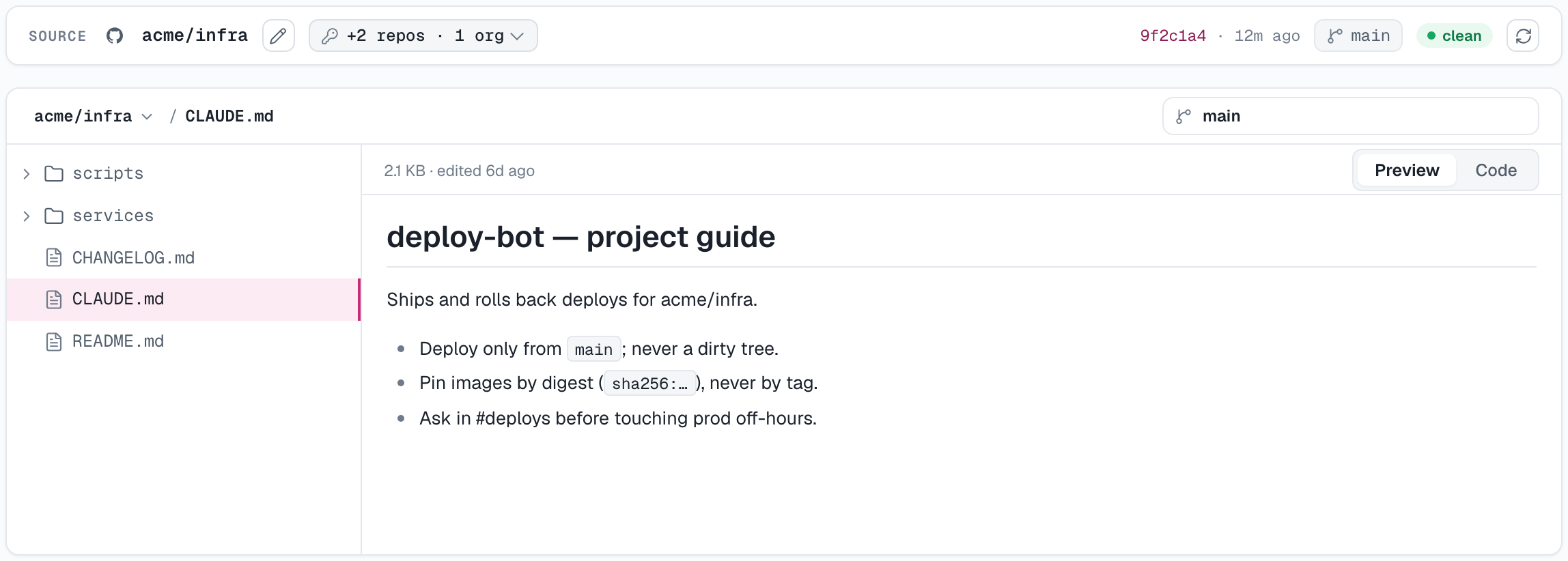
The agent's Workspace tab reads files directly from its daemon. Authorized users can browse the primary workspace and visible session worktrees, edit files in a scratch workspace, or pull updates for a primary GitHub workspace. Because those files exist only on the daemon machine, this view is unavailable while the daemon is offline.
Change the workspace source
Click Edit workspace on the Workspace card to switch between Scratch and GitHub, pick a different repository or branch, change the working directory, or update read/write access.
Changing the source type, repository, or branch replaces all daemon-local workspace files. Commit, push, or back up anything you need before confirming. Changing only the working directory or access level keeps the existing checkout intact.
Additional authorized repositories
When one repository isn't enough (for example, a reviewer that needs a shared library or a sibling service), click the repositories button next to the workspace source on the Workspace tab to open Additional repos:
- Authorize repository grants either Read only or Read & write access.
- Grants apply per agent and can be revoked with one click.
- Credentials stay scoped to the listed repositories.
By default, an agent's GitHub credentials only cover its primary workspace repository.
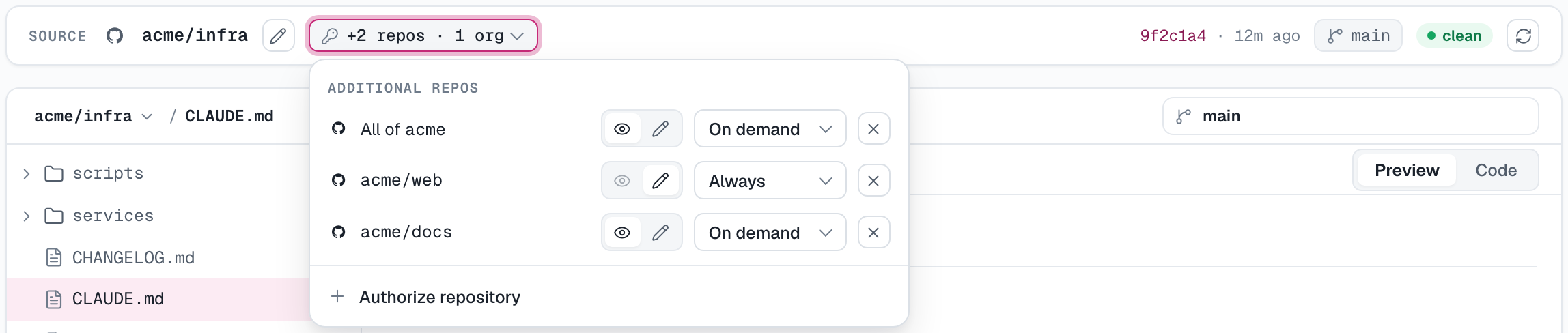
Each authorization also has a Checkout mode, chosen next to its access level when added and editable later on its row in Edit workspace:
- Always (default): The daemon checks out the repository beside the workspace as a secondary root and mounts it for every session's runtime, so the agent can read and edit those files locally instead of over the network. The clone happens on the first session that needs it; if cloning fails, that root is skipped instead of failing the session.
- On demand: Provides credentials without pre-cloning. When the agent needs the repository, it clones it into a directory assigned to the session. Use this for repos that sessions rarely touch so they don't wait on unnecessary clones.
An organization owner can also pick All of <account> under Authorize repository to grant access to an entire GitHub App installation, including repositories created later, at a single access level. Repositories covered by an installation-wide grant are always On demand, so the agent clones only what it needs. Any repository also authorized individually keeps its own access level and checkout mode. Informational Checks from a single-repository watch still require that repository to be authorized individually, while a watch of the whole installation uses the installation grant.
The file browser in the Workspace tab lets you switch between checkouts, and code-host reviews targeting an authorized repository run against an exact checkout of it. Even when files are checked out on disk, a Read only grant still blocks pushes.
How is this guide?