Create an agent
Create an AgentConnect agent with a focused role, model, workspace, tools, memory, and permissions, then connect it to conversations, repositories, or schedules.
An agent pairs a focused role with a runtime, model, workspace, memory, tools, permissions, and host machine. Once created, you can connect it to conversations, repositories, schedules, and webhooks.
You can also ask the built-in AgentConnect agent to set one up in Playground. It opens this dialog prefilled for you to review.
Open Agents → Add agent:
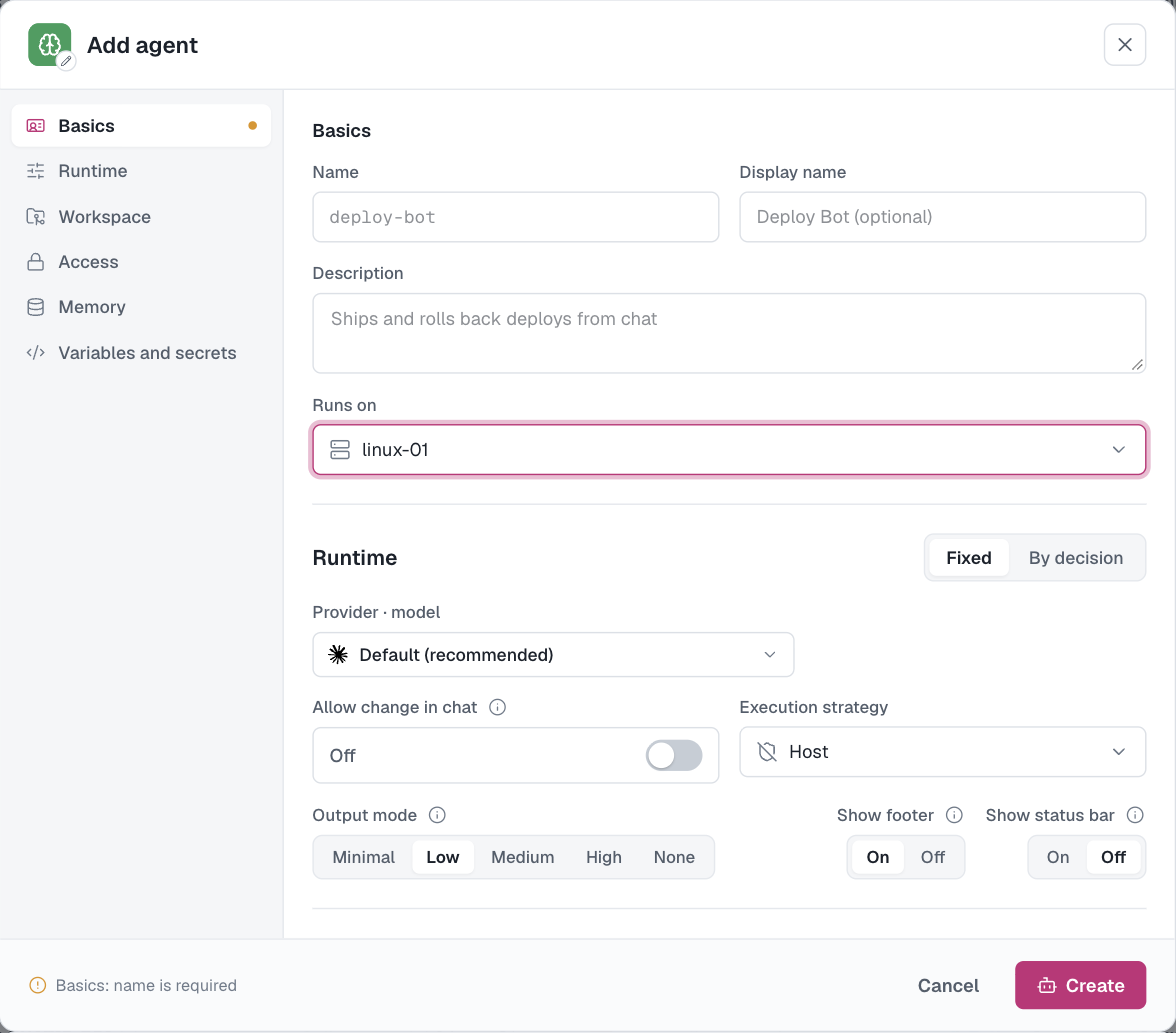
Role and basics
- Description: The agent's persona and standing responsibilities. AgentConnect includes it in the system context for every session and shows it on the agent page.
- Name: A stable slug identifier (
deploy-bot) using lowercase letters, digits, and dashes. - Display name: An optional readable name ("Deploy Bot") shown across the console.
Placement & runtime
- Runs on: Where this agent runs. Pick a connected machine (online daemons appear first), a daemon group, or AgentConnect Cloud on managed hosting (includes model access and is priced by usage). You can move an agent later, though existing workspace, memory, and transcript data won't transfer to the new placement.
- Runtime: The AI coding tool that drives the agent, such as Claude Code, Codex, or any other runtime your daemon detected (opencode, Gemini, and so on). The list matches what the daemon reports, so install a runtime on that machine first if it's missing.
- Model: The models reported by the runtime. AgentConnect preselects the runtime's advertised default, or its first advertised model if no default is set. It doesn't add a synthetic Default option.
Behavior (runtime-dependent)
These options appear when the selected daemon and runtime advertise support. Exact choices and descriptions can change with the runtime version:
- Effort (Claude Code) or Reasoning (Codex): Controls how much thinking the agent applies. The levels come directly from the runtime, so check the picker for the current choices on your version.
- Fast mode: On / Off. Enables the runtime's faster-output mode when available.
- Permission mode: Controls what the runtime can do without asking for approval. Available modes, including Auto, are defined by the runtime and vary across versions. Check the descriptions in the picker and start with a conservative setting for agents in shared channels. You can adjust the mode later per agent or per Playground session.
- Execution strategy: Sets the isolation boundary for the agent's sessions. The picker lists the strategies available for the selected placement: what the daemon supports, or for a daemon group, what at least one serving member offers. Choices are Host (no boundary), Sandbox (an SRT process sandbox), and VM (a microsandbox VM). Strategies that can't run on the target still appear in the list as disabled and marked unavailable; hover over one to see why. New agents default to
hostwhere supported, and otherwise to the first available sandbox. AgentConnect Cloud hides this picker because each session already runs in its own pod. This boundary is separate from the runtime's permission mode. See Sandboxing. - Memory: Choose Managed (an AgentConnect-managed directory), Native (the runtime's own isolated memory), External (a configured provider such as Mem0), or Off. See the guide to using Mem0 OSS as external memory for setup.
What people can do in chat, next to the model selector, controls whether people in a chat conversation can approve tool calls and change these settings. New agents default to Talk and approve tool calls. See What people can do in chat.
MCP servers aren't configured in this dialog. Create the agent first, then enable them from its Tools & Skills tab, which is the only place MCP access is granted. See Tools & Skills.
Workspace
Choose where the agent's files live on the daemon:
- From scratch: Starts with a fresh working directory. Files the agent creates stay on that machine.
- From GitHub: Clones a repository and branch (optionally scoped to a subdirectory) with read-only or read-write credentials. New GitHub agents default to an isolated worktree per session. See Workspaces & repositories.
You can change the workspace source later from the agent's Workspace tab. Switching the source, repository, or branch replaces local workspace files on the daemon, so commit or back up anything you need first. See Workspaces & repositories.
Access
- Team visibility: Everyone lets all organization members see the agent. Selected grants access to the organization members you pick plus every organization Owner. You're selected by default for convenience, and you can replace yourself after selecting someone else. At least one member must remain explicitly selected. Removing an Owner from the selection doesn't revoke their role-based access. See Team visibility.
- Agent visibility: Independently sets which agents can call this agent and which agents it can call. New agents inherit the organization's default in both directions. That default starts as All agents, though an Owner can set it to Isolated for future agents. You can override either direction here before creating the agent. See Agent visibility.
Variables and secrets
The final Variables and Secrets step adds environment values owned by this agent. Organization entries configured for All agents also apply on creation and usually take precedence over local values with the same name. See Variables & secrets for details on sharing, precedence, and secret handling.
Click Create to open the new agent page. From there, you can:
- Try it in the Playground
- Add an integration so it answers in a channel
- Fine-tune its configuration
How is this guide?