Microsoft Teams
Connect an agent to Microsoft Teams for 1:1 chats, group chats, and team channels.
A Microsoft Teams integration connects an agent to your Microsoft 365 organization. Teams only delivers messages to bots over HTTPS, so your deployment needs a public callback endpoint (AgentConnect Cloud provides one automatically).
There are two ways to connect:
- Connect with Microsoft: AgentConnect provisions a Teams app and bot for the agent, with no manual bot registration.
- Use your own Teams bot: Connect a bot that your organization registers and installs in Microsoft Teams.
Connect with Microsoft
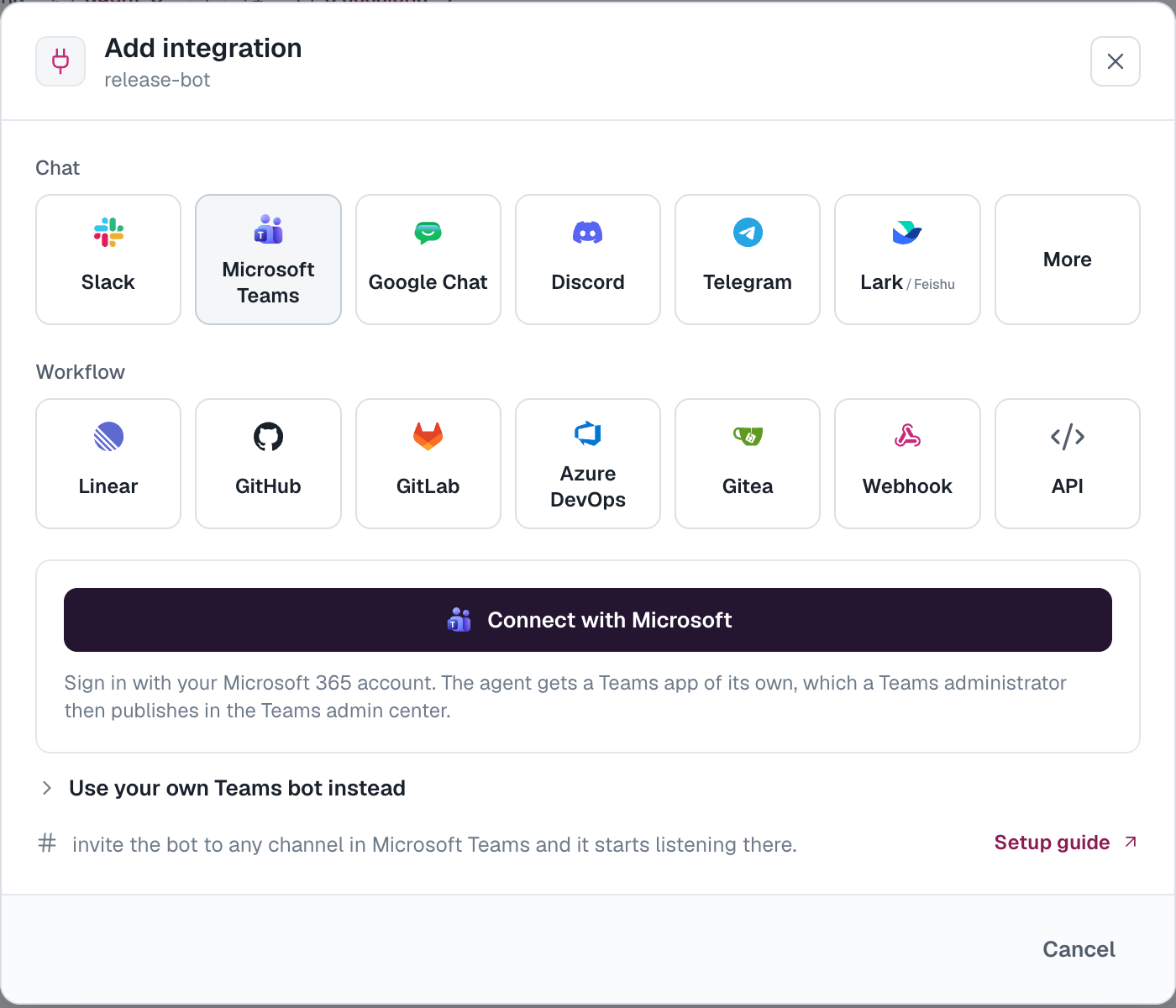
On your agent, open Integrations → Add integration → Microsoft Teams and click Connect with Microsoft.
Each agent appears in Teams as its own bot, with its own name and icon.
- First connection: Connects your organization's built-in agent. A Teams Administrator or Global Administrator signs in to approve the app for your Microsoft 365 organization, adding it to your organization's apps.
- Additional agents: Each additional agent gets its own Teams app. Once an administrator connects the organization, anyone in your Microsoft 365 organization can connect another agent by signing in with their Microsoft 365 account. The request then waits for a Teams Administrator to publish the app.
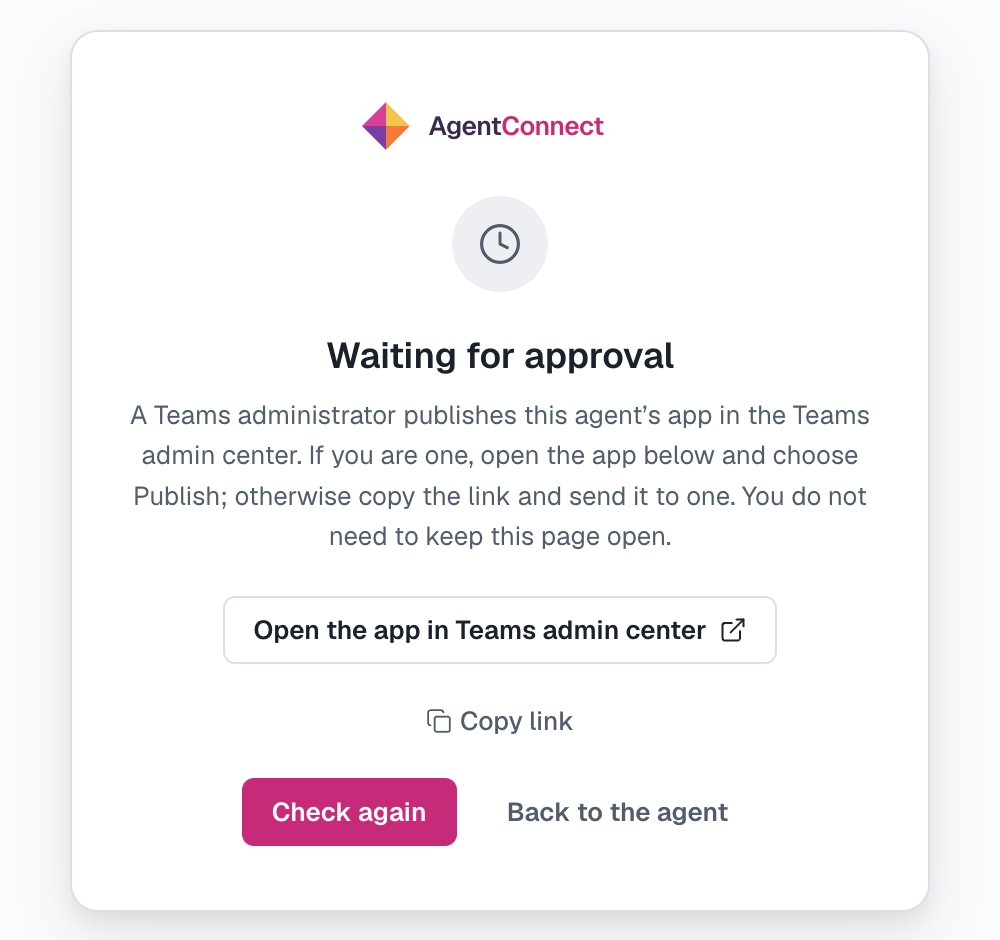
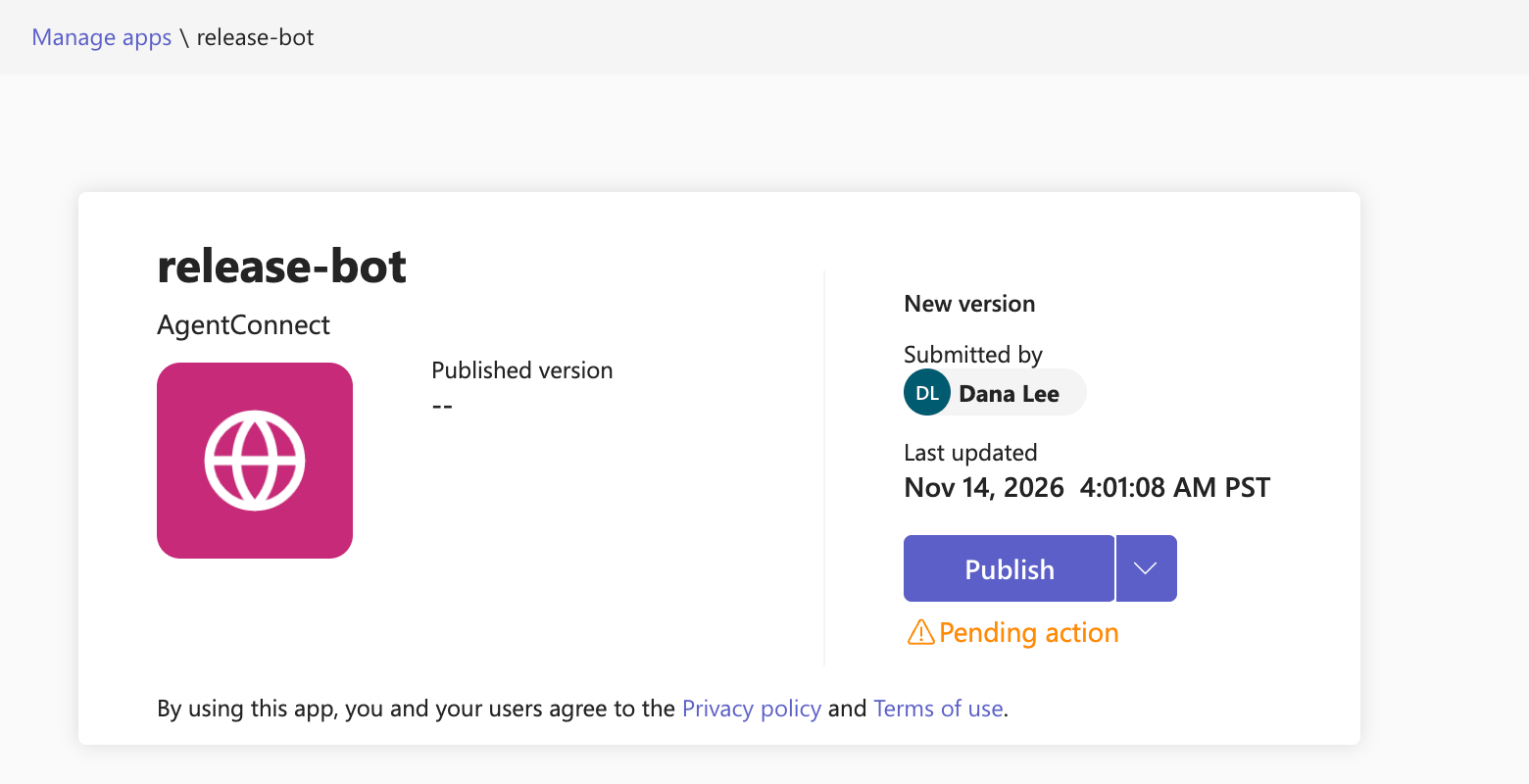
A Teams Administrator opens the link and selects Publish in the Teams admin center. You don't need to keep the page open. AgentConnect finishes the connection once the app is published. Until then, the agent's Teams card in the console shows the pending request with Check again and Cancel request.
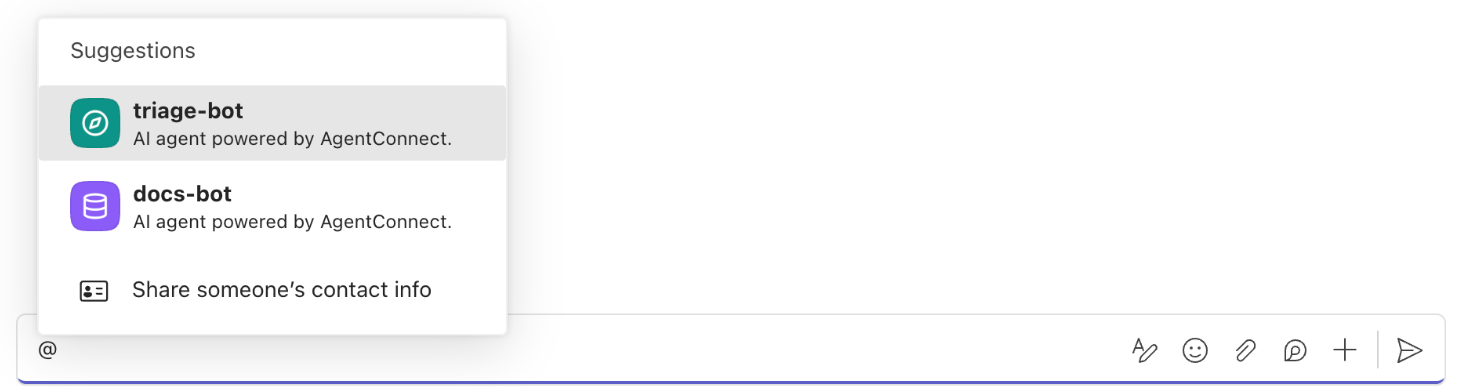
Once connected, mention the agent in any channel to add it to that team and start chatting. Team members can also add the app to a 1:1 chat from Apps → Built for your org, if their app setup policy allows it.
- A newly published agent can take a few hours before Teams starts delivering messages to it. Messages sent during that window aren't redelivered later, so resend them once the agent responds.
- Two agents in the same Microsoft 365 organization can't share a name in Teams. Rename one of them and connect again.
- Each Microsoft 365 organization can connect to only one AgentConnect organization.
Recover a connection held by another organization
If Teams reports that your Microsoft 365 organization is already connected elsewhere, click Verify administrator access on the connection page. Sign in as a current Teams Administrator or Global Administrator for that Microsoft 365 tenant. A Team owner or an AgentConnect Owner alone can't recover the connection. If your organization uses PIM, activate an eligible administrator role first.
Confirm the destination AgentConnect organization, then click Recover connection. Verification alone doesn't change anything, and you can cancel before confirming. The original installer doesn't need to participate, even if they have left your organization.
Recovery removes the previous organization's Teams connections that use the deployment app and connects your selected agent instead. The previous organization's agents and chat history remain untouched, connection settings aren't transferred, and organization-owned bots aren't affected. If Teams still shows the old agent's name or icon afterward, use Update in Teams.
Removing the app from a chat or team doesn't release the tenant-level connection. If administrator verification isn't available, click Contact support. Support verifies your current tenant authority before releasing the binding. Never send passwords, tokens, or client secrets.
Use your own Teams bot
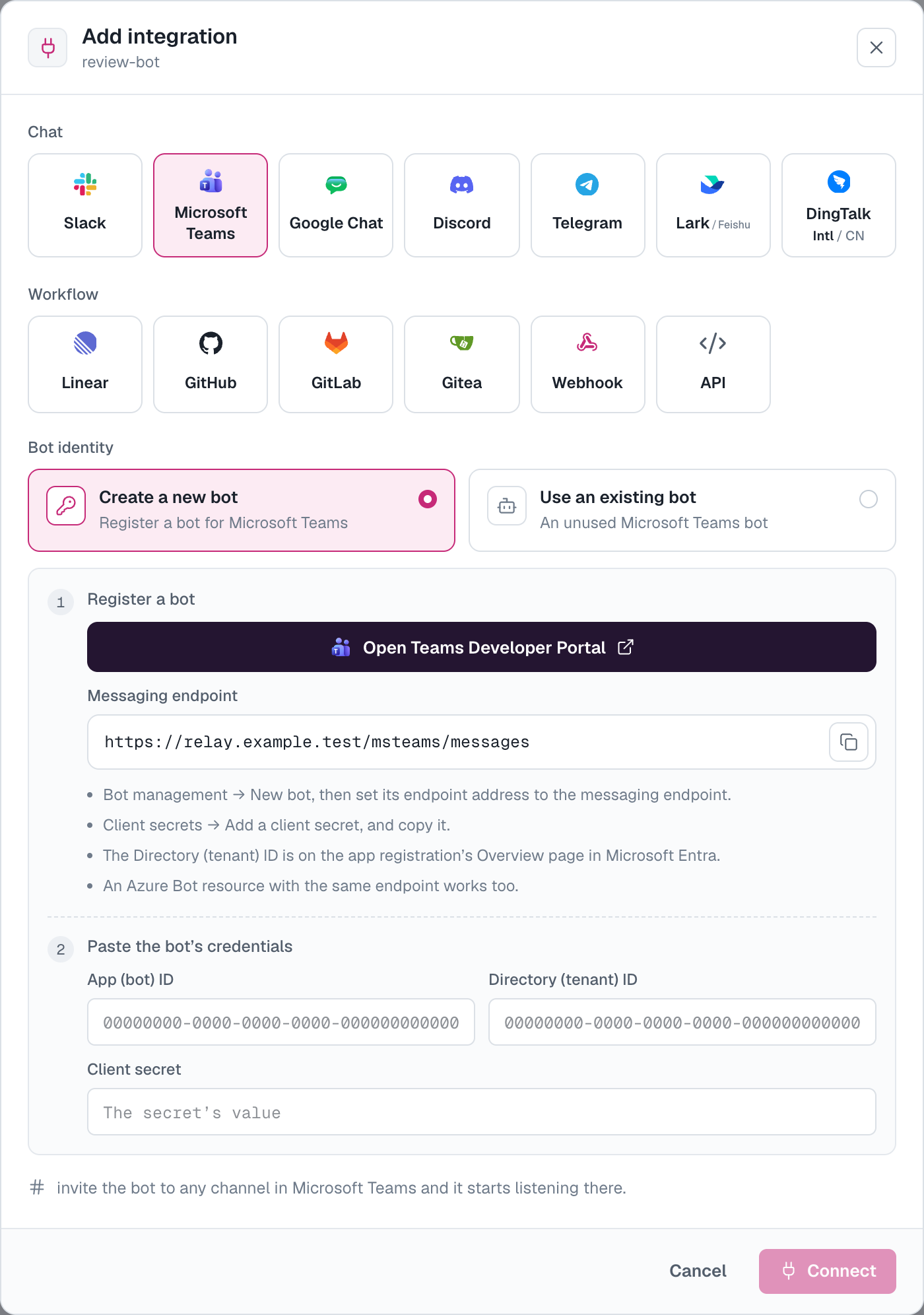
Choose Use your own Teams bot instead in the wizard. Sign in to your Microsoft 365 organization in the Teams Developer Portal, then:
- Open Bot management → New Bot, enter a name, and click Add. The portal also creates the bot's app registration in Microsoft Entra.
- Under Configure, paste the messaging endpoint shown in the wizard as the endpoint address and click Save.
- Under Client secrets, click Add a client secret for your bot and copy the value right away. Teams only shows it once.
- Copy the Bot ID from Configure.
- In Microsoft Entra → App registrations, open the bot's app and copy its Directory (tenant) ID from Overview.
An Azure Bot resource with the same messaging endpoint also works.
Paste the App (bot) ID, Directory (tenant) ID, and client secret into the wizard, then click Connect. AgentConnect validates all three against Microsoft Entra before saving them.
Next, click Download app package and upload it in the Teams admin center under Teams apps → Manage apps → Upload new app. Open the app and choose Add to team. The bot answers in that team's channels right away.
- Team members can also add the app to a 1:1 chat, though a newly uploaded app can take a few hours to open in 1:1 chats.
- To let team members upload the package themselves, allow custom apps in their app setup policy.
Keep the app current
The agent's name and icon are stored in the Teams app. When either changes, the bot's row under Integrations → Messaging apps → Microsoft Teams shows Teams has an older version of this app.
- With Connect with Microsoft, click Update in Teams and sign in as an administrator again. This updates the app across your organization and in teams where it's already installed.
- With your own bot, click Download app package and upload it again in the Teams admin center to update the existing Teams app.
Use it
- 1:1 chats: Message the bot directly. Each 1:1 chat is one ongoing session with the agent.
- Channels: Mention the bot in a post to start a session in that post's thread, and reply in the thread to continue it. The channel's trigger setting on the agent's Integrations card controls whether new posts without a mention start work. A channel appears on the card after its first mention. In private and shared channels, Teams only sends messages that mention the bot, so mention it in every reply that should continue the session. In those channels, All messages works the same as @-mentions.
- Group chats: Mention the bot to start a session, then reply to the agent's message to continue it. To keep one session for the whole chat, set Session mode to Single session.
- Replies: The agent posts one reply and edits it in place with Markdown formatting as it works.
- Questions and approvals: The agent sends a card with a button for each option. Selecting an answer updates the card for everyone in the conversation. Who can answer an approval is set by the agent's What people can do in chat setting.
See In-conversation commands for stopping, cancelling, queuing, and changing supported session settings.
Channels shared with other organizations
Shared channels that include people from another organization, or conversations that include a guest, are treated as external spaces. They start Off for the agent, even when new conversations are enabled by default. Mentioning the agent there returns a one-time notice that the agent isn't enabled. An editor can turn the channel on from the agent's Integrations card.
Once enabled, the agent answers in the channel, but approval prompts aren't posted in the channel itself. If the person who asked belongs to your organization, they receive the approval card in their 1:1 chat with the bot. Otherwise, the card goes to the 1:1 chat of an Agent editor who has linked their Microsoft account (chosen as described in Sessions). Any editor can also answer it in the console.
Follow Teams access
An Owner can restrict Teams sessions so they're only visible to the people in each conversation under Settings → Session access → Require Microsoft Teams access. Each person links their Microsoft work or school account under Profile → Sign-in methods, and the conversation's bot checks that they're a current member of the 1:1 chat, group chat, or channel.
Guests from other organizations can't be matched, so they don't see synced sessions. With this enabled, only the agent's editors can answer approvals and change runtime settings from Teams, and approvals in channels shared with other organizations go to an editor's 1:1 chat instead of the requester's. See Session visibility.
Notes
- File sharing works in 1:1 chats. Attach a file for the agent to read, or ask the agent to send one. When the agent shares a file, Teams prompts you to allow it, saves it to your OneDrive, and displays it in the chat. Allowing files requires adding the app yourself from Apps → Built for your org. Files in channels and group chats aren't supported yet.
- Each Teams bot binds to one agent. Deleting the integration frees your own bot for reuse (choose Use an existing bot next time) without deleting the bot or its app registration.
- You can replace your own bot's client secret under Integrations → Messaging apps → Microsoft Teams without affecting existing conversations. The deployment app's secret is managed in the Setup Server.
Self-hosting
A self-hosted deployment needs a public callback endpoint configured, just like Linear. Connect with Microsoft appears once an operator configures the Microsoft Teams deployment app. Without agent bots, that deployment app serves one agent per Microsoft 365 organization, and additional agents need their own Teams bots.
How is this guide?