Azure DevOps
Connect an Azure DevOps organization with a single Microsoft sign-in, work in Azure Repos, and trigger agents from pull requests and comments.
An Azure DevOps integration lets agents work directly in Azure Repos. You can assign a Git repository as an agent's workspace or additional repository, and have an agent watch a repository so pull requests and comments start sessions. The agent replies in pull request threads, can submit formal reviews with votes, and reports its run state as a pull request status.
This integration supports Azure DevOps Services (dev.azure.com). Azure DevOps Server, TFVC repositories, and SSH remotes aren't supported.
AgentConnect acts in Azure DevOps under one identity per organization: the AgentConnect application, which appears as a service principal in your Microsoft Entra tenant. Every action agents take (cloning, pushing, commenting, reviewing, and setting statuses) is attributed to that application.
Before you start
You need a Microsoft work or school account that is a Project Collection Administrator of the Azure DevOps organization and a member or guest of the organization's Microsoft Entra tenant. Personal Microsoft accounts can't connect.
Connect Azure DevOps
An organization connects once under Integrations → Code hosts → Azure DevOps → Connect with Microsoft.
-
Sign in with the administrator account described above. If your tenant requires admin approval, a Microsoft Entra administrator must grant consent to the AgentConnect application once before you sign in again.
-
Choose the organization. AgentConnect lists the Azure DevOps organizations your account belongs to. If the organization is in a different tenant than the one you signed in to, you'll be redirected to sign in to that tenant.
-
Choose projects. Select each project that agents need to access. Selected projects default to Write with Allow triggers:
Choice What it gives the application Read Agents can clone and read, but not push (the project's Readers). Write Agents can also push and open pull requests (Contributors). Allow triggers Pull requests can start agents (the project's service hook rights). Selecting All projects applies the same settings to every current and future project, so you won't need to update permissions when new projects are created. Only a Project Collection Administrator can enable this option.
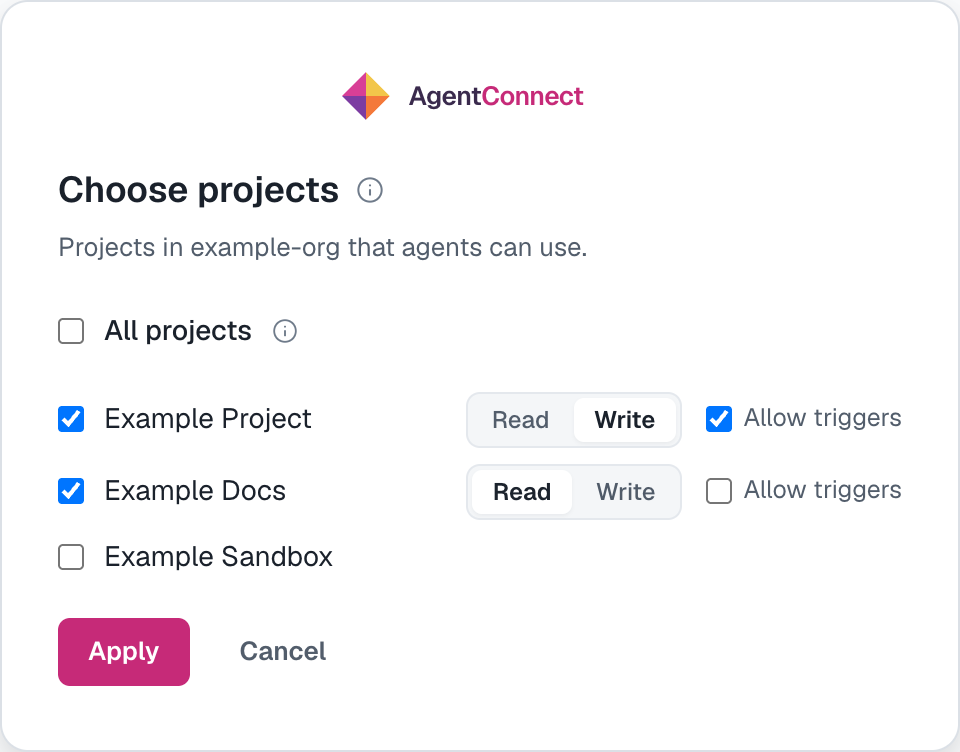
AgentConnect then adds the application to the organization with the Basic access level (which uses one paid license), adds it to the groups you selected, and verifies that it can see the repositories.
Only grant access to projects agents actually need. The application can reach anything its assigned groups allow, and its token is valid across the organization. Per-agent repository boundaries are enforced by AgentConnect on the daemon (see Access is enforced by the daemon).
A Project Administrator who isn't a Project Collection Administrator can't add the application with Basic access. In that case, AgentConnect displays a checklist: have a Project Collection Administrator add the application (using its client ID) under Organization settings → Users with Basic access, then continue setup from the card.
Manage project access
Clicking Manage project access on the card repeats the sign-in flow and loads the application's current permissions. Applying changes updates Azure DevOps to match your selections: unchecking a project or All projects, downgrading to Read, or clearing Allow triggers revokes that access.
Use your own application
Choose Use your own application instead to connect an application registered in your own tenant by entering the organization, tenant ID, client ID, and client secret. You'll need to add that application's service principal to the organization (Basic) and to the appropriate project groups yourself. For triggers, also grant it View subscriptions and Edit subscriptions permissions on each project's service hooks.
Repositories
A repository is registered with the organization the first time you use it: selecting it as an agent's workspace, adding it as an additional repository, or picking it in a trigger. Repository pickers show every repository the application can see.
Each agent gets read or write access per repository. Granting write requires Write access on the parent project; saving a write workspace on a repository the application can't push to is rejected.
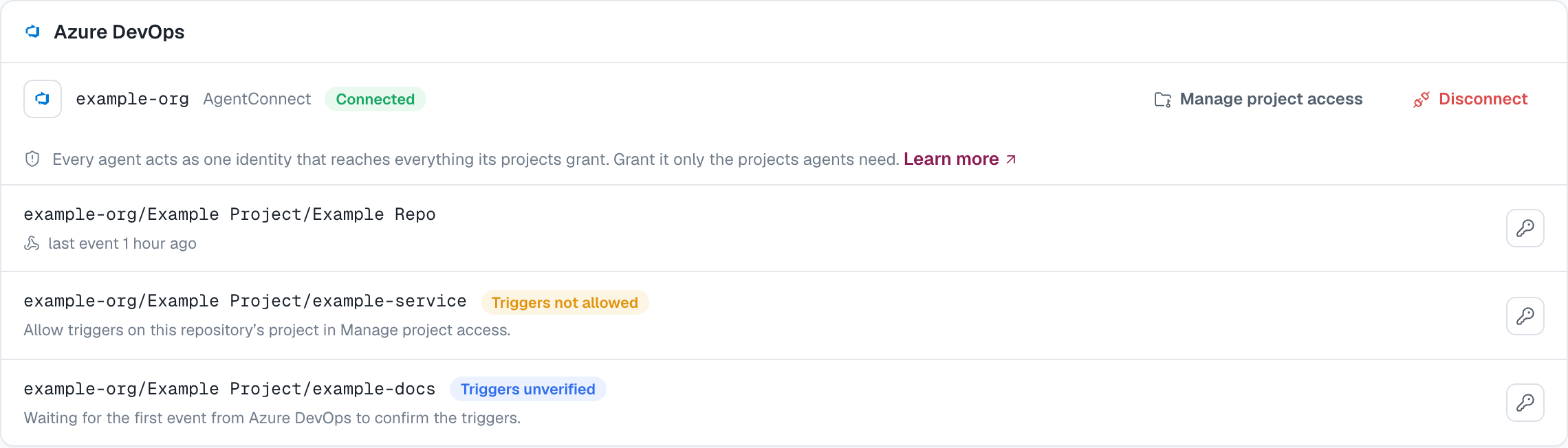
Repositories with triggers display the time of the last received event, or a status badge when action is needed:
| Badge | What to do |
|---|---|
| Triggers unverified | Nothing; this clears automatically once the first event arrives. |
| Triggers not allowed | Turn on Allow triggers for the project in Manage project access. |
Click the key icon on a repository row to rotate the secret Azure DevOps uses to sign webhook deliveries. The previous secret stays valid for 36 hours so already-queued deliveries still succeed.
Access is enforced by the daemon
Azure DevOps can't issue a token scoped to a single repository or limited to read-only access. Because of this, the token never enters an agent's session. Git and the Azure CLI communicate with Azure DevOps through the daemon's credential proxy, which injects the real token only for the agent's authorized repositories and blocks pushes or API writes when the agent only has read access.
The Azure CLI with the azure-devops extension works normally inside a session (az repos show, az repos pr create, az repos pr update, and other commands). If you run your own daemon, make sure the CLI and extension are installed in the agent's execution environment. Commands that would expose other repositories, such as az repos list or listing pull requests without --repository, are blocked.
Agents also have three built-in tools that don't require the CLI: azureDevOpsPullRequest (open, edit, complete, abandon, reactivate, and manage labels), azureDevOpsComment (comment threads and replies), and readAzureDevOpsPullRequest. Pull requests opened by an agent include the agent's footer.
Watch a repository
On the agent page, go to Integrations → Add integration → Azure DevOps.
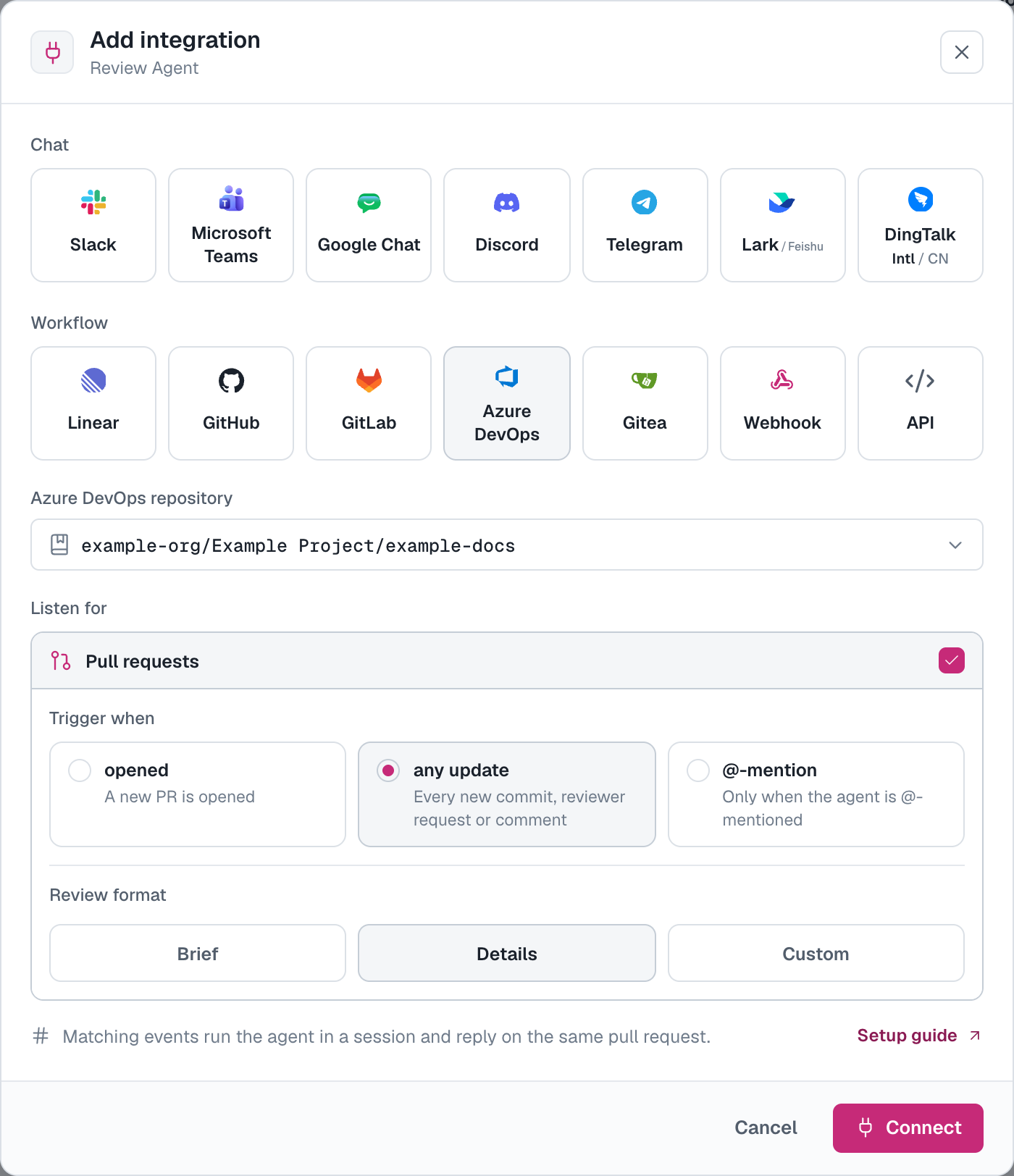
The repository must already be configured as the agent's workspace or an additional repository, and its project must have Allow triggers enabled. Choose when the agent runs on pull requests:
- opened: Runs when a pull request is opened.
- any update: Runs on openings plus new commits, reopened pull requests, and comments.
- @-mention: Runs only when the pull request description or a comment mentions the agent as
@<agent-name>.
Regardless of trigger cadence, adding the AgentConnect application as a pull request reviewer requests a review. Because the Azure DevOps reviewer picker only lists human users, add the application via the REST API or az repos pr reviewer add.
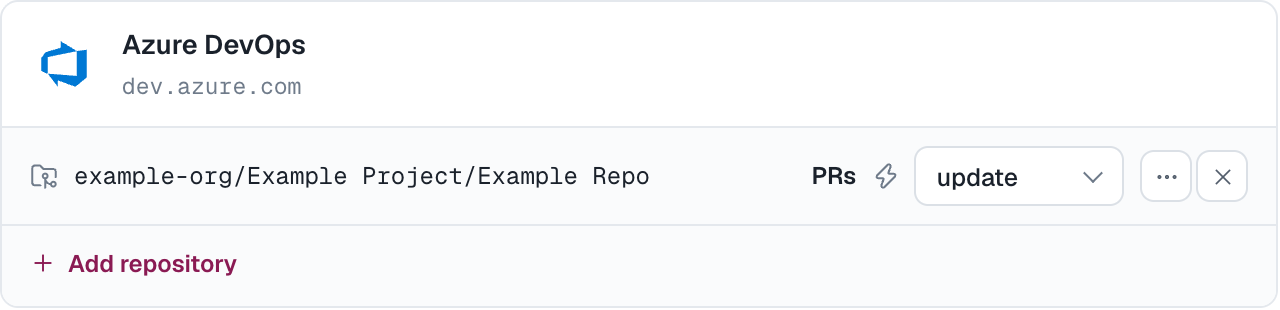
AgentConnect creates and manages the repository's service hooks automatically (one per event type required by the configured triggers) and deletes them when the last trigger is removed. Multiple agents watching the same repository share those service hooks.
Who may trigger an agent
When an event arrives, AgentConnect queries Azure DevOps to verify whether the person who triggered it has contribute permission on the repository, checking both their direct permissions and all groups they belong to. Users who can't push to the repository can't start an agent. For review requests and reopened pull requests, AgentConnect checks the pull request author. Comment edits and likes don't start runs.
Comments posted by the AgentConnect application itself never trigger an agent. However, a pull request opened by the application in the same repository still enters review so one agent can review another's work, and commits pushed by the application to a pull request count as new revisions like any other commit.
What the agent does
Each qualifying event starts a session on the agent's daemon, and the session appears in Sessions linked back to the pull request.
- Reply: Posts a comment in the thread that triggered the run, or starts a new thread on the pull request. AgentConnect likes the triggering comment when the run begins.
- Reviews: When a review format is configured on the trigger, opened pull requests, new commits, and review requests produce a formal review: one comment thread per inline comment (multi-line ranges stay ranges), a summary thread, and a vote (Approved (
10) for approvals or Waiting for author (−5) for requested changes). A comment-only review leaves the vote unchanged. Mentioning the agent produces a reply in that thread rather than a formal review. - Run state: Posts a pull-request status named
agentconnect/<agent-name>linking to the session in the console. It only blocks PR completion if an administrator adds it as a required status check in a branch policy.
To run an agent again on a pull request, reply in the session, push a new commit, or mention the agent.
Because all agents act under the same Azure DevOps application, they share one vote on a pull request, set by the most recent review. Each agent's individual verdict remains recorded in its own summary thread and PR status.
Disconnect
Clicking Disconnect removes AgentConnect's service hooks and releases the connection, stopping agents from working on its repositories. To remove the application from Azure DevOps completely, delete it from Organization settings → Users and optionally remove its enterprise application in Microsoft Entra.
Self-hosted deployments
Everything above works the same way on AgentConnect OSS. The operator configures the deployment's Microsoft application once and adds the console's Azure DevOps connect page as an additional redirect URI; see Microsoft Teams deployment app. Without a deployment-level application, organizations can connect using their own application.
How is this guide?