DingTalk
Connect a robot from your organization's own DingTalk app for direct messages and group @mentions.
This page covers DingTalk's international edition (dingtalk.io). For DingTalk in mainland China (dingtalk.com), switch to the Chinese version.
Both AgentConnect Cloud and self-hosted deployments support DingTalk. Each organization connects a robot from its own internal app. Because the daemon connects outbound through DingTalk's Stream mode, no public callback URL is required.
Create the app
Sign in to the DingTalk developer console as an admin of your organization, then follow these steps:
-
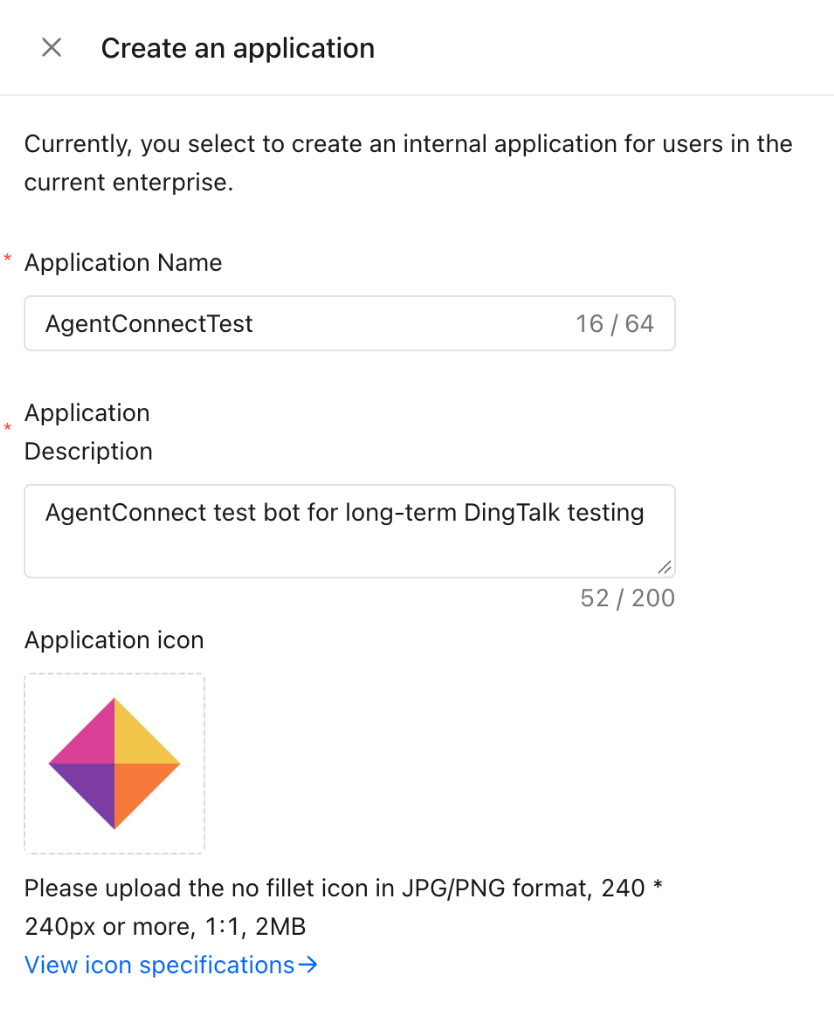
Under Applications → DingTalk application, click Create an application, and enter a name, description, and icon.
-
Under Add application capabilities, add Bot, then turn on Robot configuration. Give the robot your agent's name and icon, since DingTalk shows these in chats and AgentConnect can't set them for you.
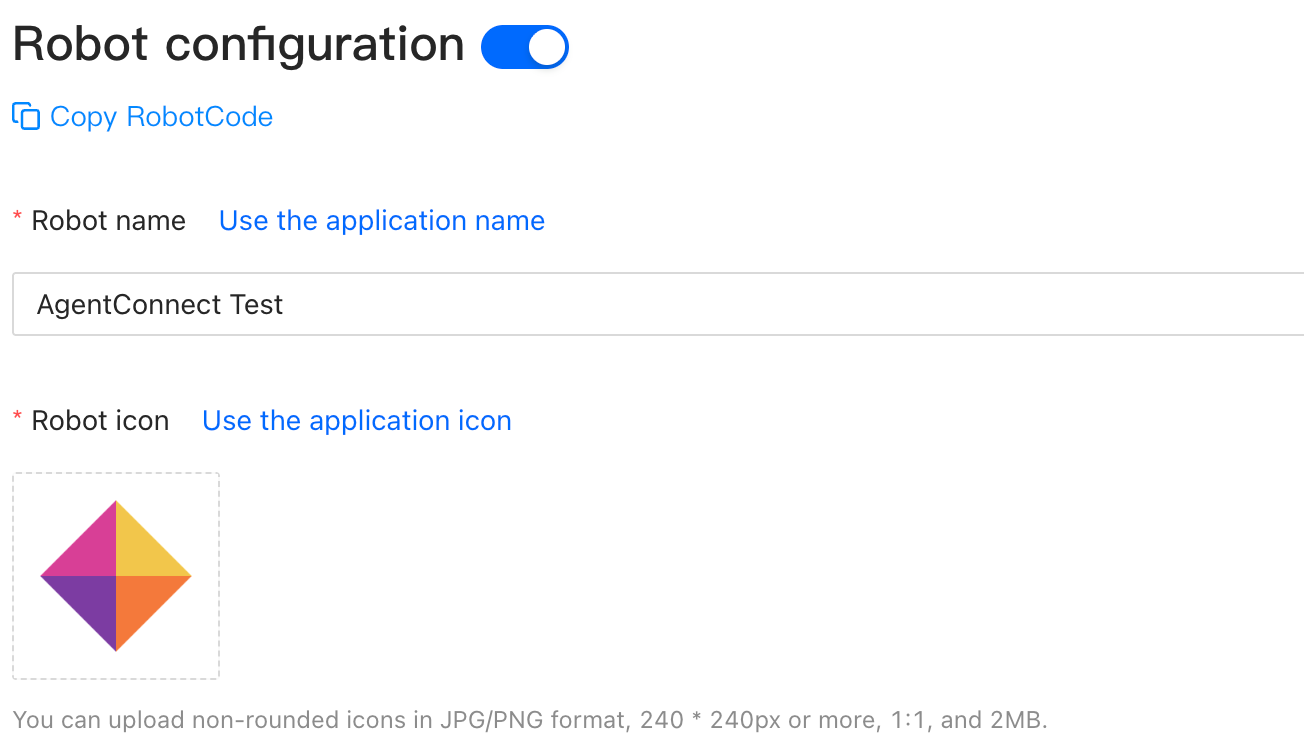
Fill in the robot's introduction (up to 10 characters) and description, upload a message preview image, keep Stream selected as the message receiving mode, and click Publish.

-
Under Permission management, search for
Contact.Org.Readand enable it (no approval is required). Once the robot receives its first message, the Console names the integration after your organization instead of its Client ID. -
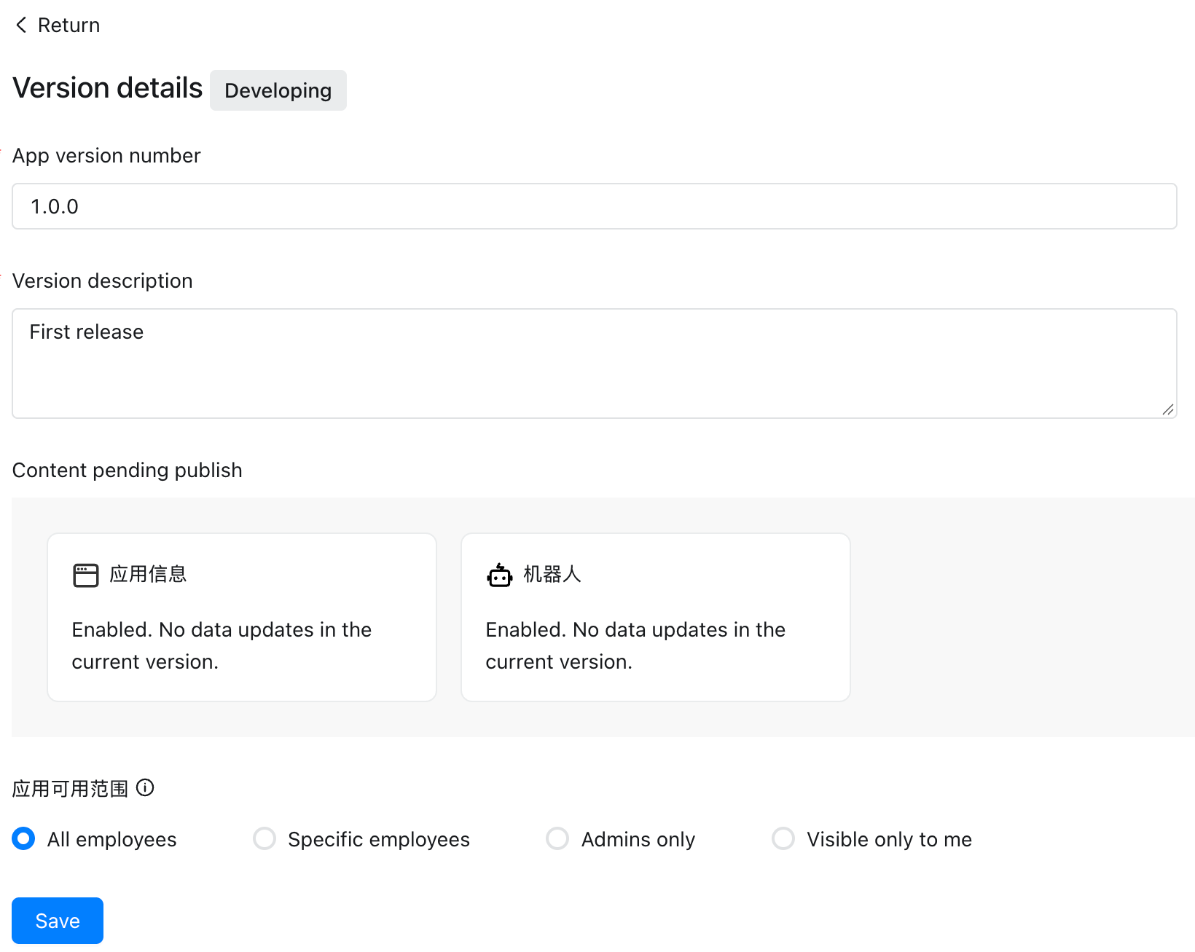
Under Version management and release, create a version, choose who can see the robot, save it, and confirm the publish. No review is required, so the version goes live right away. Any later changes to the app take effect only after you publish a new version.
-
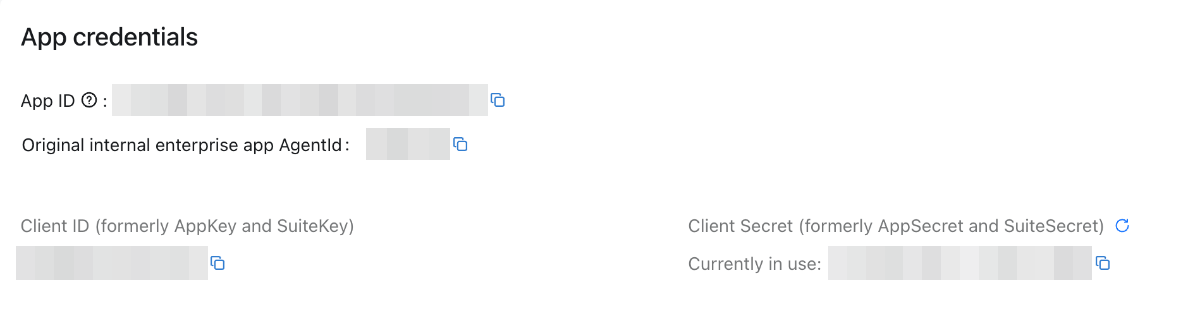
Under Credentials and basic information, copy the Client ID and Client Secret.
Connect it
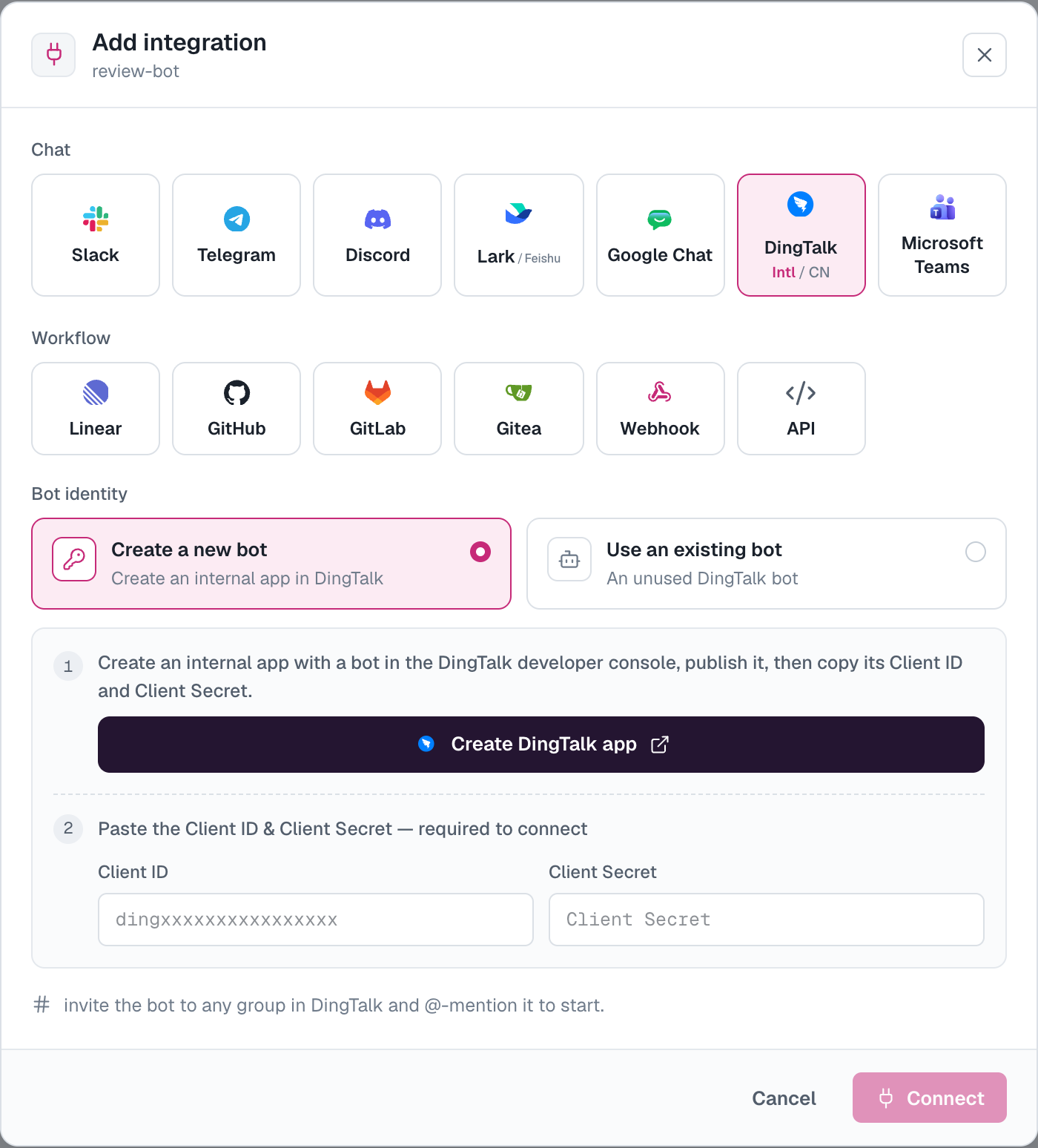
On your agent, open Integrations → Add integration → DingTalk. Keep Intl selected on the DingTalk tile (CN is for mainland DingTalk), paste the Client ID and Client Secret, and click Connect. AgentConnect verifies the credentials with DingTalk before saving them. If the app belongs to the other edition, AgentConnect rejects it and tells you which edition to switch to.
Use it
- Direct messages: Message the robot directly. A direct message is a single ongoing session with the agent.
- Groups: Add the robot to a group and @-mention it. DingTalk delivers a group message to the robot only when it's mentioned. Each new mention starts a new session. To continue an existing session, reply to the agent's message (which mentions the robot automatically). To keep one session for the whole group instead, set the group's Session mode to Single session on the agent's Integrations card.
- Progress: While the agent is working, it adds a 🤔 "thinking" reaction to your message and removes it when the turn finishes. Replies are sent as Markdown.
- Files and images: Send the robot a file or image in a direct message, or quote one in a group while mentioning the robot. The agent can also send images and files back from its workspace.
- Questions: When the agent asks you to choose, it sends the options as a numbered list. Reply to that message with your choice. The international edition doesn't offer interactive-card permissions, so its questions don't include tap-to-answer buttons.
- Approvals: DingTalk doesn't support approval cards. When a tool call needs approval, an Agent editor answers it in the console, and a notice is posted to the conversation.
See In-conversation commands for stopping, cancelling, queuing, and changing supported session settings.
Notes
- DingTalk limits each organization's API calls by plan. If DingTalk rejects calls over the limit, the agent posts a notice once in the conversation instead of replying.
- Topic circles aren't supported because DingTalk lets only its own assistants and webhook robots join them, not app robots.
- Each DingTalk robot binds to one agent. Deleting the integration frees the robot for reuse (choose Use an existing bot next time), without deleting the app from the DingTalk developer console.
- To replace the Client Secret, go to Integrations → Messaging apps → DingTalk → Replace secret. The robot's conversations aren't affected.
How is this guide?