Lark / Feishu
Connect a Lark or Feishu bot with one-click or manual setup.
Both AgentConnect Cloud and self-hosted deployments support international Lark and China-region Feishu as separate regional options in the same setup flow.
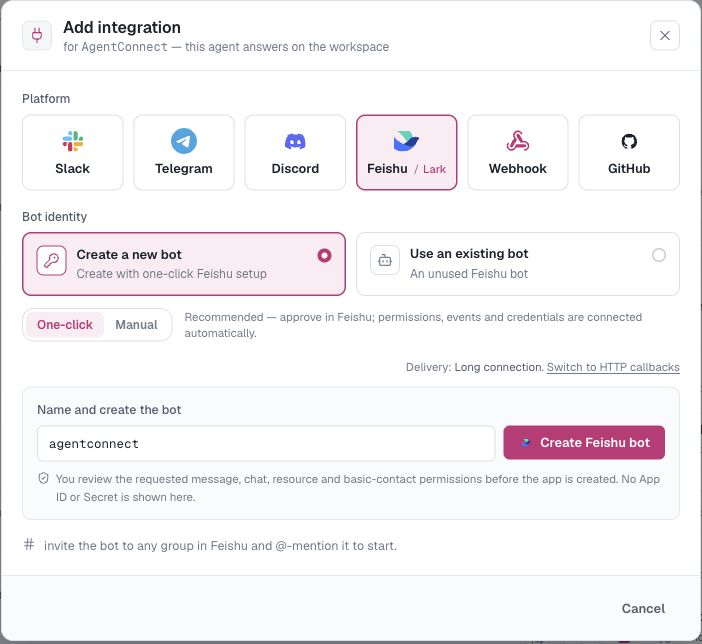
Cloud supports both bot integrations. Lark / Feishu social sign-in and Follow Feishu / Lark access currently require a self-hosted deployment.
Each agent bot can have its own platform App ID. The deployment uses a single regional Login App as a tenant anchor, allowing multiple bot Apps from the same trusted workspace even when their App IDs differ. When Follow Feishu / Lark access is enabled, AgentConnect checks current chat membership for a session through that session's installed bot App. See Lark and Feishu identities for the self-hosted identity setup.
The recommended one-click setup creates a self-built app through the platform's official authorization flow and configures its permissions, event subscription, and credentials automatically.
Connect in one click
The agent must already be assigned to a daemon that reports Lark / Feishu support.
- On your agent, open Integrations → Add integration and select the Lark / Feishu tile. One tile covers both platforms, with a switcher to pick the region.
- Keep One-click selected and choose Lark (international) or Feishu (China).
- Keep Long connection selected unless you specifically want Relay-backed HTTP callbacks.
- Name the bot and click Create Lark bot or Create Feishu bot.
- In the new platform tab, review and approve the app and its requested permissions.
AgentConnect tracks the authorization from the original dialog. Once you approve it, AgentConnect receives the App ID and secret on the server, configures the message event, stores the credentials, and connects the integration. You don't need to copy either credential into the browser.
Choose a delivery mode
- Long connection: The default. The daemon opens an outbound connection to Lark / Feishu, so no public callback URL is required.
- HTTP callbacks: Events enter through the AgentConnect Relay and are forwarded directly to the owning daemon. This option only appears when the deployment has a public, connected Relay. One-click setup configures the callback security settings and request URL for you.
For most Cloud users, keep the default Long connection selected. The delivery mode doesn't change which agent runs or where its workspace and session transcript are stored.
Manual self-built app
Choose Manual if the official one-click flow isn't available or your organization requires you to configure the app yourself.
- Select the Lark or Feishu region and create a custom app in the linked developer console.
- Enable the app's Bot capability, then copy its App ID and App Secret into AgentConnect.
- Grant the message, chat, resource, and basic contact-read scopes listed in AgentConnect's setup checklist. The contact scopes let AgentConnect display channel and participant names instead of raw IDs.
- Under Event Subscriptions, subscribe to
im.message.receive_v1:- For Long connection, select the platform's Long Connection delivery mode.
- For HTTP callbacks, paste the Verification Token and optional Encrypt Key into AgentConnect, connect the integration, and then save the displayed Request URL in the developer console.
- Publish the app version, then add the bot to the chats where it should work.
The manual checklist stays visible in the integration dialog so you can double-check transport-specific settings before finishing.
Use it
- In a group, add the bot and @-mention it to start. The channel then appears on the agent's Integrations card, where you can choose @-mention, any message, or Off.
- In a one-to-one chat, message the bot directly.
- Use in-conversation commands to stop, cancel, queue, or inspect a session.
- When a tool call needs approval, the agent posts an approval card in the chat. The agent's What people can do in chat setting controls who can respond. On a self-hosted deployment with Follow Feishu / Lark access enabled, only the agent's editors can approve.
Each Lark or Feishu bot binds to one agent at a time. Deleting its integration frees the stored bot identity for Use an existing bot, without deleting the app from the platform developer console. You can manage bots across your organization under Integrations → Messaging apps → Lark or Feishu, where Configure opens the matching regional developer console.
How is this guide?