Slack
Install AgentConnect in your Slack workspace and start working with an AI agent in a channel thread or direct message.
Connect AI agents to Slack so they can investigate issues, answer questions, and collaborate with your team in channel threads and direct messages.
On AgentConnect Cloud, the recommended option is the built-in Add to Slack app. Approve the workspace installation, and AgentConnect finishes the OAuth flow automatically without asking for an App manifest, token, signing secret, or callback URL.
Add AgentConnect to Slack on Cloud
You need an AgentConnect account and permission to install apps in your Slack workspace (or approval from a workspace admin).
- Open the AgentConnect console and sign in. If you don't have an organization yet, create one and choose Cloud during setup. AgentConnect creates the built-in
agentconnectagent with a runtime and model preconfigured, so you don't need to install a daemon or supply a model API key. - Open the Getting started card and choose Add to Slack (or open the built-in agent and go to Integrations → Add integration → Slack).
- Click Add to Slack, pick your Slack workspace, and review and approve the requested permissions.
- Return to the console. It waits for Slack to confirm and closes the dialog automatically once the bot is ready. Verify that Slack appears on the built-in agent's Integrations card, then send your first message below.
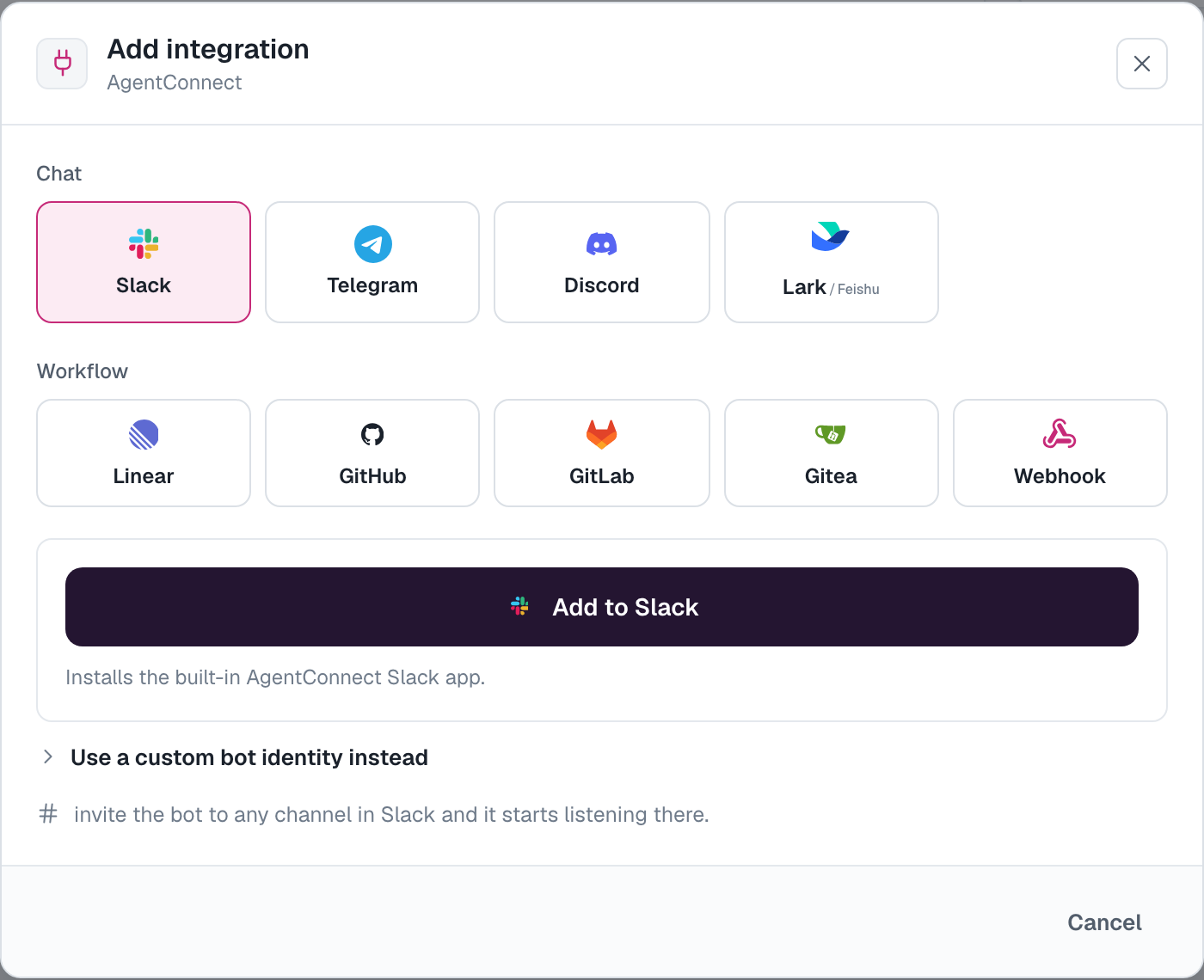
This installation initially connects to the built-in agent. The custom-app and self-hosting sections later on this page are optional alternatives, not extra steps for this Cloud setup.
Use it
Invite AgentConnect to a channel from Slack's channel app settings or with this command (use the bot's display name if you renamed it):
/invite @AgentConnectMention it with a quick task, such as: @AgentConnect Summarize these release notes in two bullets: added CSV export; fixed login errors; improved search. The agent replies in the thread. Reply in that same thread to continue without mentioning it again. You can also open the app in Slack and send a direct message.
Each channel the bot joins appears on the agent's Integrations card. Choose @-mention (the default), any message, or Off for inbound activation. Setting a channel to Off doesn't uninstall the app or block scheduled and delegated outbound posts. See In-conversation commands to stop, cancel, queue messages, or change session settings from Slack.
When a tool call needs approval, the agent posts an approval card in the thread. Who can approve it, and who can change settings from Slack, depends on the agent's What people can do in chat setting. When Follow Slack access is enabled, only the agent's editors can do so.
Slack plans and AI outputs
Slack requires a paid plan for the AI agent experience in the app container. Channel mentions and direct messages still work on free Slack plans; other Slack features depend on your workspace's plan and permissions.
AgentConnect uses generative AI, so responses and generated files may be inaccurate or incomplete. Review outputs and proposed actions before relying on them, especially for legal, medical, financial, or other consequential decisions.
Data and support
Your configured runtime and model provider process the Slack messages, relevant history, and shared files needed for a task. Session transcripts and workspace files may be retained in your chosen execution environment, and memory is stored according to its configuration. AgentConnect encrypts integration credentials in the control plane. See the Privacy Policy for details on processing, retention, and deletion.
For installation help or questions about your data, email contact@agentconnect.md. You don't need an extra account to request support. The Terms of Service apply to AgentConnect's hosted service.
Disconnect or uninstall
Remove the integration from an agent to stop that agent from using it. If the bot is shared, other agents can continue using the same installation. To revoke the app's access to your Slack workspace, remove it in Slack's app management settings (admin approval may be required). Existing sessions, files, and memory are stored separately and aren't automatically deleted when you uninstall the app.
What an agent can do in Slack
In a Slack session, an agent can do more than post replies. It gets built-in Slack tools and uses them when a task calls for them:
- Read context: Fetch recent channel messages, read thread replies, and search public messages across the workspace.
- React: Add emoji reactions to a message or read reactions already on it.
- Update channel items: Pin and unpin channel bookmarks, create and edit canvases, and read or update Slack lists.
- Reach other conversations: Open a direct message, start a conversation, share a file, and schedule a message for later.
These tools are injected only into Slack sessions. The same agent won't have them on other platforms (Discord and Lark / Feishu provide channel history, while Telegram reads attachments only). Every action runs as the bot and appears in the transcript like any other tool call.
Outside the conversation it's replying in, the agent acts with the requester's permissions: it reads only what that person can view and posts only where they can post. Posts sent to a Slack Connect channel from another conversation arrive as drafts that a member of your organization must approve. See Reading and posting in other conversations.
Work in a Code channel
Release candidate: This example was built with AgentConnect v2.9.0-rc.63 and Codex, then rechecked and captured on v2.9.0-rc.65. Code channels require a Slack app and workspace that support the feature and aren't available on every Cloud installation yet. If the agent reports that it can't create one, continue in the original thread.
On Cloud, start with the Slack connection above and give your agent write access to a repository under Workspace. Use a small test repository without business data for your first run. You don't need to install a local daemon for this workflow.
Start with a coding request
Ask for the outcome you want. A multi-step coding task can open a dedicated Code channel, while a quick question stays in the current conversation. For example:
Build a CSV-to-JSON playground I can try here in Slack, then open a PR.Open the channel link the agent returns and continue with follow-up requests such as Keep spaces in values, but ignore empty lines between records. The channel shares one coding session. Thread replies continue that session and receive replies in the thread, while the Code view and artifacts apply to the whole channel.
Inspect the work and try the result
Open Code to view the diff. For an eligible isolated repository, AgentConnect updates the diff as work progresses, comparing the current workspace against the task's starting point. Committing changes keeps that comparison intact.
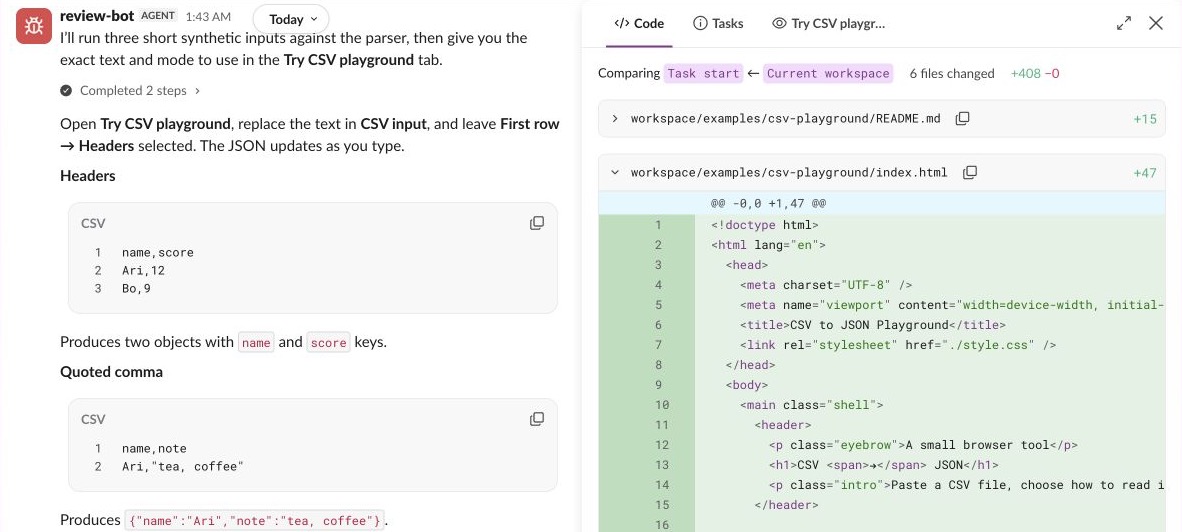
Ask for something interactive, as in the prompt above, and open the HTML preview the agent posts to the channel. In the CSV example, Headers outputs objects and Data outputs arrays. Try this sample input:
name,city,note
Ari,Oslo,"Likes tea, coffee"
Bo,Kyoto,"Said ""hello""
and waved"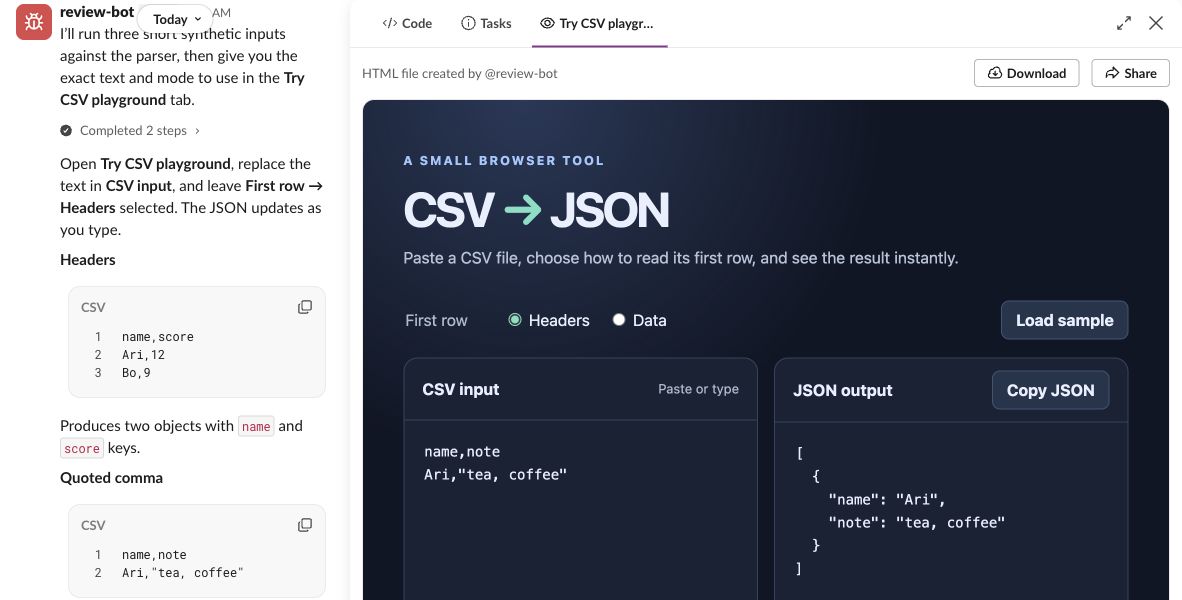
Next, try name,city followed by Ari,Oslo,extra: the preview reports the column count mismatch, clears the output, and disables copying. The example pull request includes the source code and six parser tests.
The fixed bar displays the model and effort together, along with reported context usage such as 42k/200k. Repository, branch, and PR links let you jump straight to the code. PR status reflects the agent's most recent check and is not an automatic subscription to CI updates. Ask Check the PR and update its status whenever you want a fresh check.
Give an agent a custom Slack identity
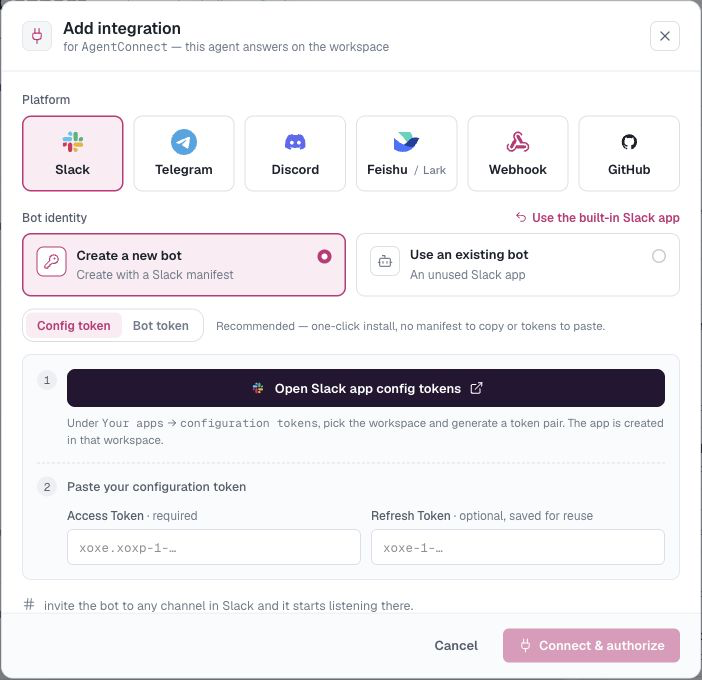
On the built-in agent, choose Use a custom bot identity instead if it needs its own dedicated Slack App. All other agents open the custom-identity flow directly. This is also the standard path when a self-hosted deployment doesn't publish a built-in app.
Configuration-token install
This is the recommended way to create a custom app. If you haven't saved a Slack configuration token yet, AgentConnect links to Slack's configuration-token page. Paste both the access token (xoxe.xoxp-…) and its refresh token (xoxe-…) so AgentConnect can rotate it; an access token saved on its own expires after roughly 12 hours. Slack scopes the pair to one user and one workspace. AgentConnect stores it for that signed-in user, who can replace or clear it under Your profile → Slack config token.
Name the app, click Create & install, and approve it in Slack. With HTTP (Events API) delivery, AgentConnect captures the bot token and signing secret automatically without manual copy-and-paste. With Socket Mode, Slack still requires generating an App-Level token with connections:write and pasting the resulting xapp-… token.
Manifest install
Use this manual fallback when you can't create Slack configuration tokens:
- Choose Copy manifest & open Slack, then create and install the App from the copied manifest.
- For HTTP, paste the Bot User OAuth token (
xoxb-…) and signing secret. - For Socket Mode, paste the Bot User OAuth token and an App-Level token (
xapp-…) withconnections:write.
If Slack indicates that scopes have changed, reinstall the App once before copying the Bot User OAuth token.
Keep the app's permissions current
Slack grants permissions at install time, so a release that adds a new feature can leave an existing installation short of a scope. Instead of failing quietly, AgentConnect lists the missing scopes: open Integrations → Messaging apps → Slack and click Refresh Slack app on the bot's row.
- When AgentConnect can update the app directly, it syncs the manifest and prompts you to reinstall the workspace so Slack grants the new scopes.
- When it can't (such as a manifest install or an app AgentConnect doesn't manage), it sends you to the app's OAuth & Permissions page in Slack to add the listed scopes and reinstall.
Built-in installations are repaired from the same row: AgentConnect starts the reinstall flow and waits for Slack to confirm it.
Delivery modes and self-hosting
- HTTP (Events API): The Cloud default. Inbound callbacks enter through the AgentConnect Relay and route directly to the owning daemon. Required for a sharable bot.
- Socket Mode: A daemon-owned outbound connection. Requires no Relay or public callback URL, and supports one agent per bot.
Self-hosted deployments show the built-in Add to Slack option only after the operator configures the deployment Slack App. Otherwise, use a custom App. HTTP delivery requires a public, connected Relay; without one, use Socket Mode.
Use one Slack app with multiple agents
AgentConnect recommends one bot identity per agent by default. If you want a single Slack identity to route different channels to different agents, make the bot sharable and configure per-channel dispatch:
- Open Integrations → Messaging apps → Slack and enable Sharable for the bot.
- On each additional agent, go to Integrations → Add integration → Slack → Use an existing bot and select it.
- Return to Integrations → Messaging apps → Slack, expand the bot, and pick each channel's Default dispatch agent.
See One Slack app with different agents by channel for the complete setup.
How is this guide?